How to edit the LandingRabbit website design
LandingRabbit comes with 65+ layouts and styles out of the box, and all your layouts can be shared between pages.
This makes it easy to update the design across many pages at once. For example, if you want to change the hero title size on all landing pages, you only need to update the shared hero layout once.
In this document, we are going to go explore:
What are layout options, shape and settings
How to edit page-specific styles
How to save Styles to use across pages
How to edit the whole website design from one view
How to edit LandingRabbit website design via Claude and ChatGPT
How to create fully custom design components
Edit section's layout shape
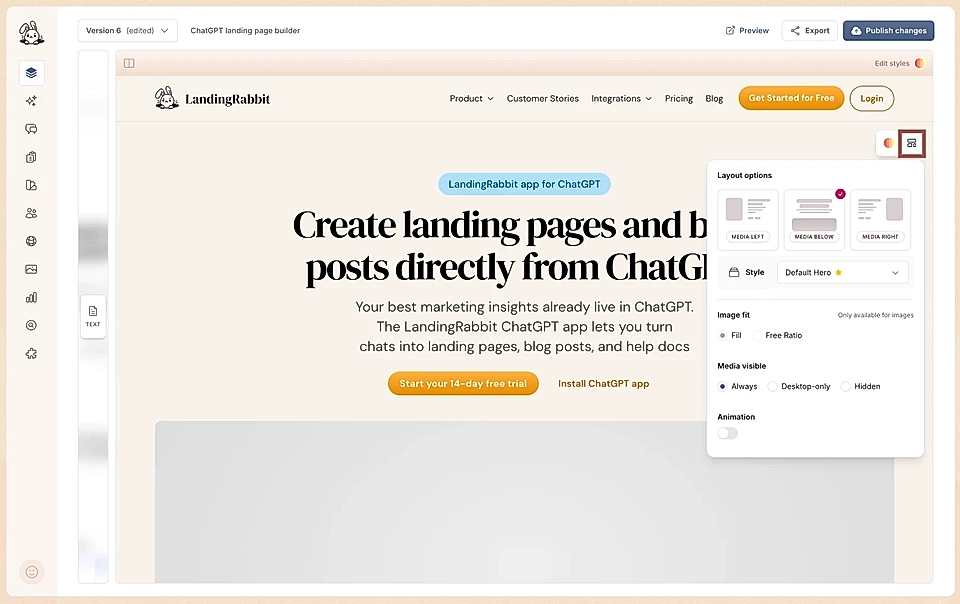
Most LandingRabbit sections such as hero, boxes, and testimonials come with multiple layout options.
In the page editor and from layout options, you can quickly change the structure. The settings depend on the section, but you can typically edit:
Layout shape: For example, hero with an image/video/embed on the left, right, or below
Style: Quickly switch between styles you've already created
Image fit: Choose if the image fills the available area or shows in full
Image/video/embed visibility on desktop and mobile: Choose if the media element is visible on all devices, on desktop only, or not all
Animation: For each layout and style, you can add an animation to smoothly reveal the section and its items.
But if you are looking to make changes to element colours and sizes, click the Edit styles icon to open a chat.
Edit styles on a single page
Hover over the page preview on the right-hand side of the editor. You will see an Edit styles button at the top of the preview.
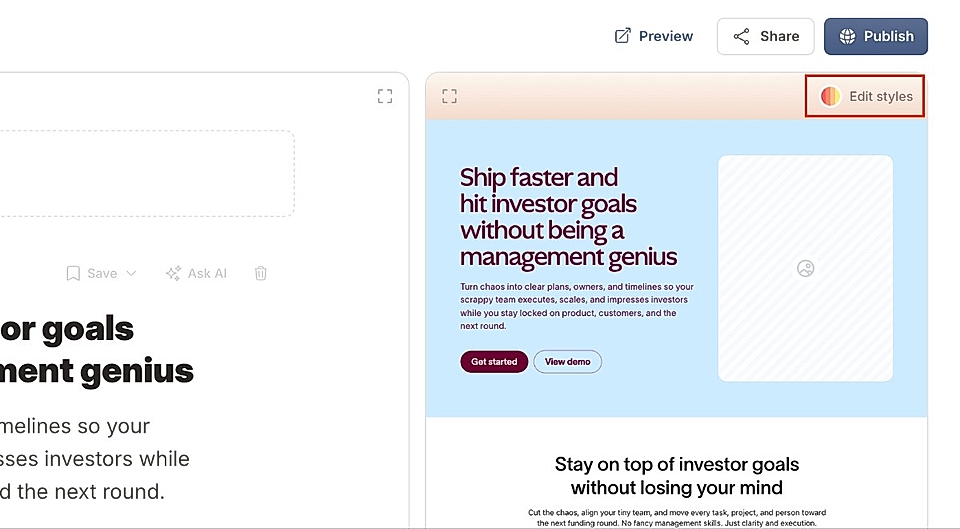
Click that and a chat opens. You can ask for changes for the whole page and all Styles, section and all its Styles, and each section specifically.
You can also hover over any individual section, such as the hero or a boxes section. At the top of each section, you will see two icons: one for layout options and settings and one for editing styles in that specific section.
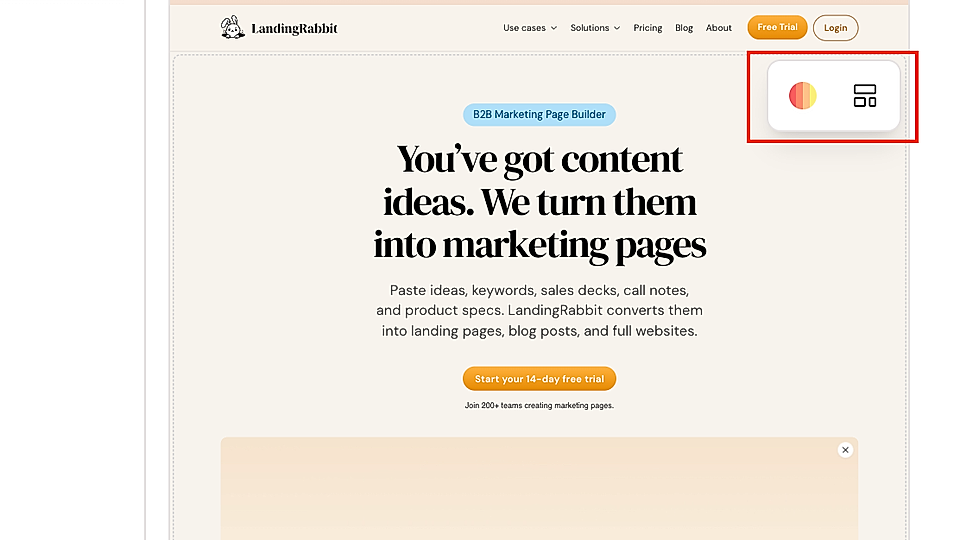
When you click Edit styles, a chat opens.
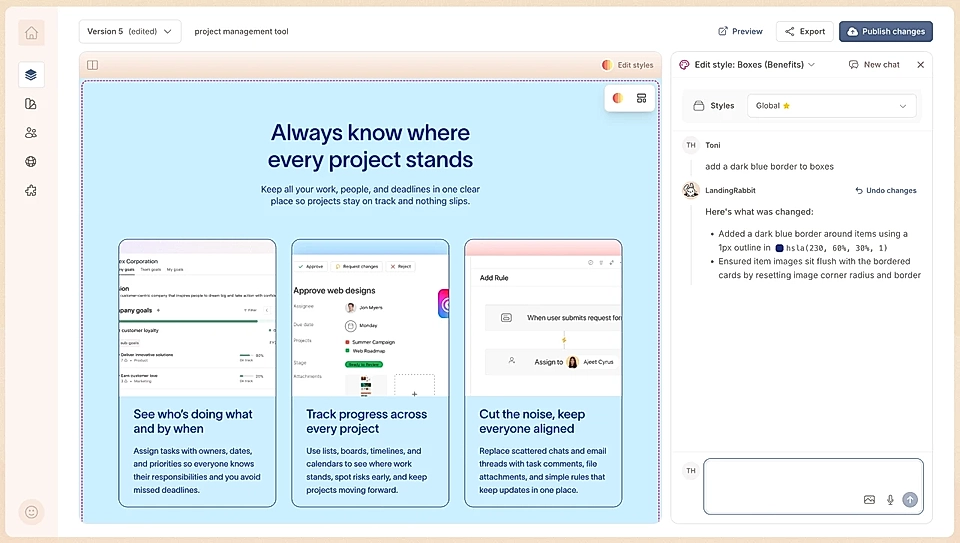
Change the section background color
Adjust font sizes, colors, or font weight
Edit section paddings and item gaps
Update button colors and hover states
Change the section's max width
And much more
Just describe what you want to change, and LandingRabbit applies the updates.
If LandingRabbit is not picking up the right element, hover over titles, buttons, or other items while the chat is open. You will see detailed element names appear, and you can click them to add to the chat. The detailed item names help LandingRabbit to adjust the right part of the page.
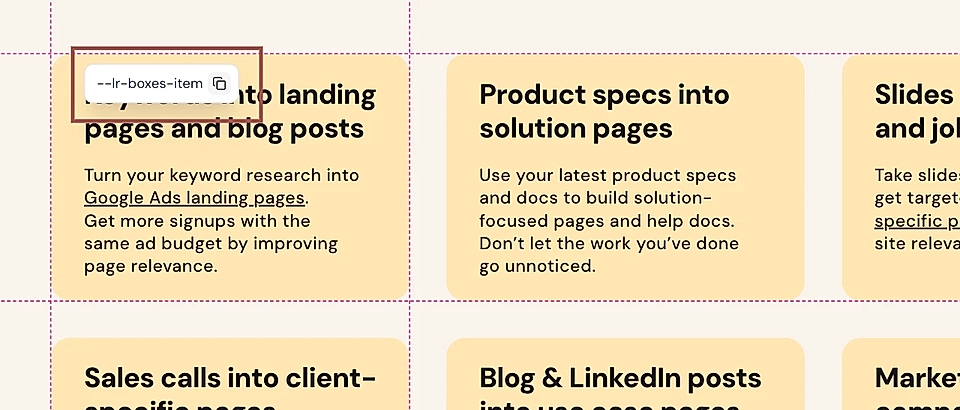
You can also request style changes for desktop and mobile separately.
If you are not sure of the design, ask LandingRabbit to plan a new section layout for you.
You can, for example, ask LandingRabbit to plan a hero section in a certain colour and LandingRabbit will give you options to choose from.
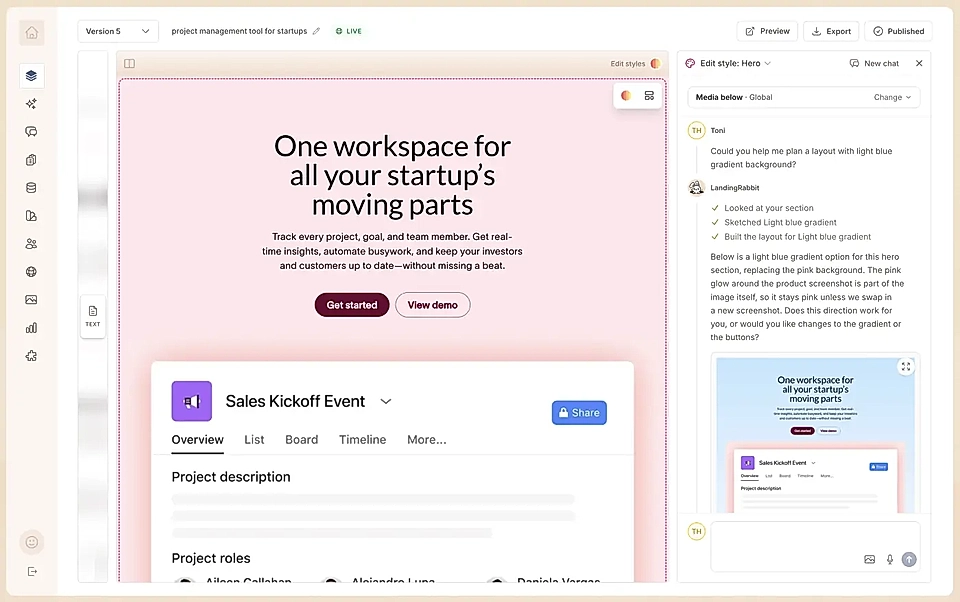
How to use saved Styles
In LandingRabbit, each section can have unlimited number of saved Styles. When you click Edit styles on top of any of the sections, you'll find a Styles dropdown.
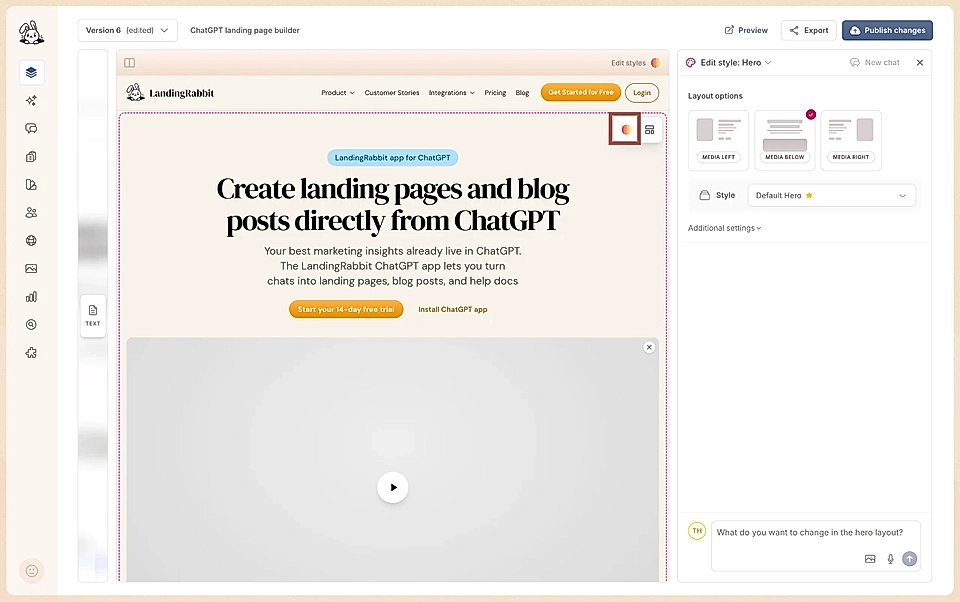
Styles can be shared between pages. When you make a change on one page and to a specific Style, it updates on all other pages. Clever!
When you want to create a look & feel for a specific page, click the Styles dropdown and create a new Style.
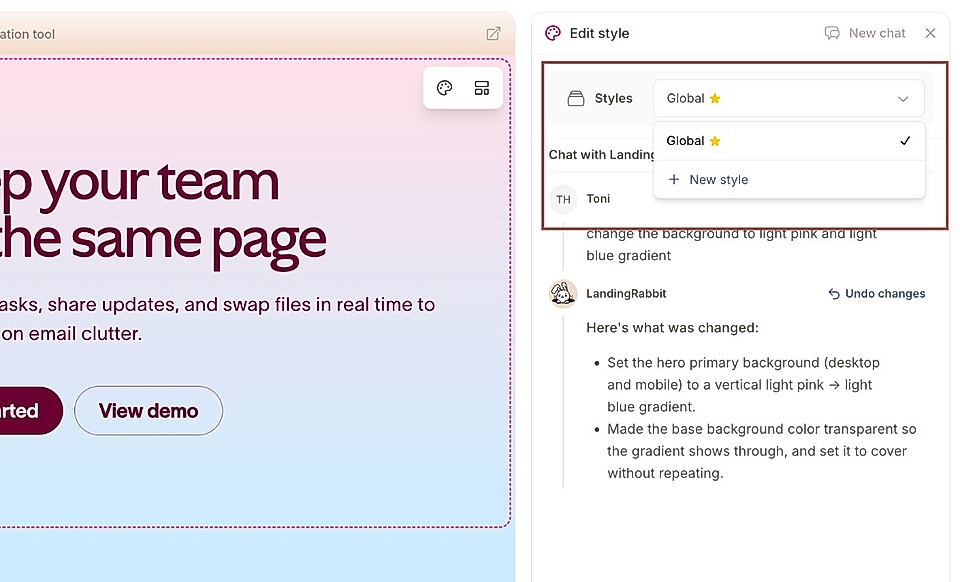
This will allow you to keep the changes and look and feel specific to pages that use this Style.
Edit design across the full website and all layouts with the Design tab
For wider changes across your whole site, use the Design tab.
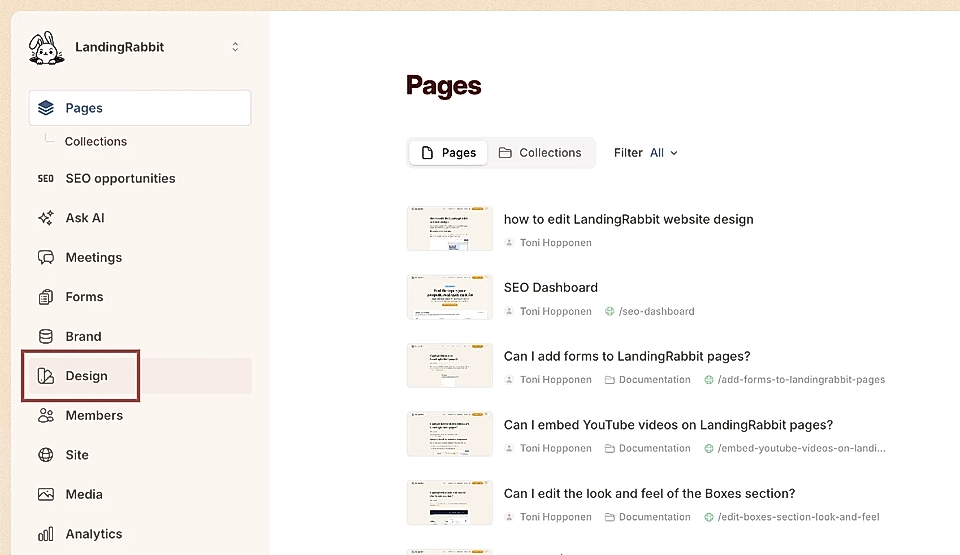
In the Design tab, hover any layout and click the design icon to edit that layout specifically.
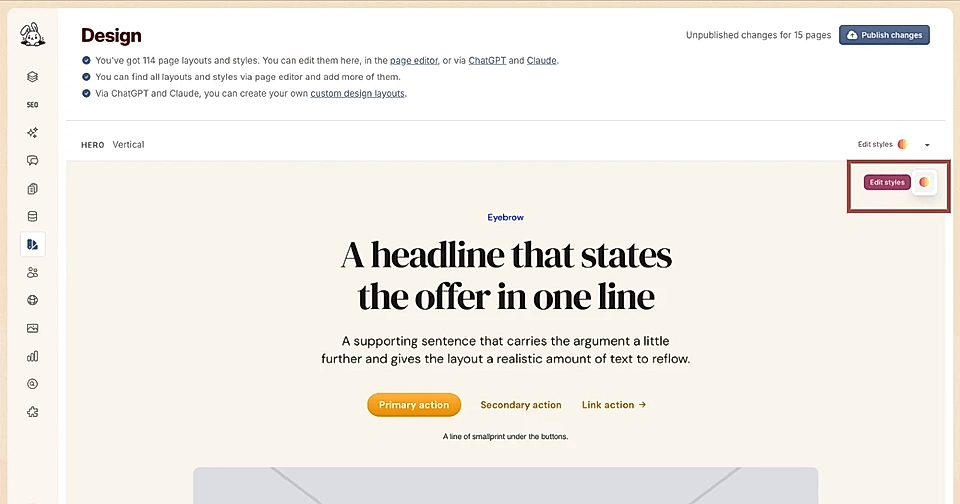
Or click Edit styles at the top to make changes across one section type and all its styles or the whole page and every section.
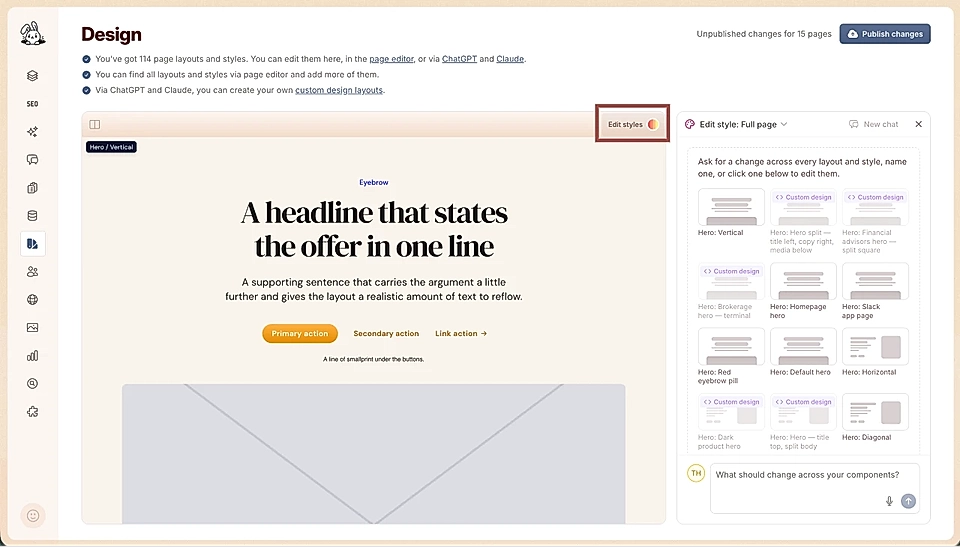
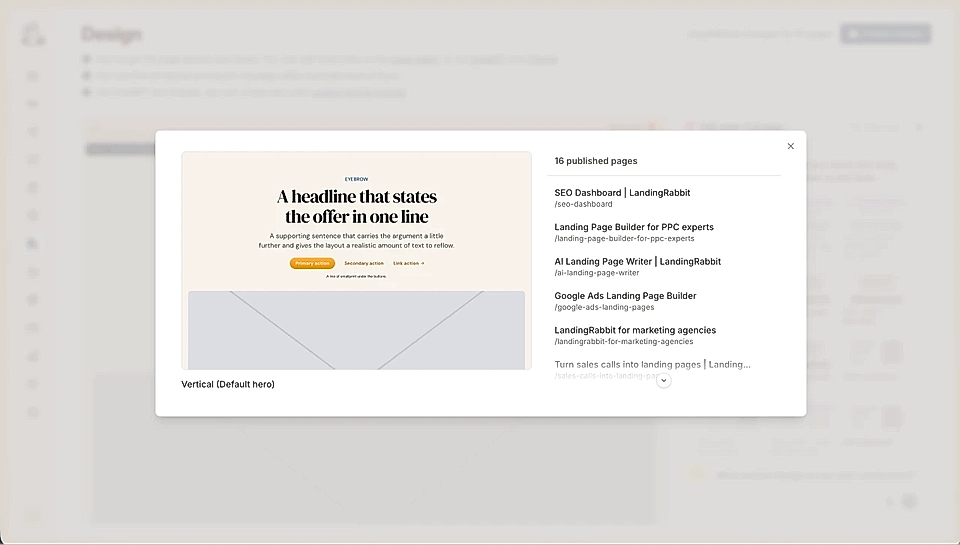
When you hover elements in this view, you can also see how many pages currently share that layout.
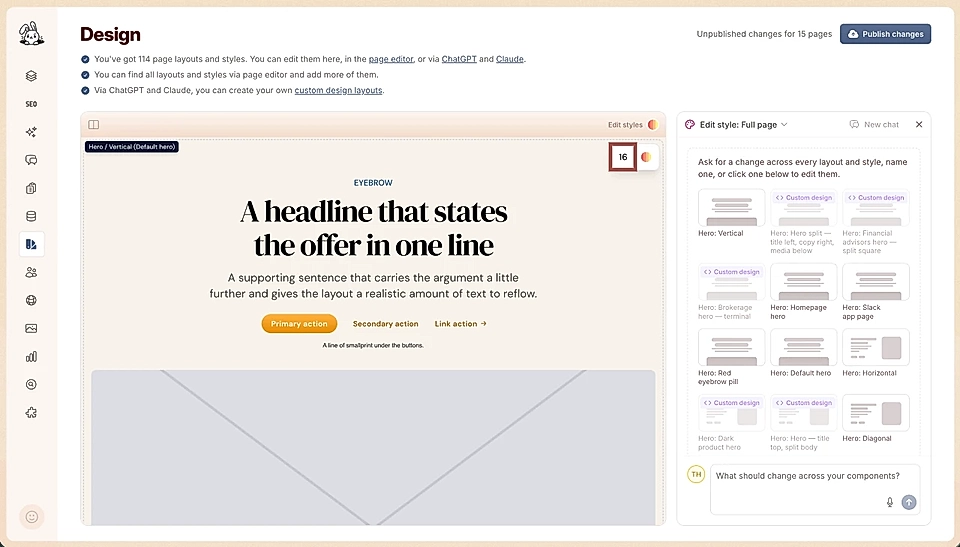
Click the number to see exactly which pages use it, so you can check whether a change might affect a page you want to leave untouched.
Editing LandingRabbit website design via ChatGPT and Claude using LandingRabbit's MCP
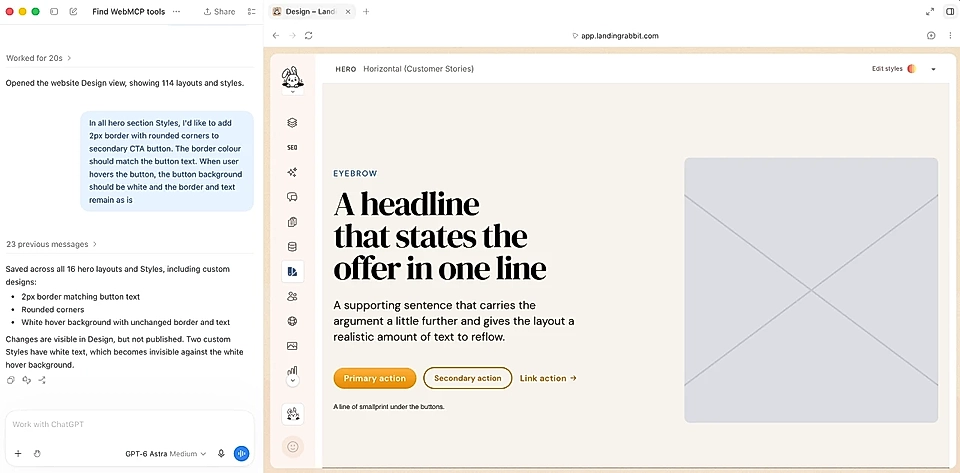
You can also edit page and website design using LandingRabbit's MCP and plugins:
You should be able to edit all styles via ChatGPT and Claude, plus create fully custom components.
Fully custom design components
You can also create custom design components.
In the LandingRabbit page editor, you can ask LandingRabbit to plan a custom design layout based on your idea.
For example, ask LandingRabbit to split the header in two.
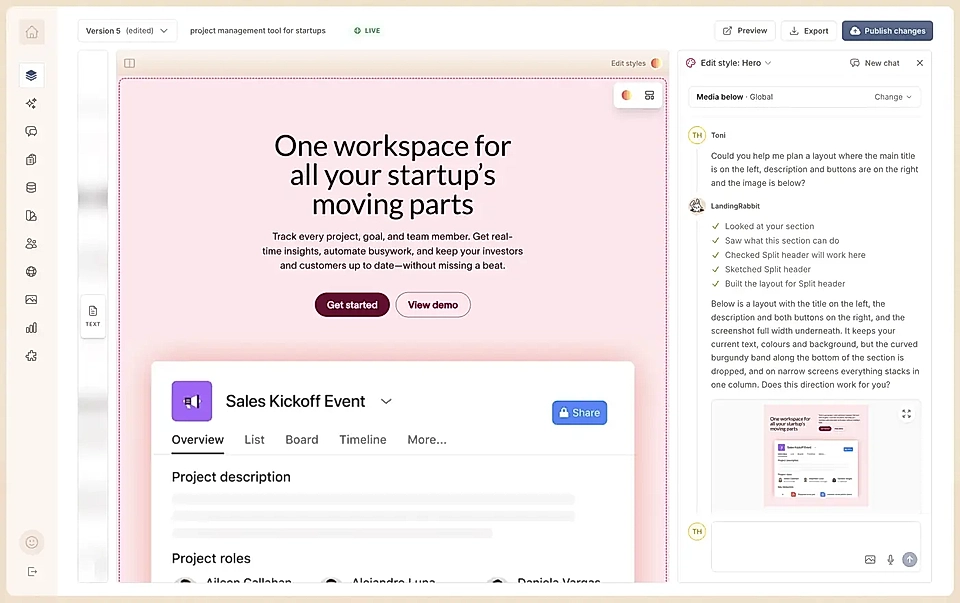
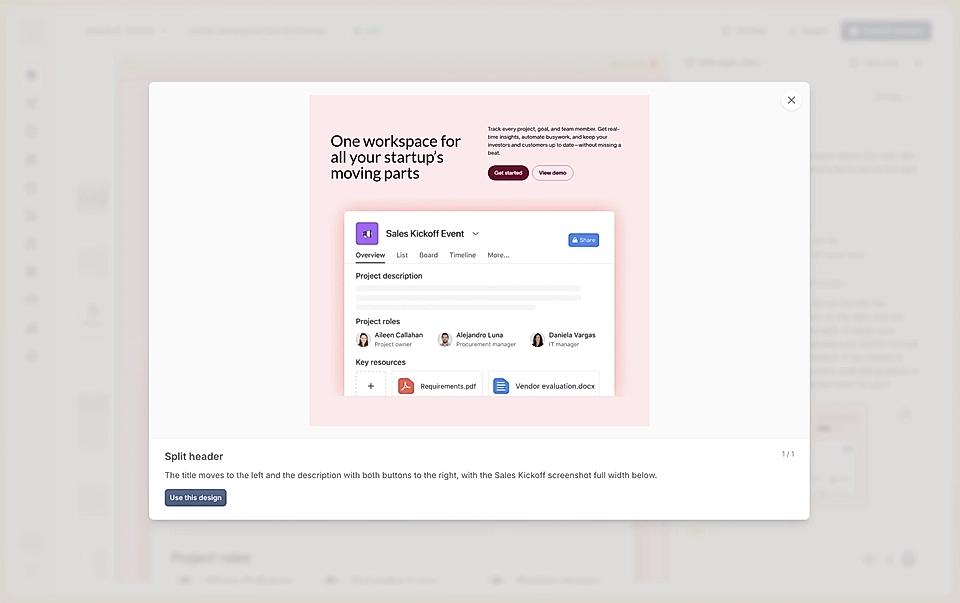
If you are rebranding and want to change everything from background colors to fonts and brand colors all at once, use the rebrand tool instead.
For section-specific layout and design details, see the documentation for Hero, Boxes, Alternate, Tabs, Steps, Pricing, Testimonials, Feed, FAQ, and Collection Page.
If you have any questions, reach out via email the team at [email protected].