Can I create a custom design in LandingRabbit?
Yes, you can.
You can create a fully custom design for any section in LandingRabbit using LandingRabbit's MCP and the custom design tool. The best thing is that you can keep the custom design content fully editable via LandingRabbit's text editor.
Here are three easy steps on how to use a custom design in LandingRabbit 👇
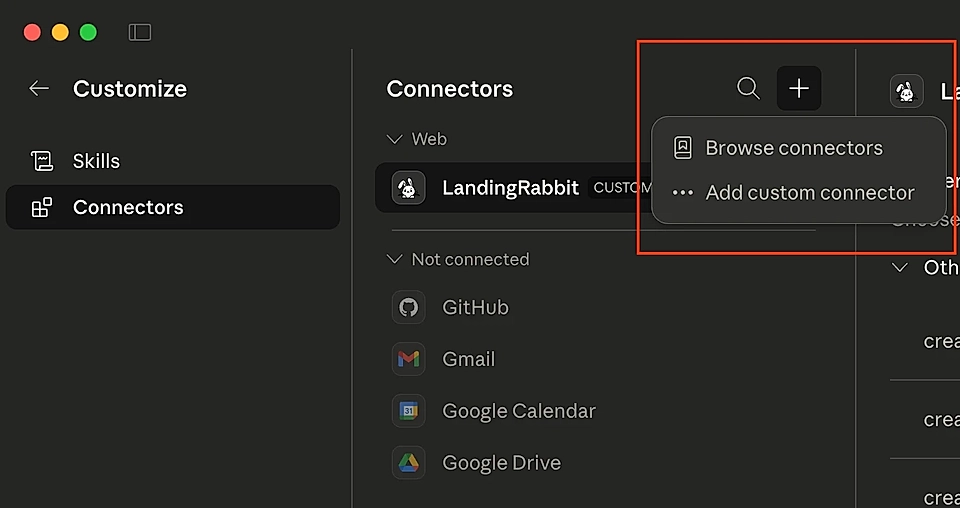
Step 1: Connect the LandingRabbit MCP in ChatGPT or Claude
To get started, connect the LandingRabbit MCP in ChatGPT, Claude, or Claude Code, then ask it to use LandingRabbit and the custom design tool.
Step 2: Create or prepare your page
If you don't have a page to work with yet, ask Claude or ChatGPT to create one for you and add the sections you want to design.
Once the page is ready, ask Claude or ChatGPT to pull in the section you want to customize, for example, the hero section layout.
Step 3: Submit your custom design
Ask the AI app use the custom_design tool available via MCP.
Then, work with Claude or ChatGPT to describe the layout you want and submit your custom design.
For example, you might ask for a "bento" style section with cards, which currently isn't one of the standard LandingRabbit templates.
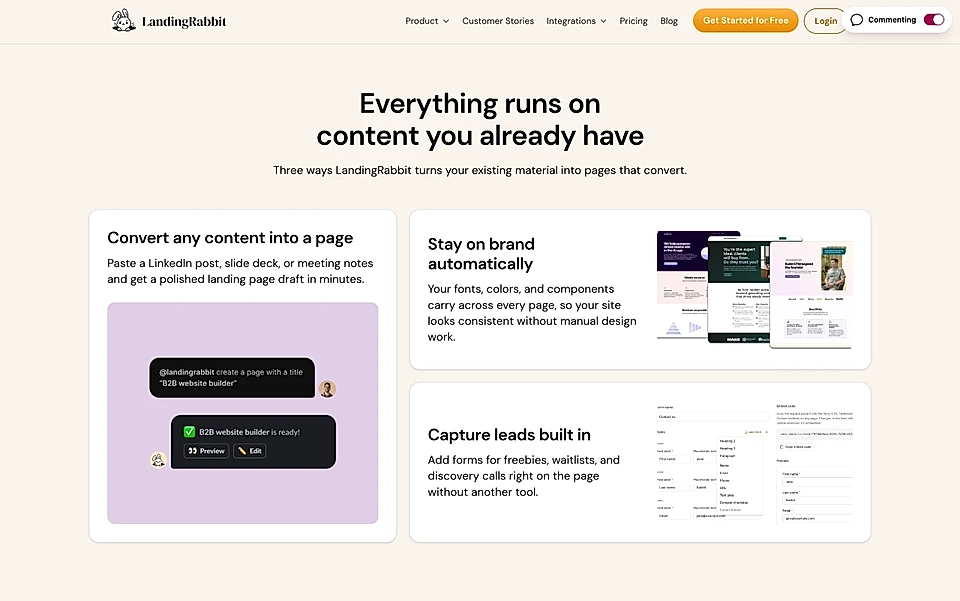
You can be as specific as you like.
The custom design will be created as a new layout, so there's no risk of losing your current page layout.
When you are happy with the results, publish the page and you can use the custom design template across other pages.
What stays editable and what doesn't
The cool thing about the custom design tool is that LandingRabbit keeps the text editor intact.
Whenever a text editor field is available in your custom design, you can include it and edit content just like you would with any standard LandingRabbit layout.
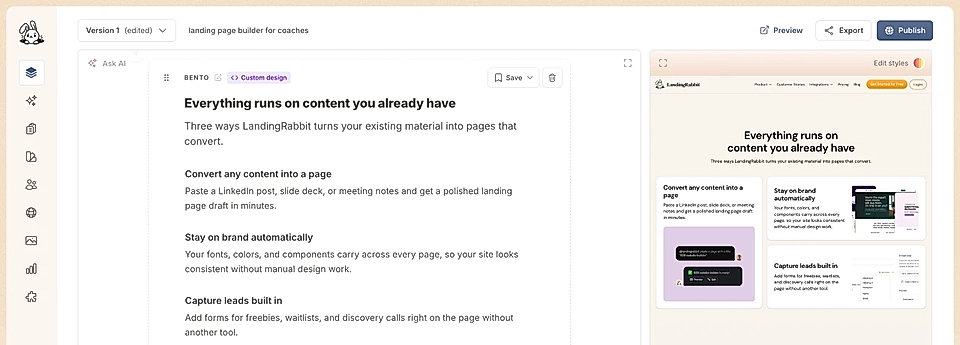
If a field isn't supported by the text editor, or you've added something purely decorative, you can still include it. It just means edits to that part need to be edited via the MCP rather than the text editor.