How do I rebrand my LandingRabbit website in full?
If you are looking to make standard changes to the look and feel like editing the page background color, font weights, and button colors, hover any of the page section and click the Edit styles to ask for adjustments.
But sometimes, your company is rebranding the look & feel, and you need to change almost every detail on your website.
In that case, follow these steps:
Go to LandingRabbit and create a test page with this prompt:
"Create a homepage with the following sections: Hero, Challenge (Steps), Solution (Alternate), Comparison, Features/Services (Boxes), Testimonial, Tabs with three audiences, About us, Pricing, FAQ, CTA".
This will give you a test page for the rebrand.Download the design skill file and ask ChatGPT or Claude to turn your brand design idea into LandingRabbit-friendly format using the skill.
Click the Edit styles button at the top right corner of the page preview
Type /rebrand to the chat and share the brand guidelines from step 2.
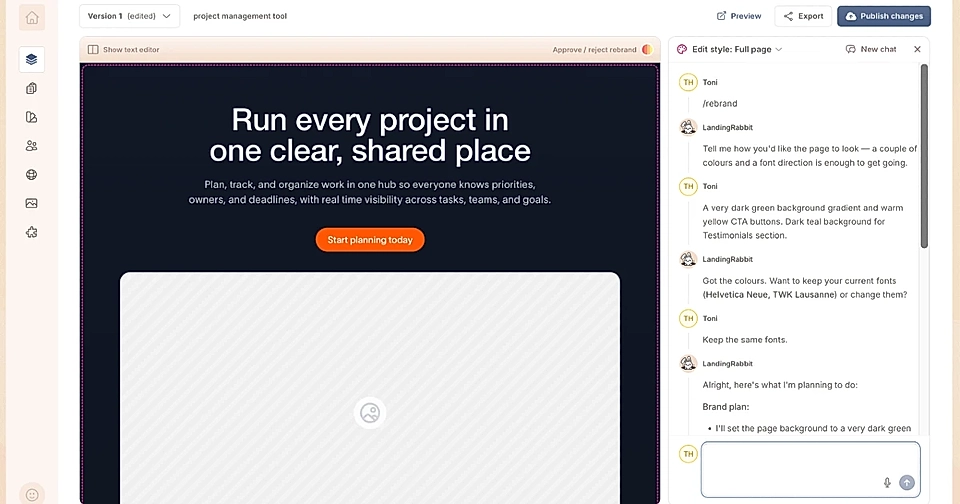
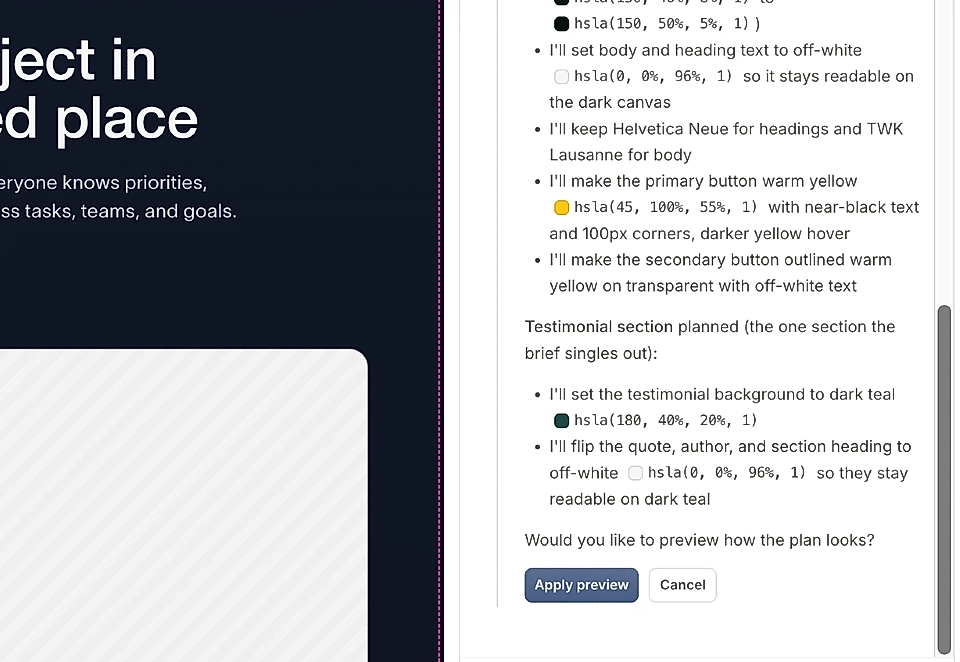
Review LandingRabbit's plan on how to adjust your site colors and click the Apply preview button if you are happy with the plan
If the preview looks good and you are ready to change your brand colors, click the Apply to site button
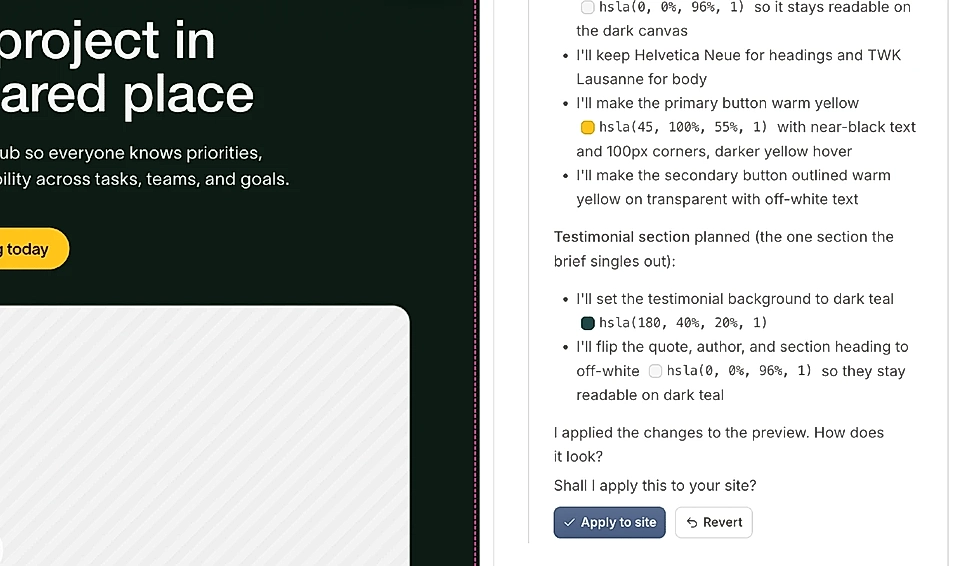
The preview is only visible in the page editor. After applying to the site you won't be able to revert your changes.
To see your changes on the published page, republish at least one page on your LandingRabbit site.
That's it. Your site now uses your new brand colours across all pages.