How to create and edit the Media Grid section

A media grid shows your photos and videos as a wall of tiles, for example case studies or any other visual work.

Choose a layout

There are four layouts: Grid, Mosaic, Carousel and Expand. To switch, click Layout options or Edit styles on the section and pick one of the four.
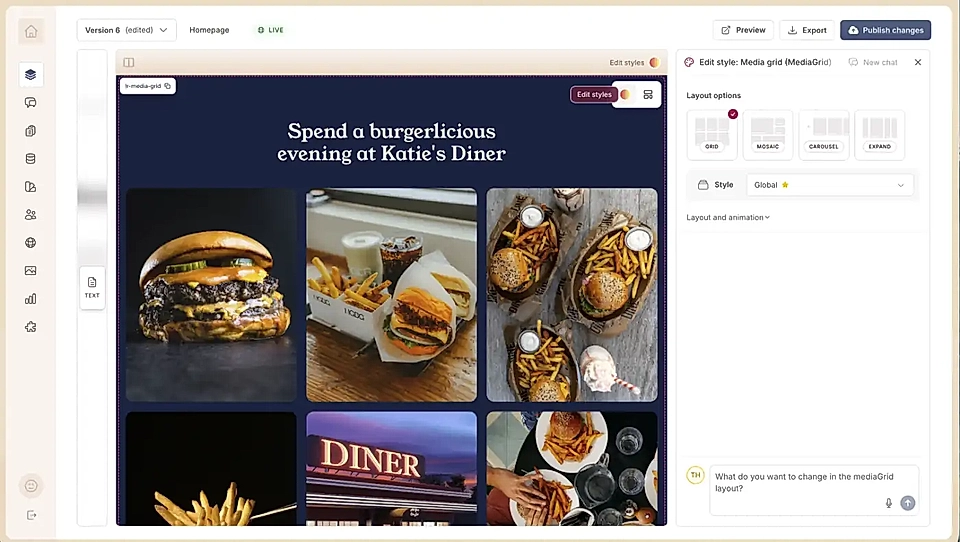
Edit styles and choose the Media Grid layout option

Grid

The Grid layout shows images and videos in the same ratio. You can ask LandingRabbit to change the ratio from 4:5 to, for example, square.
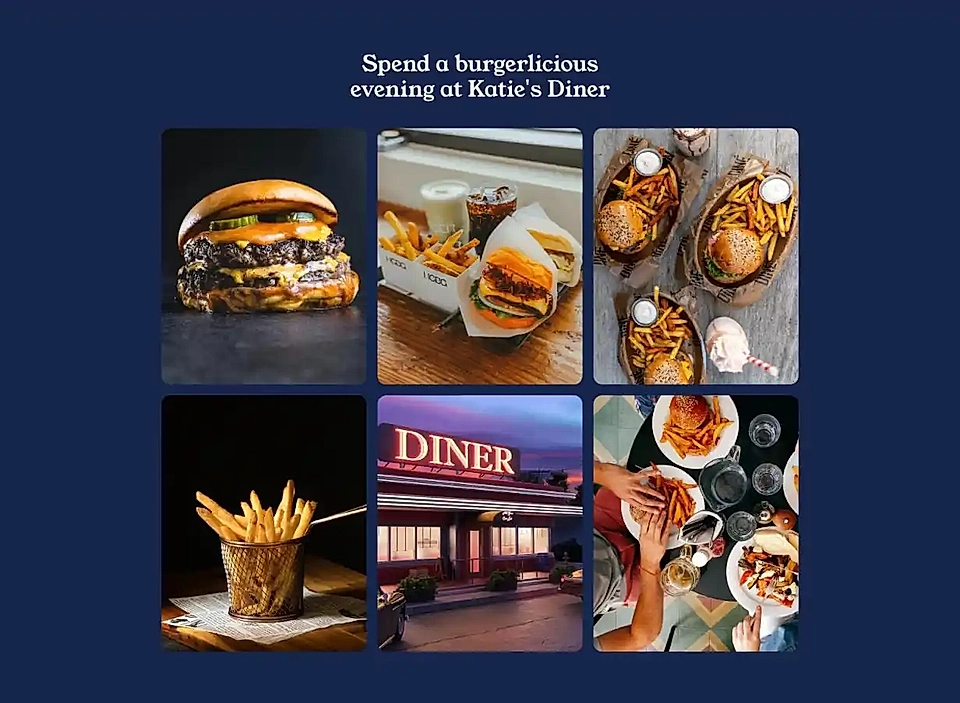
A grid layout example in the media grid section

Mosaic

The Mosaic layout shows images and videos in different sizes and ratios.
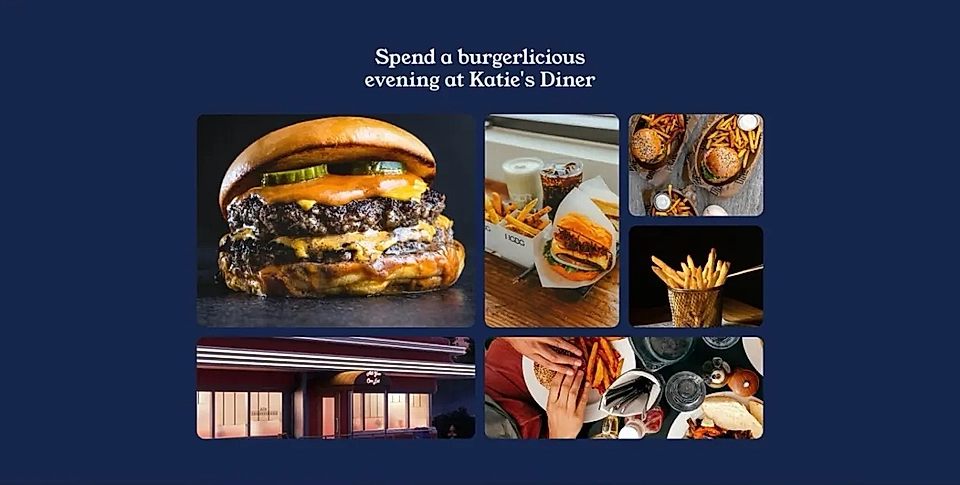
A mosaic layout example in the media grid section

Carousel

The Carousel layout lets visitors scroll through the images sideways.
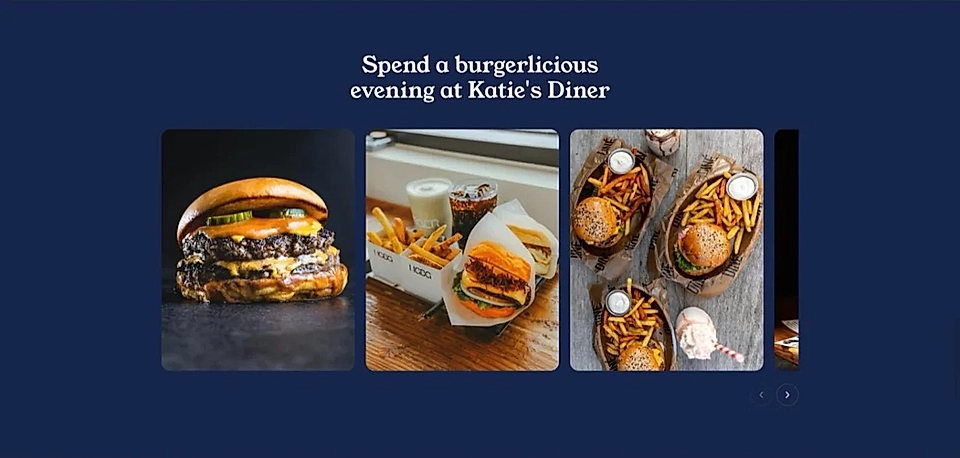
A carousel layout example in the media grid section

You can also set the Carousel layout to auto-scroll images every few seconds.
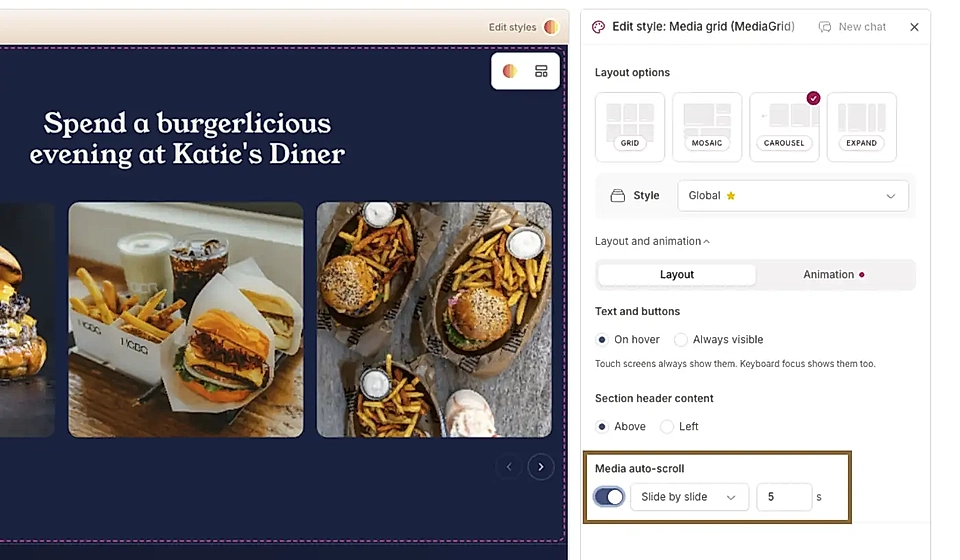
Set up auto-scroll for the Carousel layout

Expand

The Expand layout shows tall strips side by side, and a strip opens wider when a visitor hovers over it or clicks it.
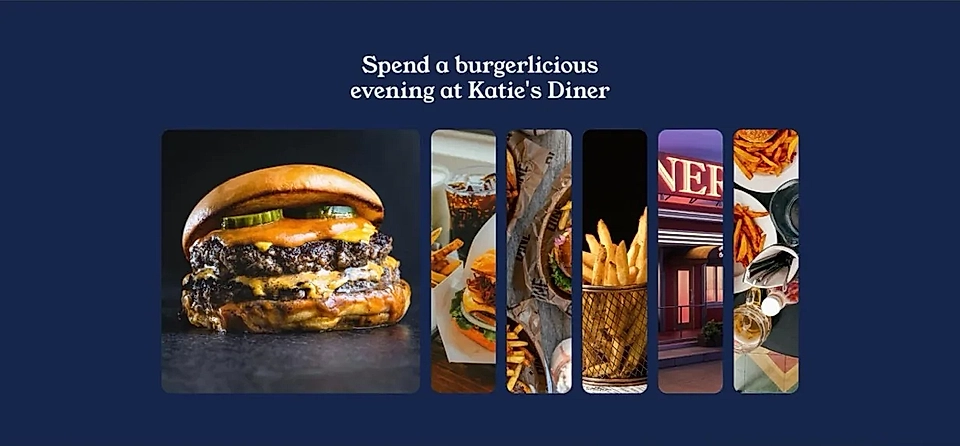
An expand layout example in the media grid section

You can also set the Expand layout to autoloop every few seconds.
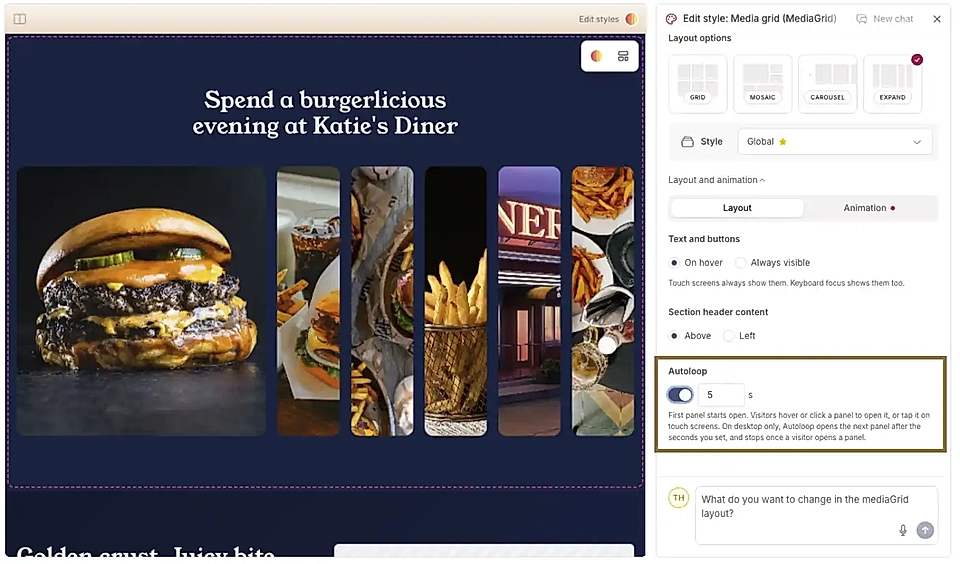
Set up autoloop for the Expand layout in the media grid

Show text on hover or all the time

By default, a tile's text and buttons only show when you hover over it.
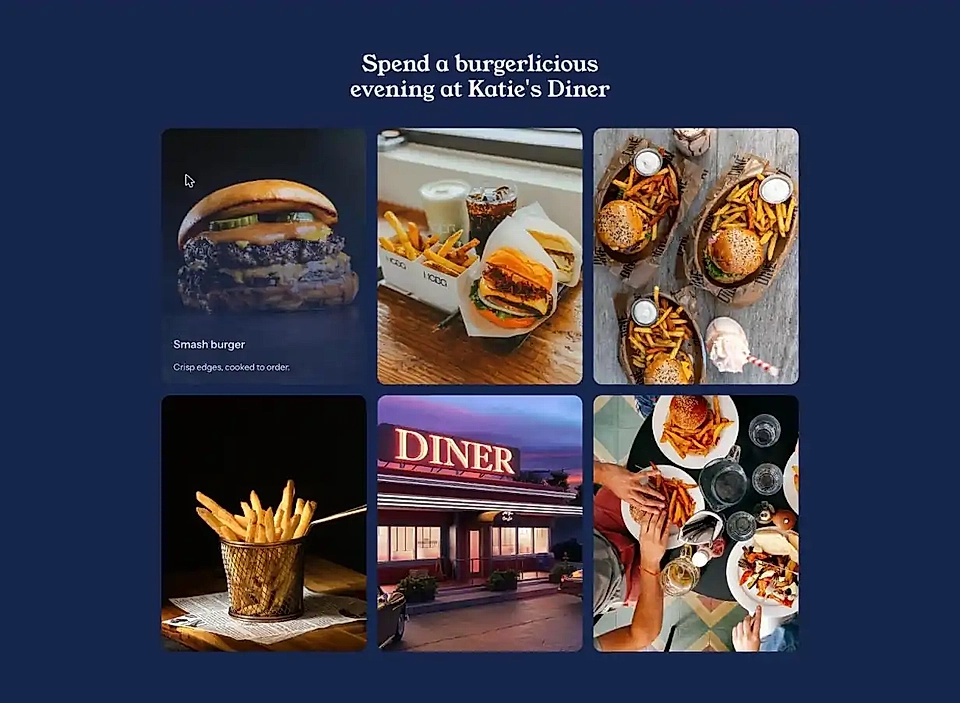
Media grid showing text on top of the image or video on hover

To show them all the time, go to Layout and animation → Layout → Text and buttons and choose Always visible. Touch screens always show the text.
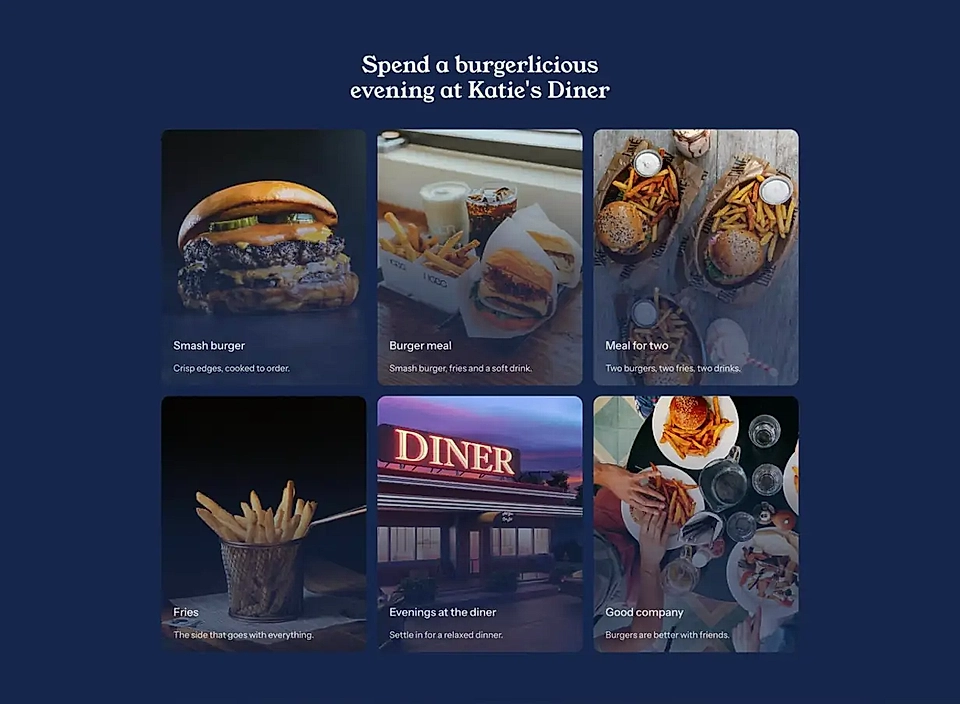
Media grid with text set always visible on top

Add hover animations

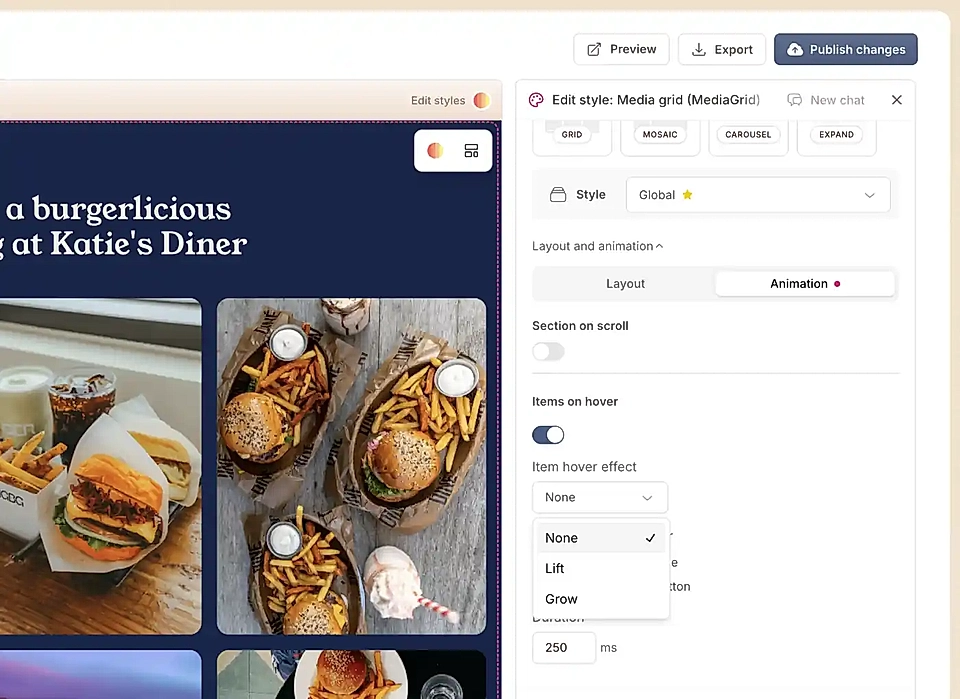
Under Layout and animation → Animation, turn on Items on hover. Then pick an Item hover effect: Lift or Grow.
Add a hover animation Grow or Lift for an image or video in the Media grid layout

Add a section header

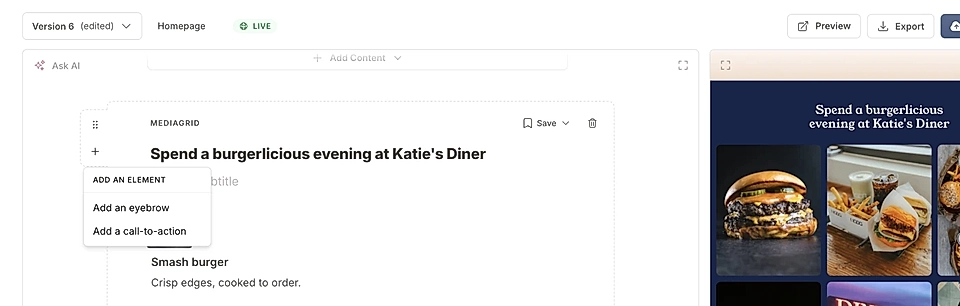
The section can have an eyebrow, a title, a subtitle and call-to-action buttons. Click + next to the section in the editor to add an eyebrow or a call-to-action.
Add media grid section header with a title, subtitle, eyebrows, and CTA buttons
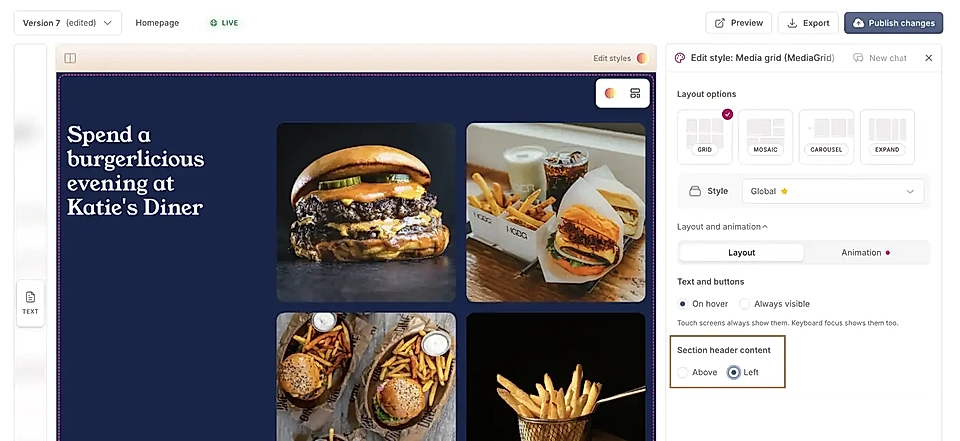
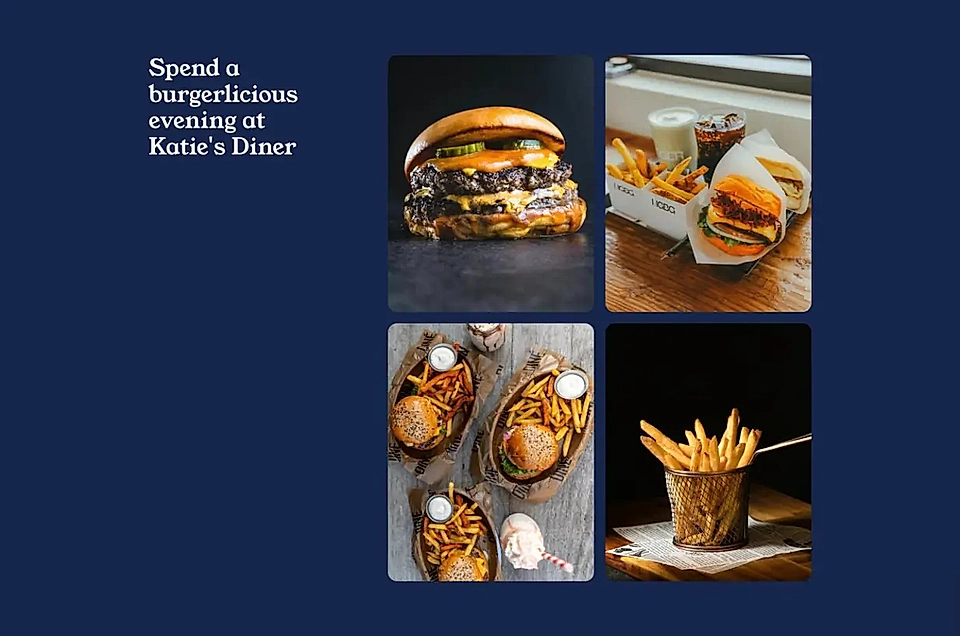
The header sits above the tiles by default. To move it to the left of the tiles, go to Layout and animation → Layout → Section header content and choose Left.
Move the section header to left in the media grid section
Diner promotional layout with the heading “Spend a burgerlicious evening at Katie’s Diner” beside photos of burgers, fries, and drinks.

Add content to the tiles

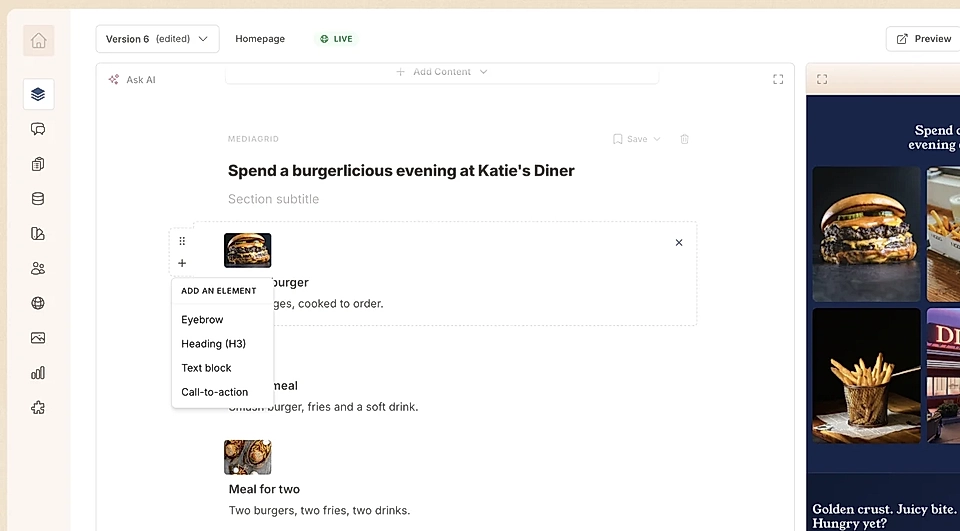
Each tile can have an eyebrow, a title, text and call-to-action buttons. Click + next to a tile to add them.
Add content items to the media grid tiles, showing title, text, eyebrows, and cta buttons on top of the image/video

Link a whole tile

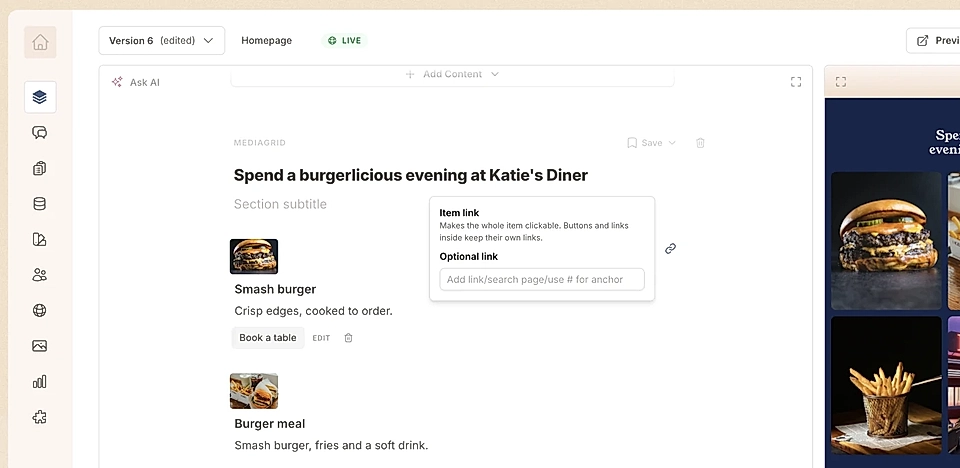
Click the link icon on a tile and add a link to make the whole tile clickable. Buttons and links inside the tile keep their own links.
Make the whole tile a link in the media grid layout

Change the look with the Edit styles chat
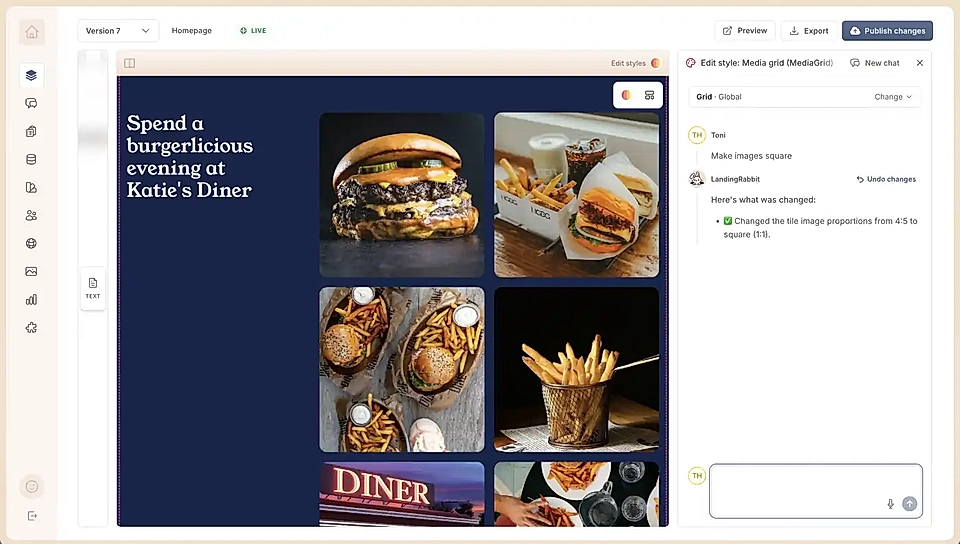
Website editor displaying a diner-themed page with burger and fries photo tiles, alongside an AI chat panel for editing the media grid.
In the Edit styles chat, describe the change you want. For example:
  • "Make the images square"

  • "Use 4 columns" (Grid)

  • "Tighter gaps between tiles"

  • "Square corners"

  • "Make the second tile large" (Mosaic)

  • "Make the title bigger"

  • "Make the tile text white"

  • "Make the shade behind the text darker"

  • "Give the header more room next to the images"

If you are not entirely sure what you can edit, just ask LandingRabbit to plan the look and feel for you.