Can I edit the look and feel of the hero section?
Yes, you can.
The hero section in LandingRabbit gives you a lot of control over how it looks and what it includes.
Layout options
Click the layout options icon at the top of the preview page.
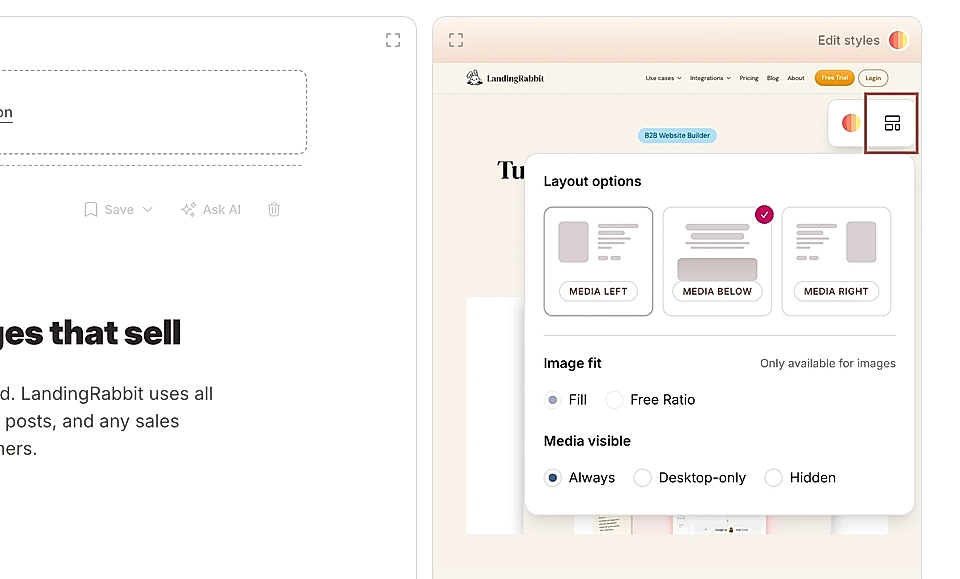
You'll see three options:
- Media left
- Media below
- Media right
This controls where your image, video, or embed code (like a form) appears relative to your text.
Image fit setting
You can choose how your image fills the space:
Fill: the image fills the entire media area
Free ratio: you pick the exact dimensions and ratio
If you know exactly what you want, use free ratio.
Media visibility
Under media visible, you can choose:
Always: show on all devices
Desktop only: hide on mobile and tablet
Hide: remove the media placeholder entirely
This is useful if you want a text-only hero or need different layouts for different screen sizes.
Edit styles with AI
Click Edit styles on the page preview.
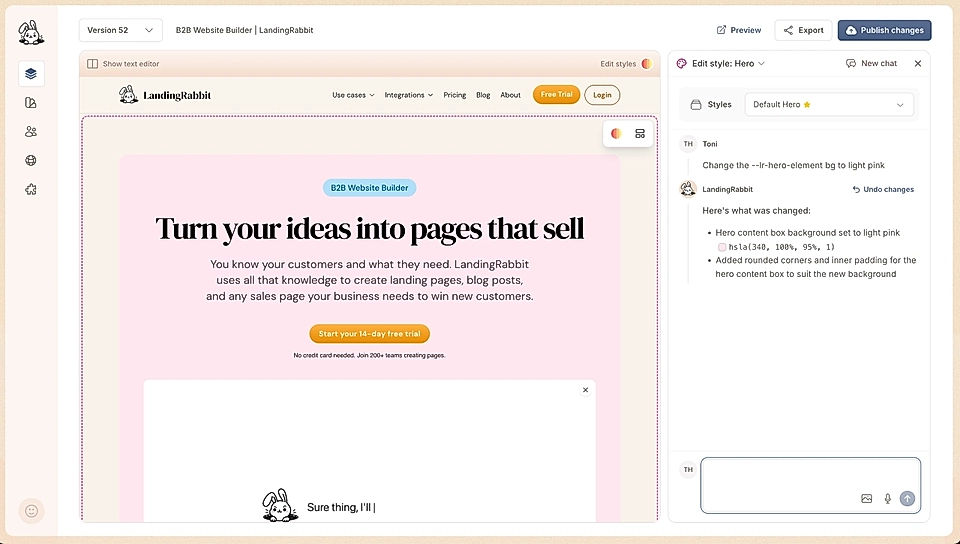
You can ask for changes in plain language. For example, you can:
Change background color or upload a background image
Add a secondary background element and change its color
Change text sizes, colors, and even fonts
Adjust button sizes and colors
Increase or decrease section width
Change how much space the image takes versus the text
Change the gap between the text content and media
Change every text item width separately
Move the text content to left with the vertical layout
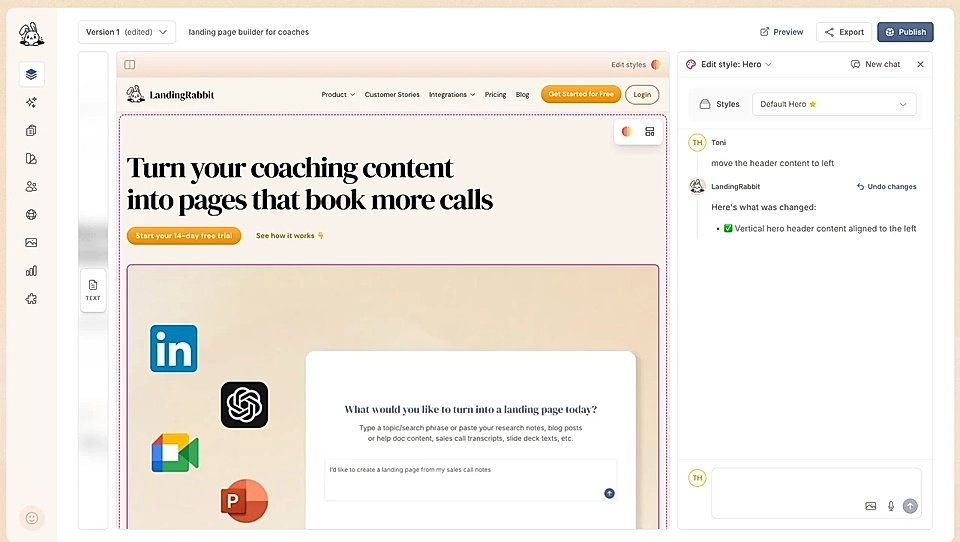
Just describe what you want, and the AI will apply it.
Add or remove text elements
In the page editor, click the add an element icon (the plus sign).
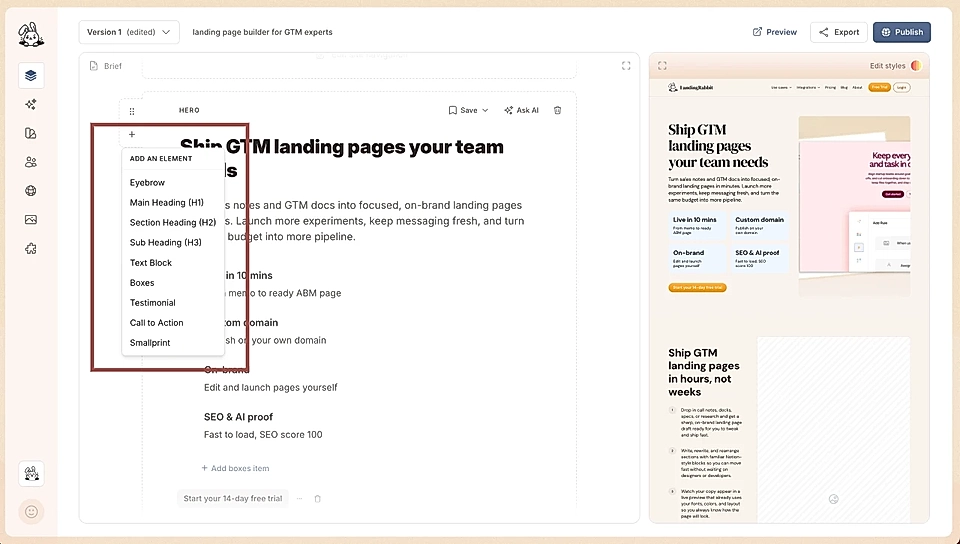
You can add:
Eyebrow
Main heading (H1)
Section heading (H2)
Subheading (H3)
Text block
Boxes
Testimonials
Call to action
Smallprint
Add as many as you need. You can also change their order by dragging them around.
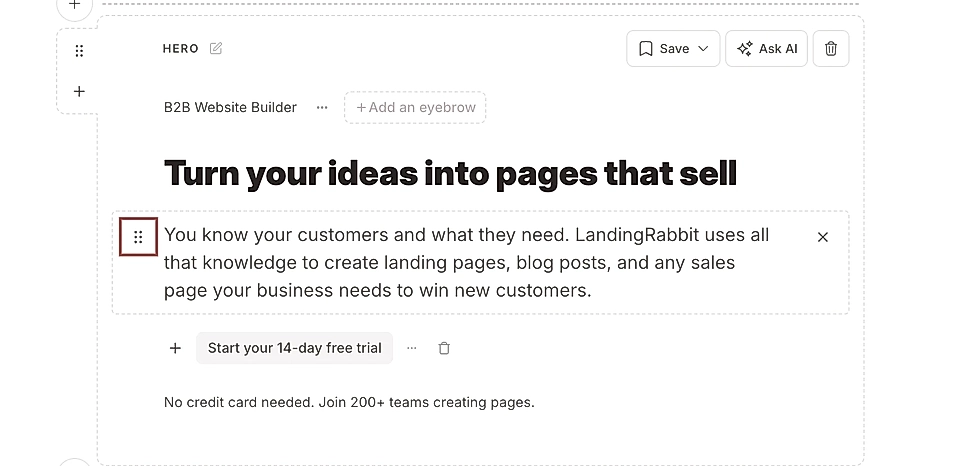
The hero section editor gives you the flexibility to build almost any hero layout you want.
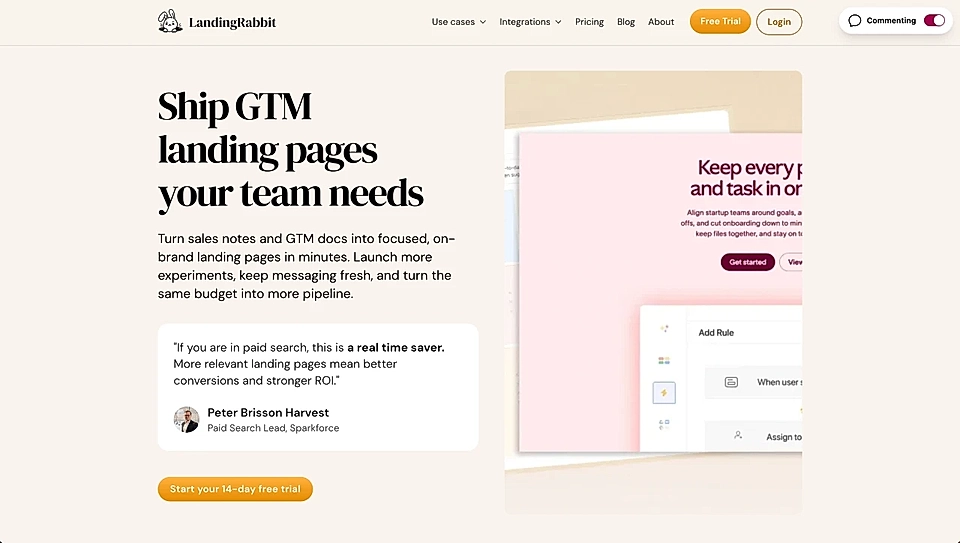
Testimonials in the hero can help you convince buyers.
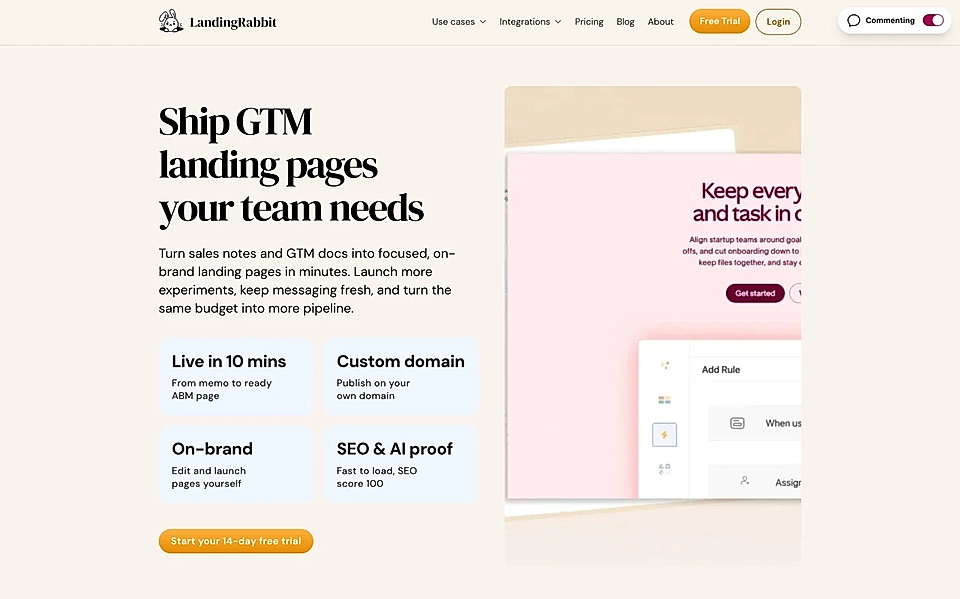
Boxes give you a chance to highlight achievements and key features.
You can control the structure, the visuals, and the text elements without touching any code.