Can I edit the look and feel of the Collection list view?
Yes, you can. You'll need to have at least one Collection created in order to use this feature.
LandingRabbit lets you control how your content appears on the Collection list view page.
You have two options:
Use the LandingRabbit's default Collection page view (recommended)
Use any landing page as your custom Collection page
In this article, we are going to discuss the default Collection page view settings. You can find more information about how to use any landing page as your Collection page.
How to change the look and feel of the default Collection list view
To change how your default Collection list view looks:
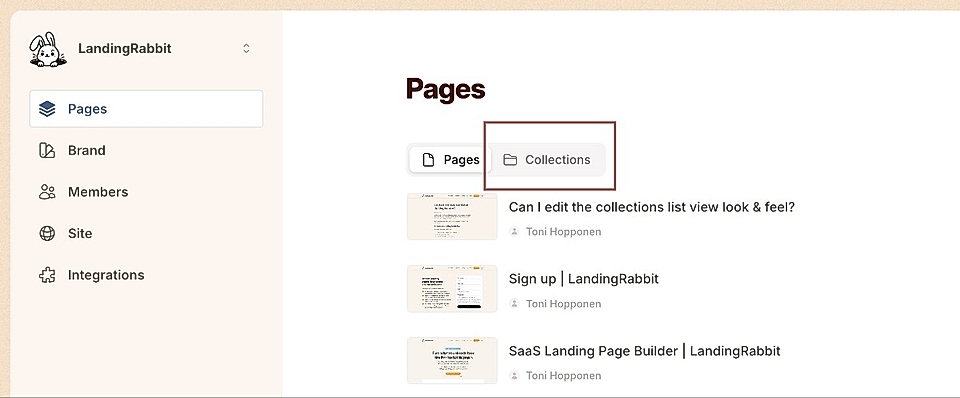
Click Collections on the Pages list view
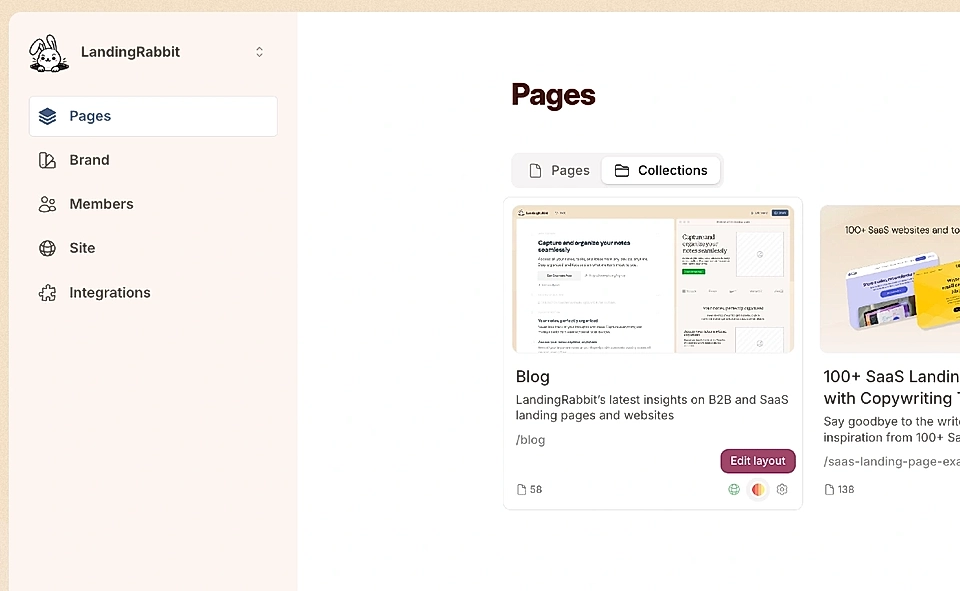
Click the Edit layout icon for any of the Collections
You'll see layout choices appear, and on the right side of the screen, you can preview how the page will look.
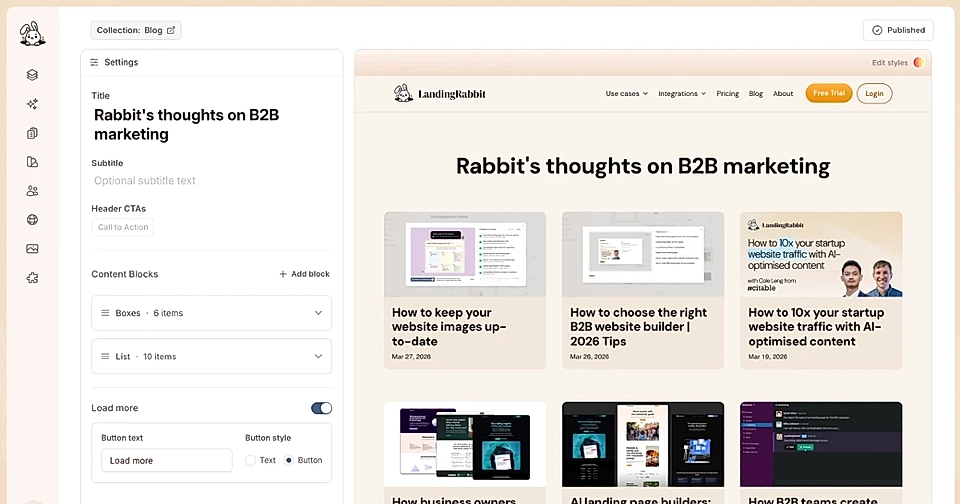
Edit eyebrow, title, and subtitle, and choose your list layout style
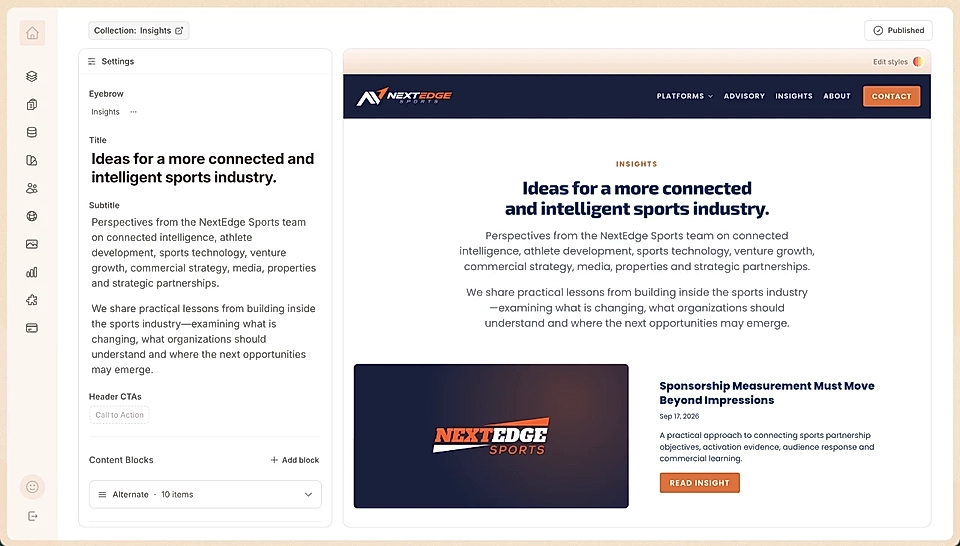
On the top left, you can edit the eyebrow, title, and subtitle of the Collection view and add CTA buttons.
If you have added Categories to your Collections, you use them as filters on the page.
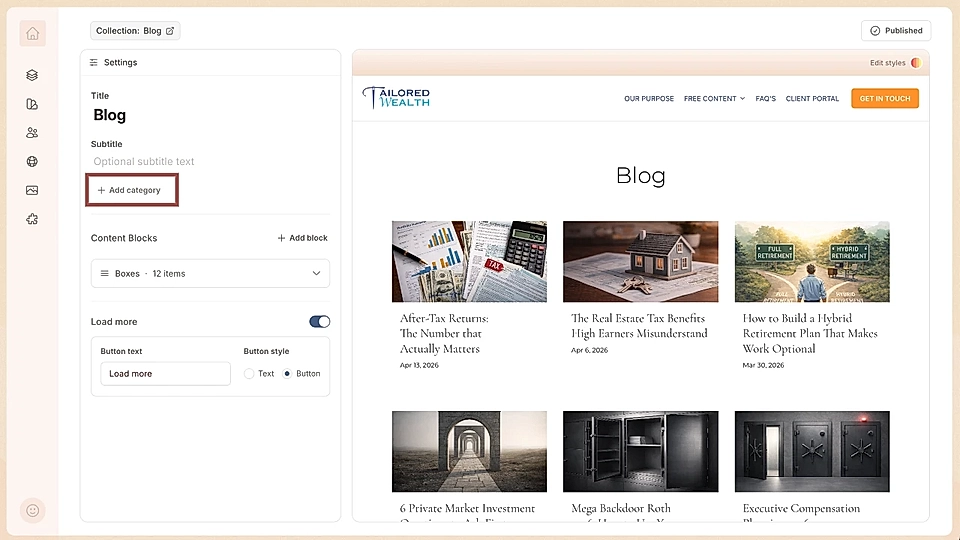
For the content list, LandingRabbit gives you several layout options:
Boxes: displays posts in a grid
Alternate: switches the image position from left to right
List: shows posts in a vertical list
You can also stack layouts by clicking + Add block. For example, you might want the first three posts to appear as boxes, and the rest as a list below that.
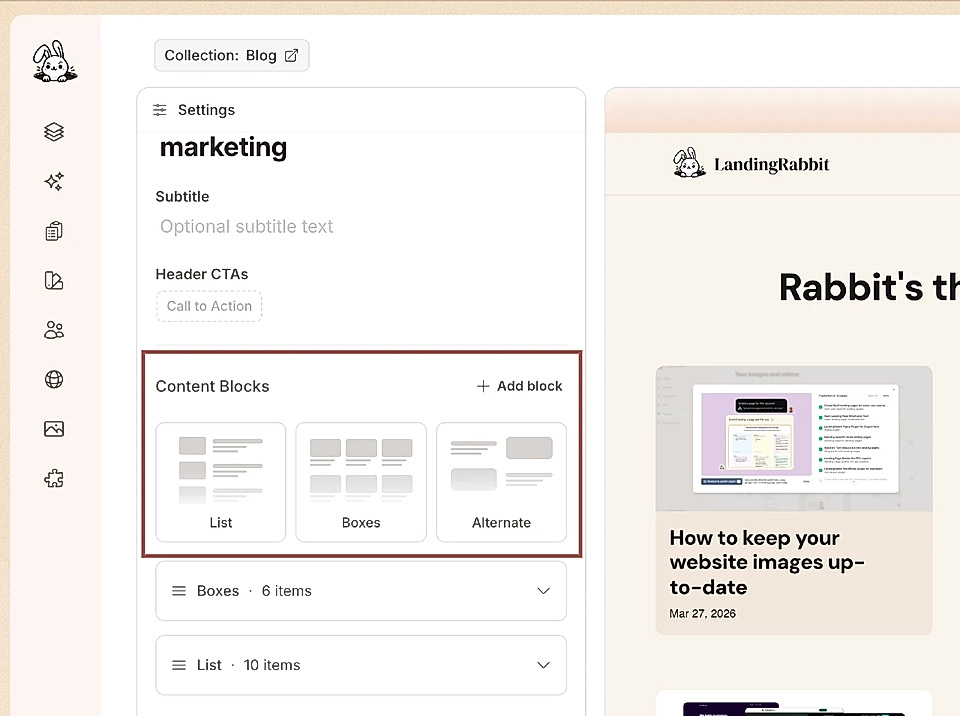
For each layout, you can decide:
How many posts are visible
Visibility for title, description, timestamp and read more button, and their order in the layout
What the read more button text says (if enabled)
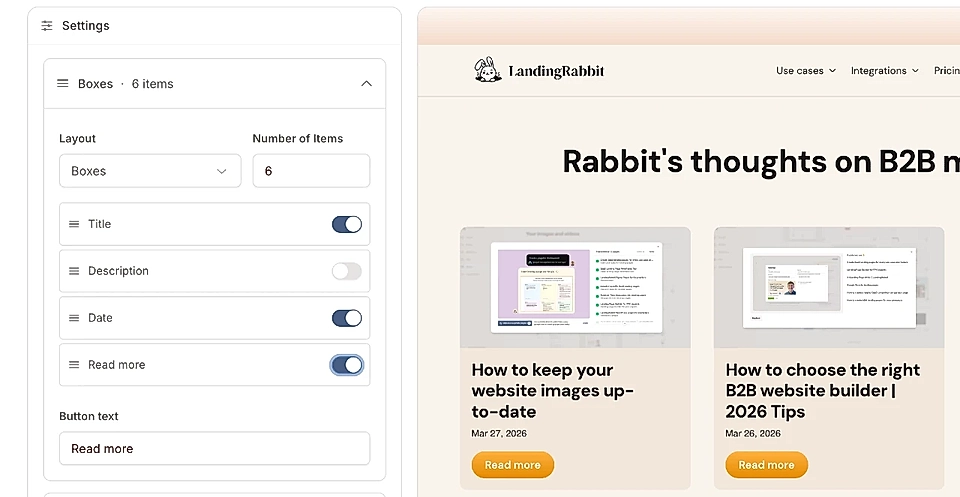
Add a load more button
If you have more posts than fit in your chosen layout, you can add a load more button.
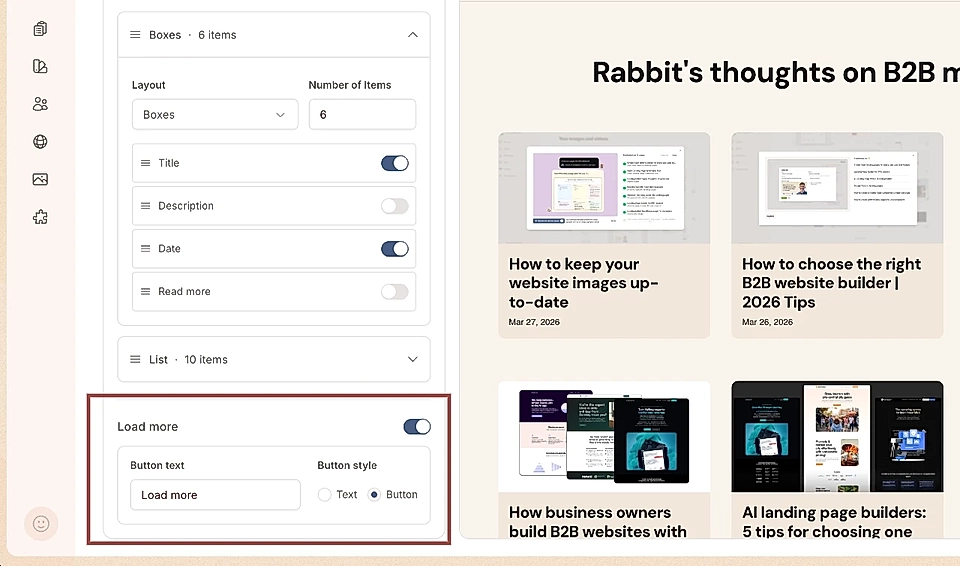
You can control:
Whether the button appears or not
The look and feel: text or button
What text the button displays
Edit Collection list page styles
Just like any other page in LandingRabbit, you can edit the styles of your Collection list view.
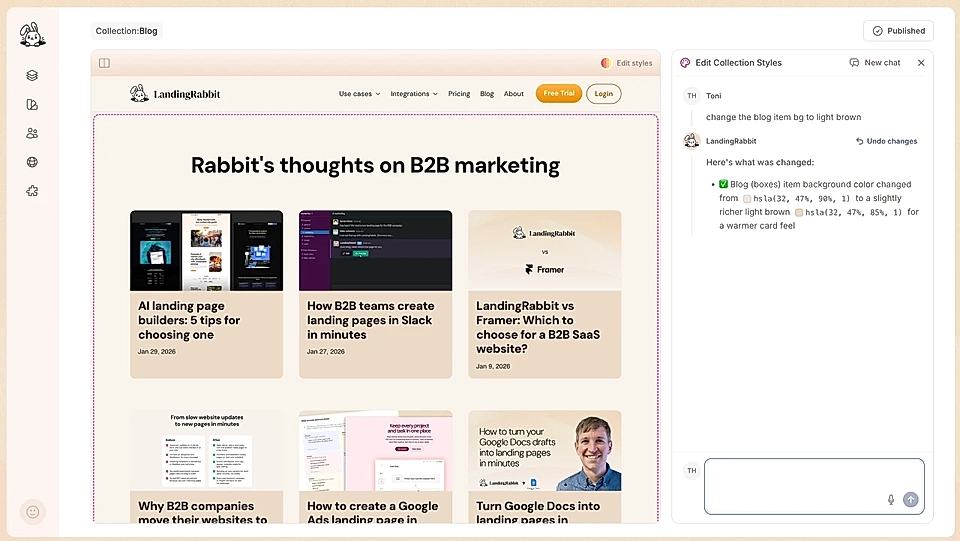
Click Edit styles to:
Change the page background
Adjust the styles of the list itself (fonts, text colour, etc.)
Modify how individual post items look
Once you are ready, click the Publish button on the top right corner and your new look & feel goes live.