How do I change the look and feel of a LandingRabbit page?
Editing your LandingRabbit website design and changing the look and feel of a page is quick and easy.
Once a page is generated, hover over the page preview on the right-hand side of the editor.
At the top of the page preview, you’ll see an Edit styles button for making multi-section style changes.
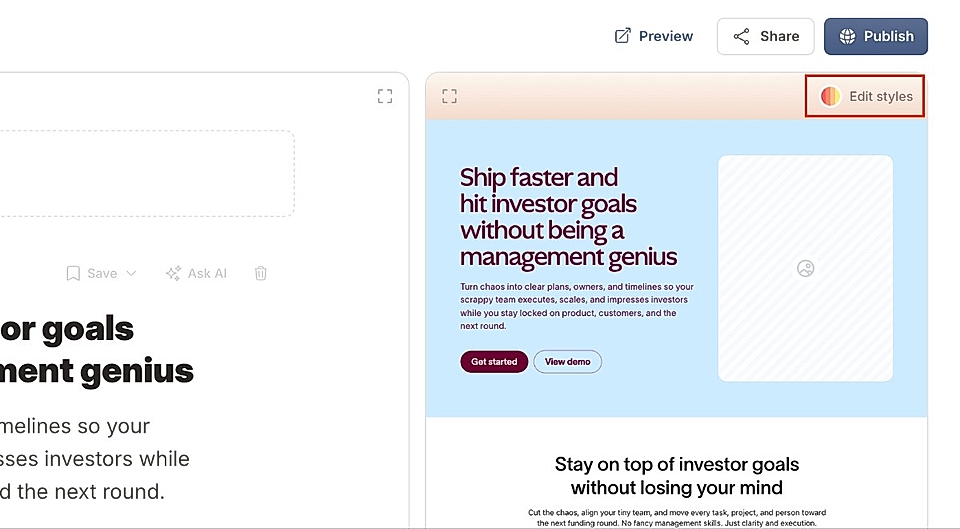
And at the top of each section, for example, hero, you’ll see two icons:
- One for layout options
- One for editing styles in that specific section
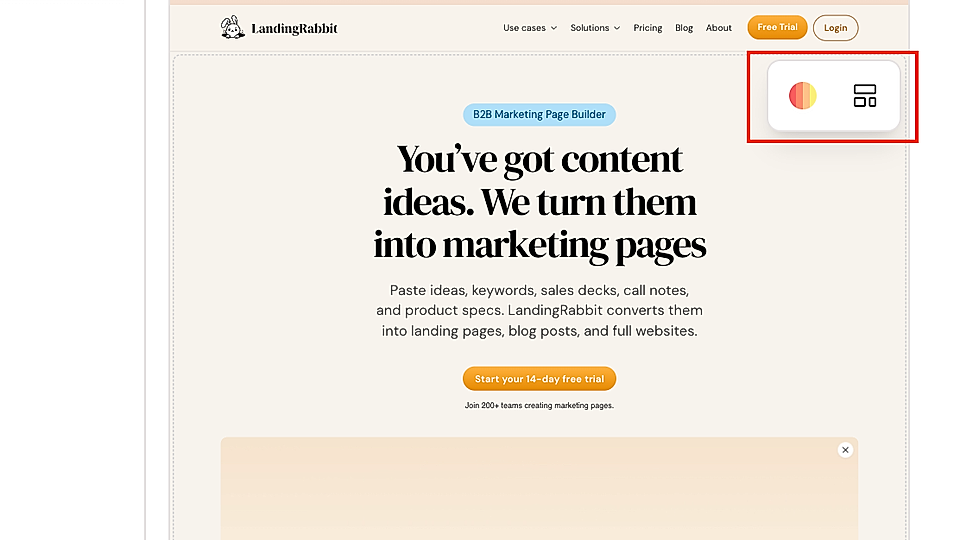
Edit section's layout shape
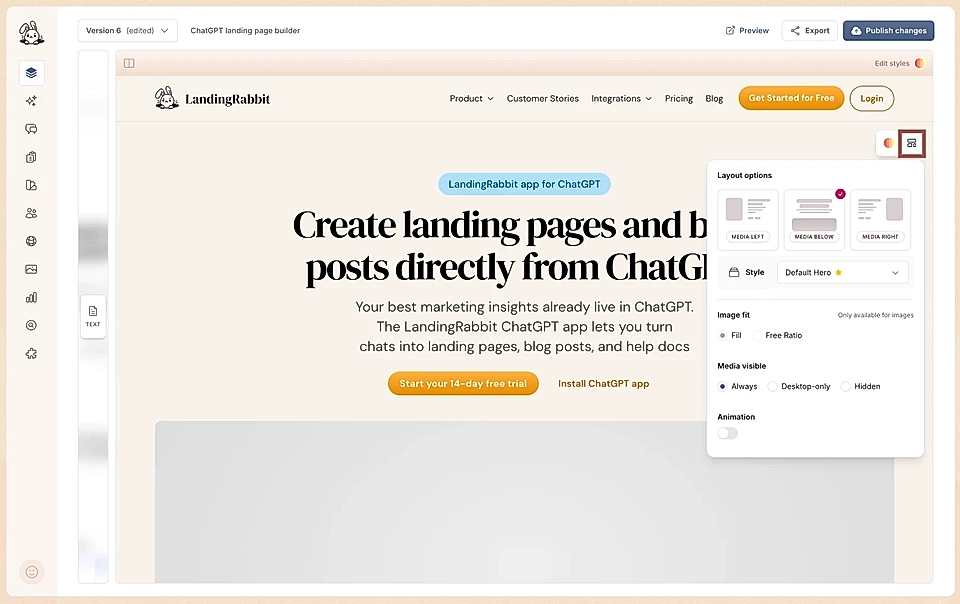
From layout options, you can quickly change the structure of the layout for each section. The settings depend on the section, but from layout options, you can typically edit:
Layout shape: For example, hero with an image/video/embed on the left, right, or below
Style: Quickly switch between styles you've already created
Image fit: Choose if the image fills the available area or shows in full
Image/video/embed visibility on desktop and mobile: Choose if the media element is visible on all devices, on desktop only, or not all
Animation: For each layout and style, you can add an animation to smoothly reveal the section and its items.
But if you are looking to make changes to element colours and sizes, click the edit styles icon to open a chat.
Edit section's styles
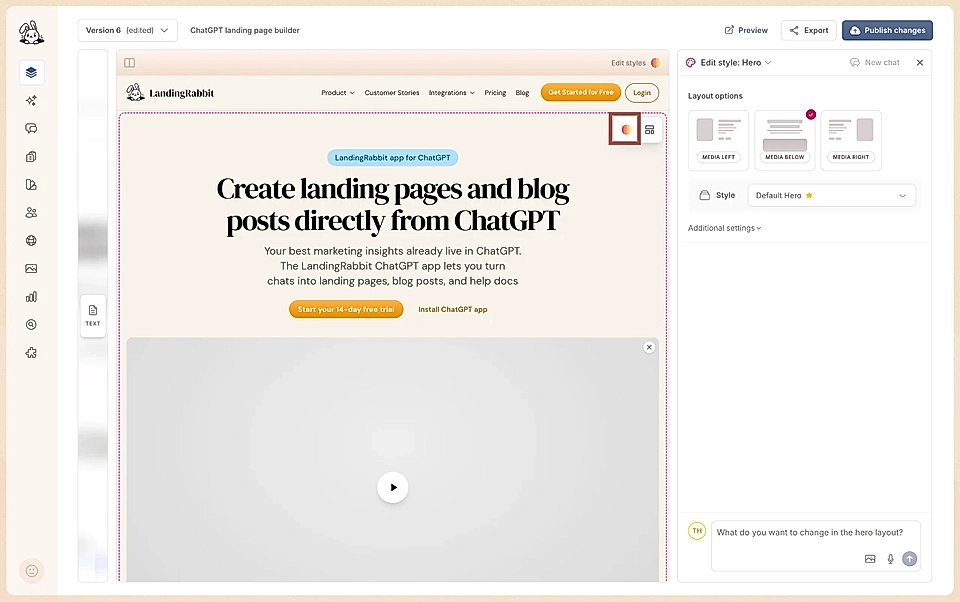
When you click to Edit styles, you can:
Change the layout shape: For example, choose Alternate, Boxes with images, Boxes with icons, Boxes with text only for the Collection section
Choose a style and create more of them
Change layout settings: For example, media visibility, image fit, and animations
Ask LandingRabbit to edit colours and styles via chat
In the chat, you can ask for changes like:
Changing the section background color
Adjusting font sizes, colors, or font weight
Editing section paddings and item gaps
Updating button colors and hover states
Changing section's max width
And much more.
Simply describe what you want to change, and LandingRabbit will apply the updates for you.
When the chat is open and when you hover over the content items like titles and buttons, you will find detailed element names. You can click them to add to the chat if you find that LandingRabbit isn't fully understanding what element you'd like to change.
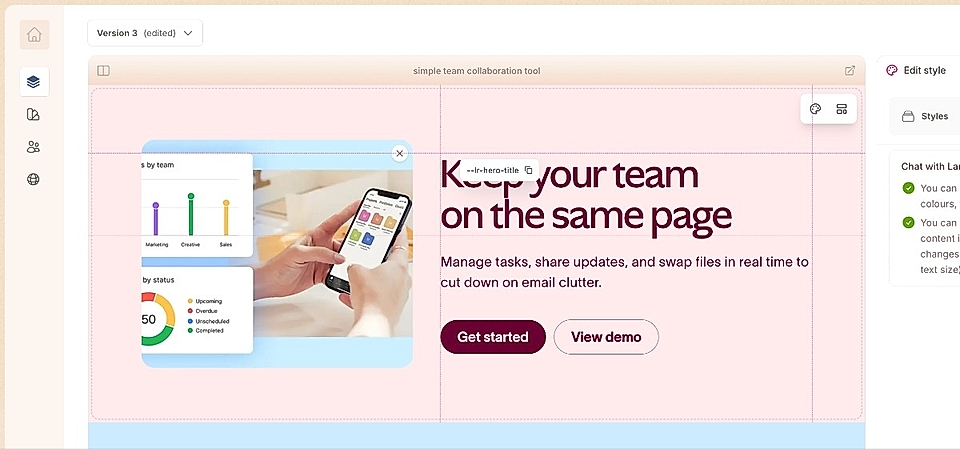
You can ask for style changes on desktop and mobile specifically.
Global styles and page-specific styles
By default, all changes are saved to the global styles of your LandingRabbit account. This means that if you edit a hero section, the same style will be applied to all hero sections across all pages you have in LandingRabbit. It's a real-time saver for busy marketing teams.
If you want a style that only applies to a specific page and a certain section:
Hover the specific section and click 'Edit styles' icon, or choose after clicking Edit styles
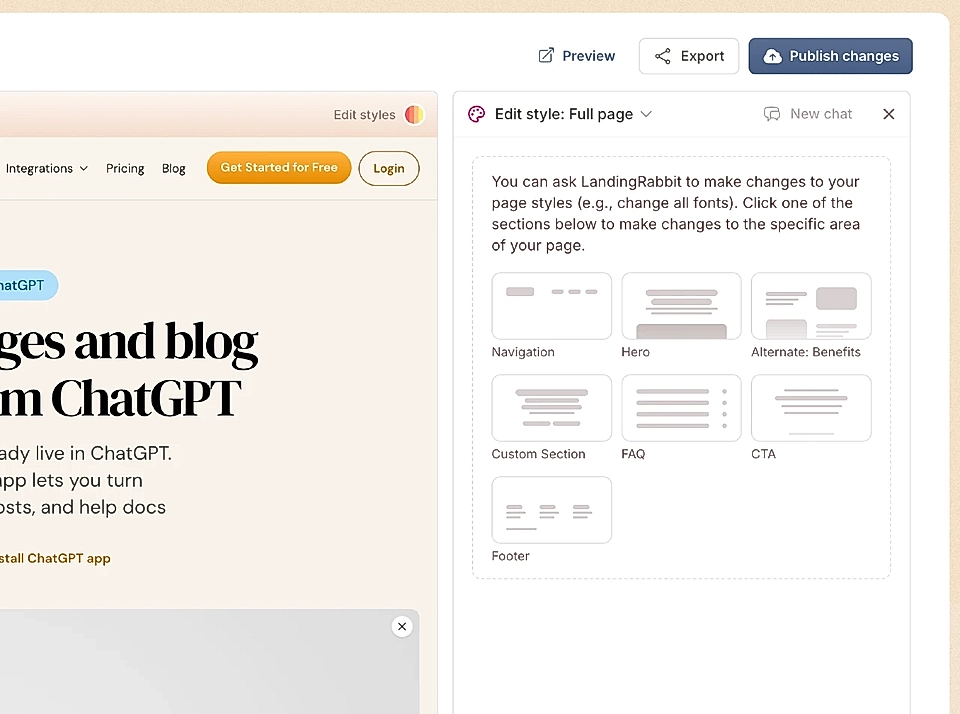
Make your style changes
Open the styles drop-down
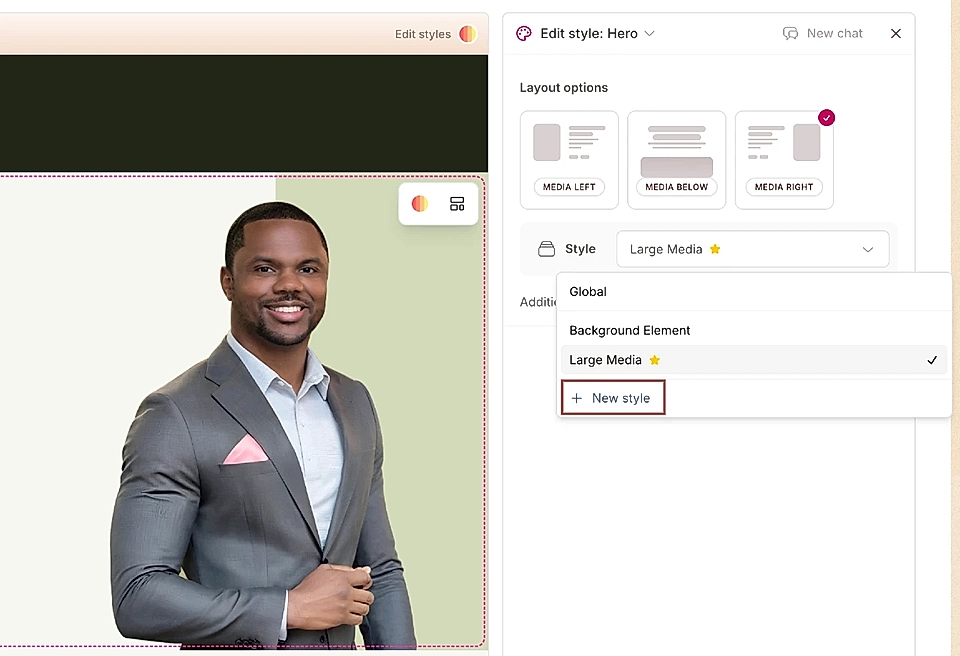
Click + New style and save it
This creates a page-specific style that you can reuse on other pages if needed.
When you edit an existing style, similar to the global styles, the changes are applied everywhere that style is used.
If you are rebranding your company and would like to change everything from background to font types and brand colors, consider using our rebrand tool.
Where can I find out more information about section-specific design and layout details?
For section-specific instructions, see:
If you have any questions about layout or style changes, feel free to reach out to us via Slack or email us at [email protected].