How to add animations to your LandingRabbit pages
You can add animations to every LandingRabbit page you publish.
Animations are set per layout and style. If you use the same layout and style on multiple pages, the animation setting applies to all of them.
Here's how to enable animations on any of the sections:
Open the page editor
Hover any of the sections in the page preview
Click the Layout options icon and turn on Animation
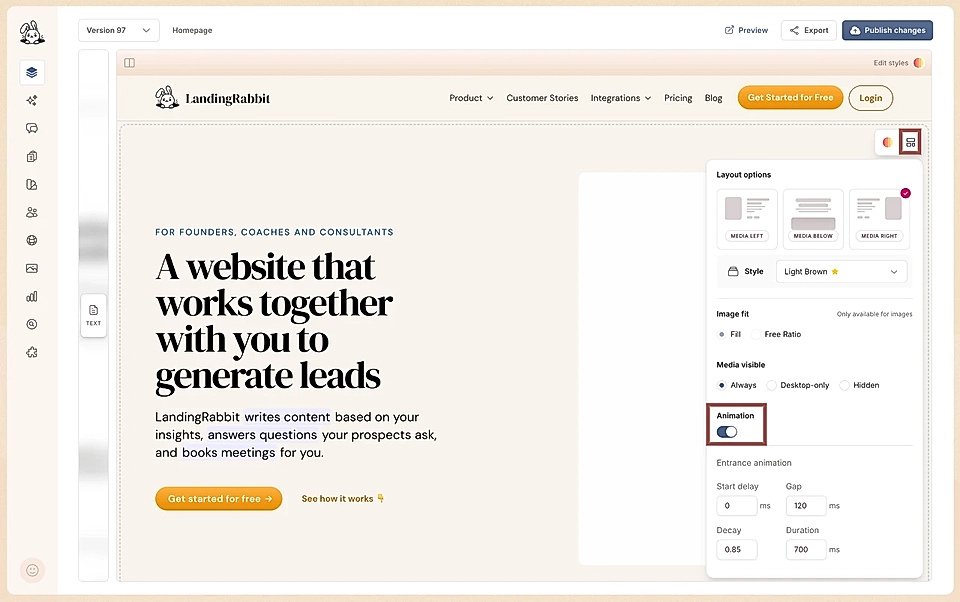
Hero section: entrance animation
For the hero section, you can add an entrance animation.
When the page loads, the animation smoothly reveals the content over the hero background. It's a good way to make a strong first impression without any extra design work.
All other sections: scroll animations
For all other sections, you can add animations that trigger as the user scrolls down the page.
You can set a section to smoothly appear when the user reaches it. On top of that, you can set individual items inside the section, such as boxes, to reveal one by one or one row at a time.
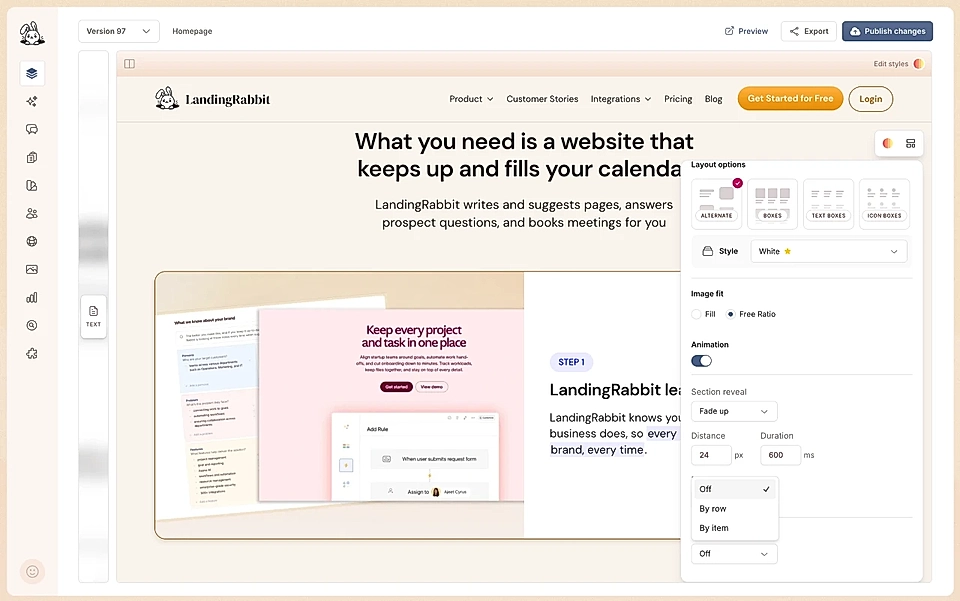
For example, if you have a Boxes section, the section itself can fade in on scroll, and each box can appear individually as the user moves down the page.
Custom section: word-by-word reveal
There is one extra animation option available for the Custom section, which works well for longer text content.
You can set the text to reveal word by word as the user scrolls. The content starts in a lighter colour and turns into the full text colour as the user moves down the page.
For example, light grey text gradually turns to full black as the user scrolls through the section.
Animations are a simple way to make your pages feel more polished. Since the settings are tied to layouts and styles, you set them once and they carry across all pages that use the same layout.