How to create a beautiful website using design.md file
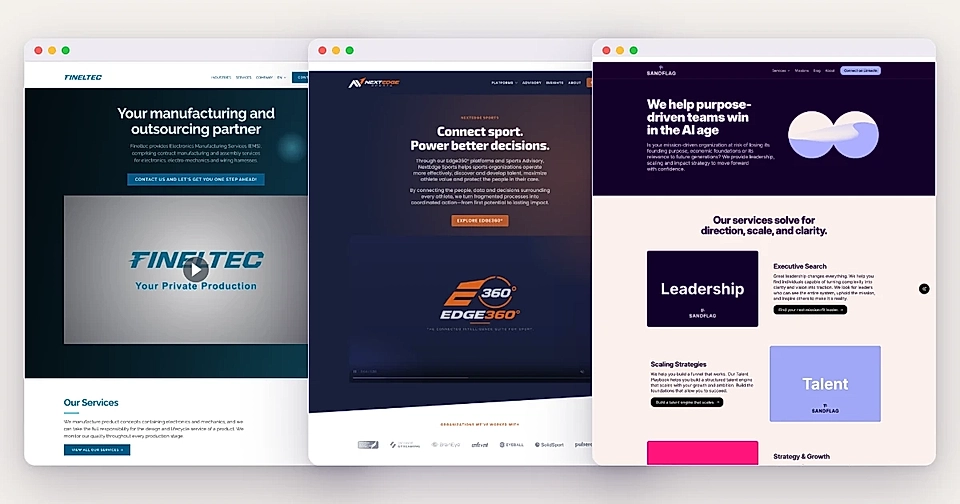
With AI, anyone can put a webpage together today. But design is still one of the biggest bottlenecks.
You need to make decisions about colors, fonts, component styles, and how everything fits your brand. It's not easy.
LandingRabbit takes that pain away.
You can upload your brand guidelines, including the design.md format, Google's standard for web design, and LandingRabbit will design all the sections you need for your website and landing pages automatically.
The most typical pages sections like hero, benefits, features, testimonials, CTA, and many more, all styled in your brand, ready to use every time you create a new page.
What is design.md?
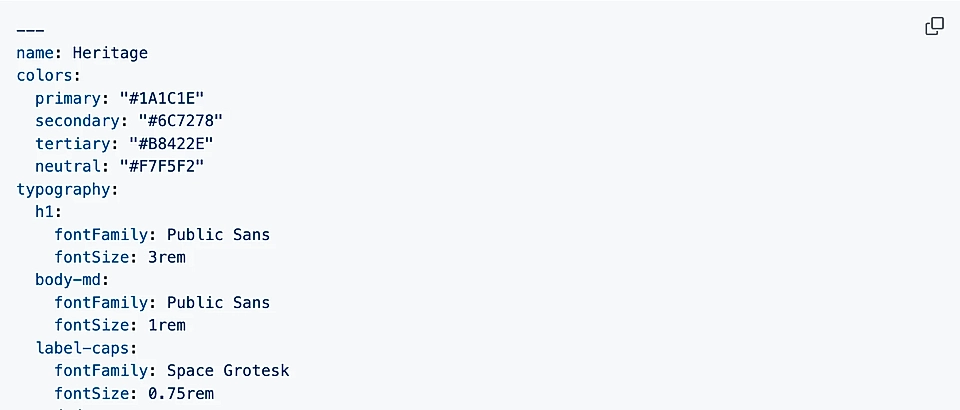
design.md is Google's standard for defining your brand's design in a structured, markdown format. You can move it from project to project and use it to keep your look and feel consistent across tools.
LandingRabbit now supports design.md when you create a new website or when you want to rebrand an existing one.
How to create a design.md file
If you've ever built a website with an agency, they might have asked you to share your brand guidelines.
The brand guidelines document typically includes your font choices, primary, secondary, and surface colours, and the overall direction of your brand.
With design.md file, you can be much more detailed.
You can, for example, specify the button colours and shapes, website section backgrounds (e.g., hero, cards, CTA, etc.), and informational pill colours.
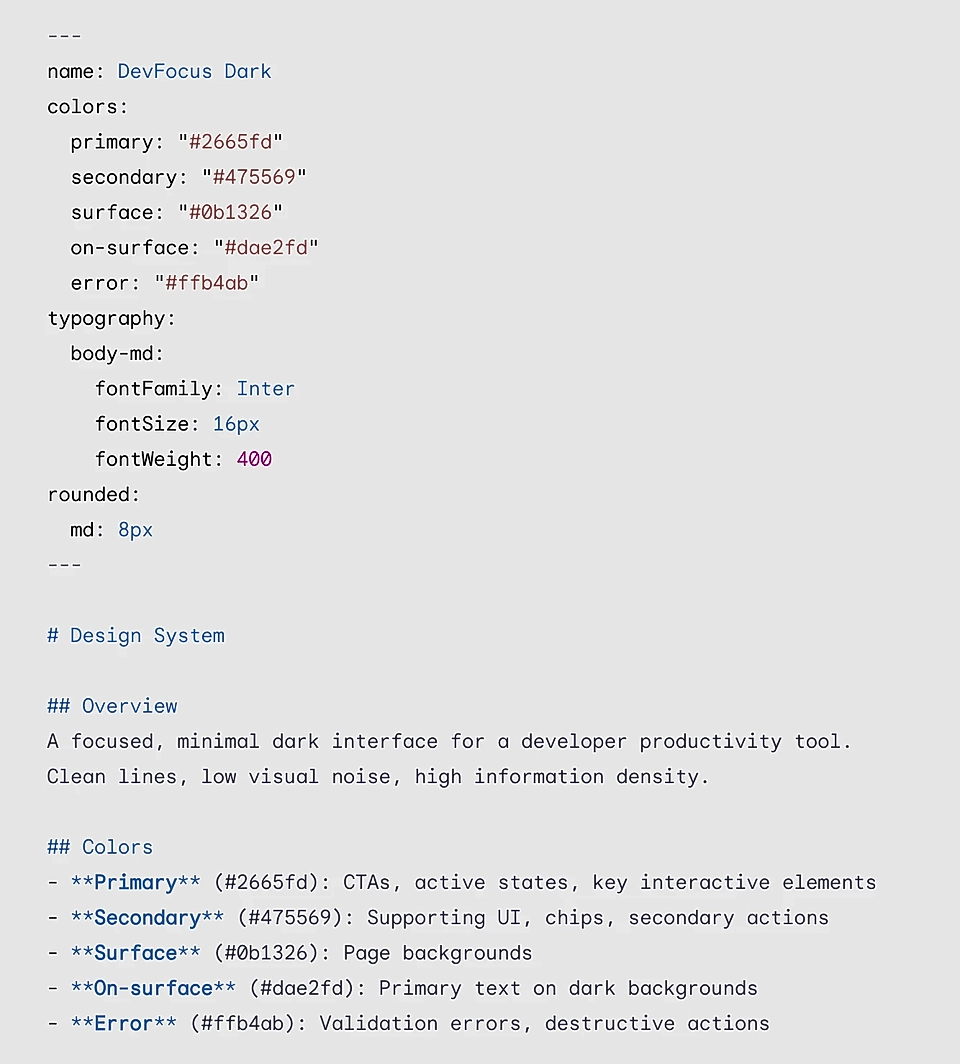
One of the best ways to create a design.md file for your brand is to download our example design.md file and ask your favourite AI tool to modify it based on your direction.
Setting up a new website with design.md
If you are starting from scratch, here's how it works:
Instead of adding your website URL, give LandingRabbit a description of your business: your company name and what you do
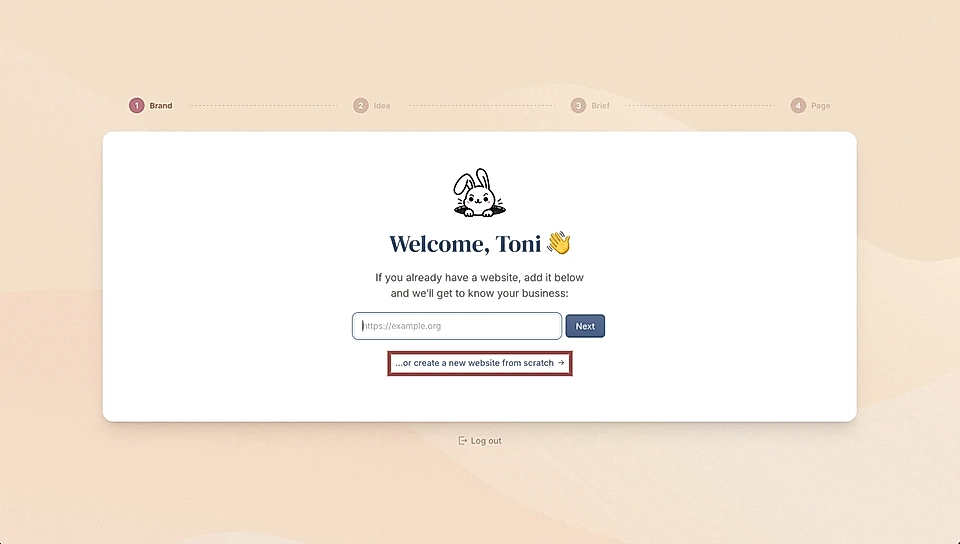
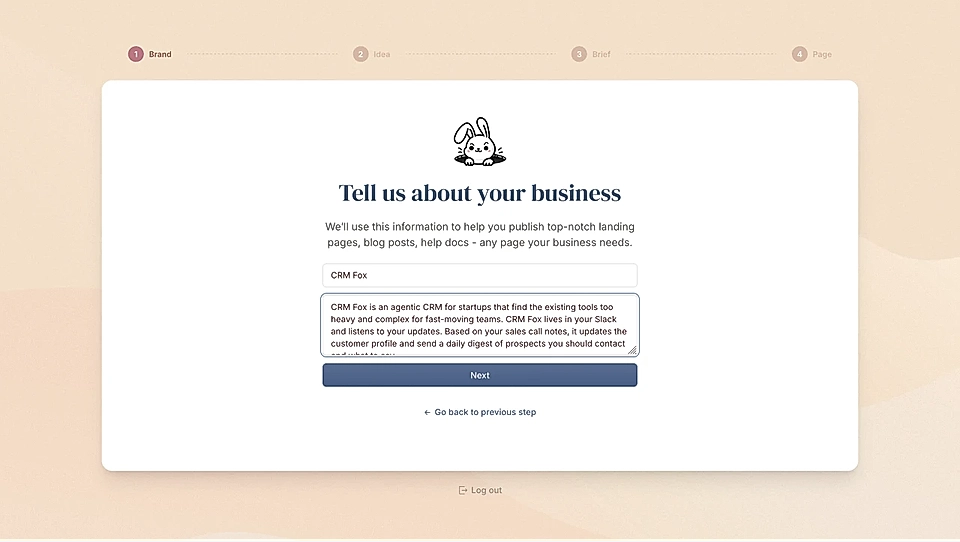
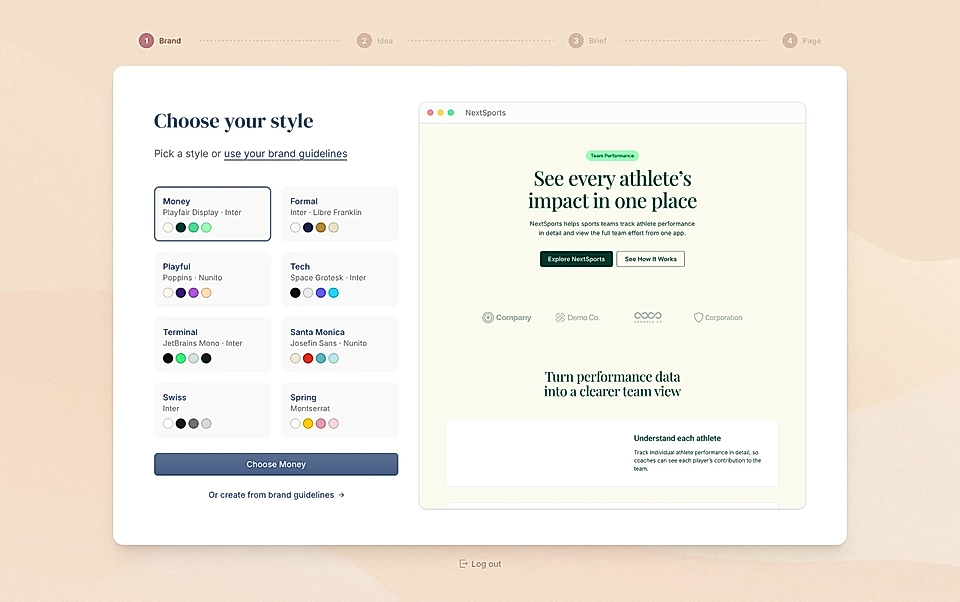
Choose Create from brand guidelines instead of picking one of the ready-made designs.
Next, describe your brand
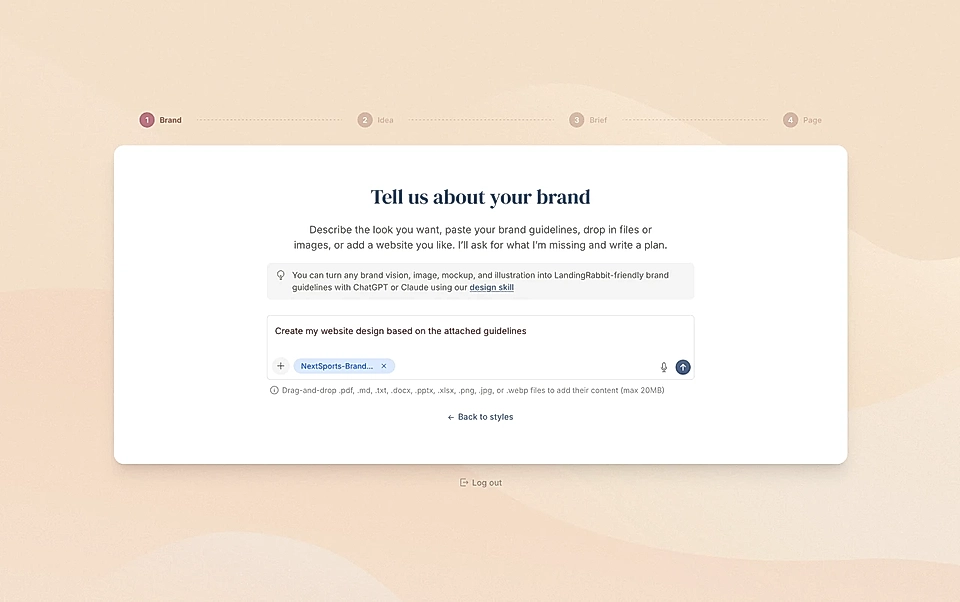
Just a few colours will be fine, but brand guidelines or the design.md file is the best option here.
It defines your main colors and fonts in a clean, structured way.
You can even get very specific.
If you want your hero section in one color, your benefits section in another, and your CTA section in a third, you can define all of that in the file and LandingRabbit will follow it.
If you are using ChatGPT or Claude, design guideline skill file will help you turn your ideas into LandingRabbit-friendly format.
Based on your design idea, LandingRabbit writes a summary for you to approve.
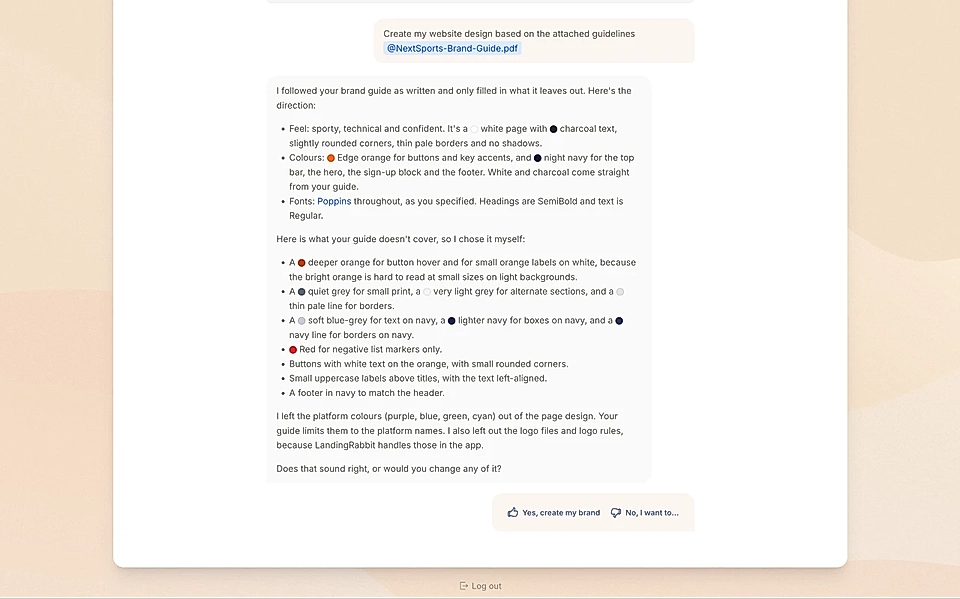
Once your brand is set up, every new page you create will automatically use those colors, fonts, and styles. No need to define anything again.
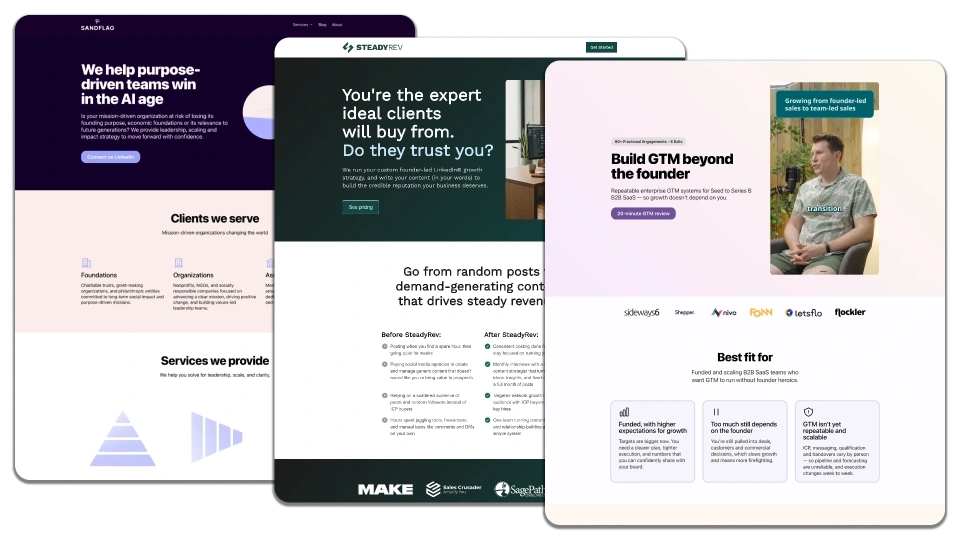
Rebranding an existing LandingRabbit site
Already have a LandingRabbit site and want to update the look and feel? You can do that too.
Open one of your pages
Click Edit styles at the top of the page preview
Type /rebrand and paste your brand guidelines or design.md content into the field
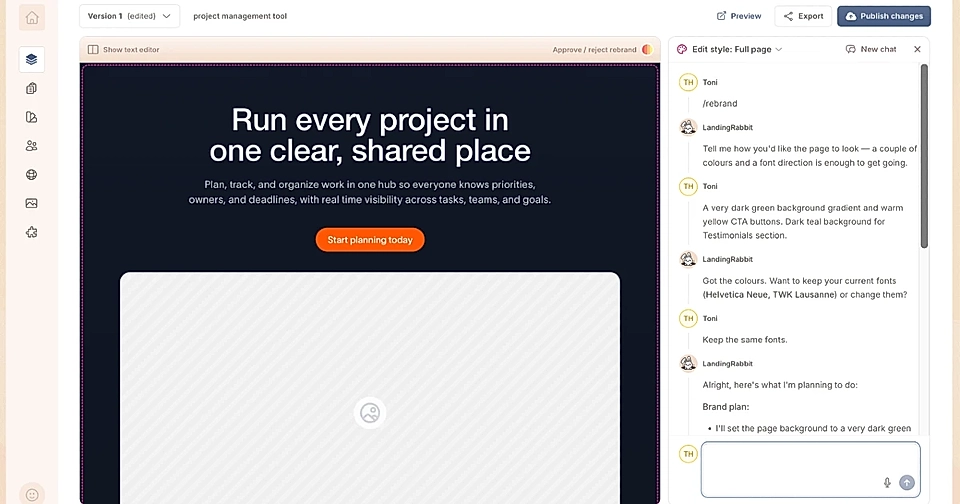
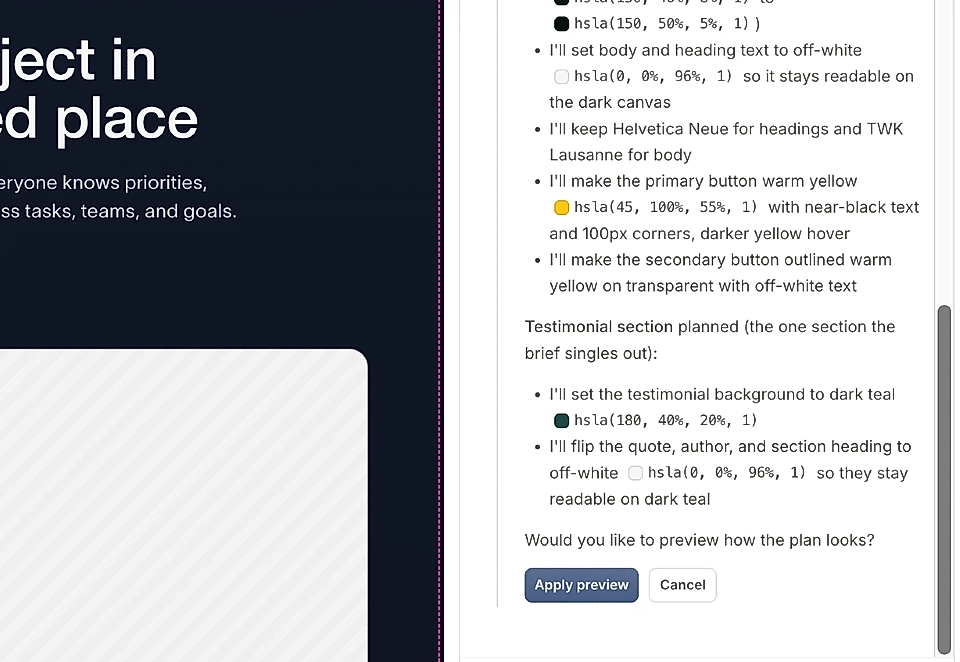
LandingRabbit will update the look and feel and show you a preview with the new colors
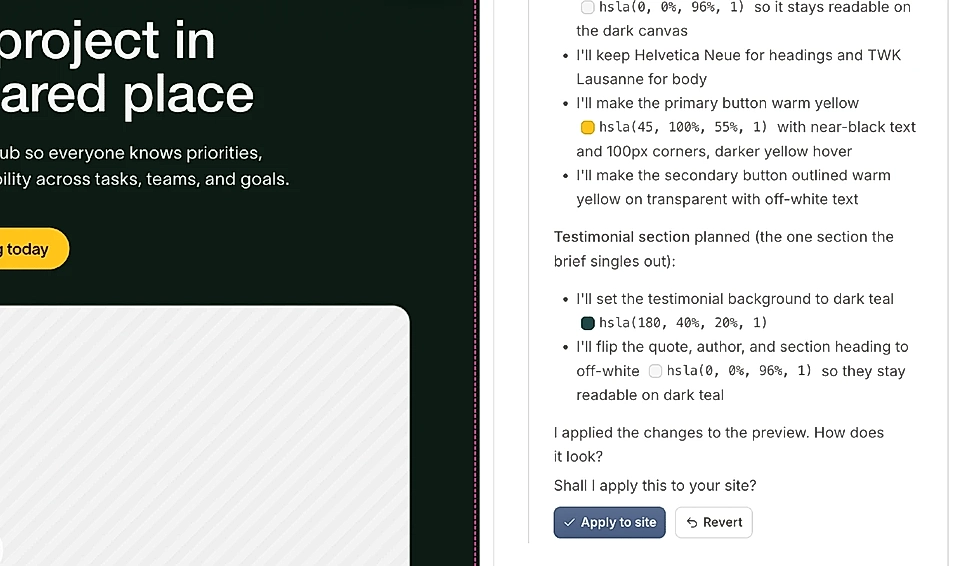
If you are happy with it, click to apply and then Publish changes to go live
Choosing your fonts
When setting up your brand, you can also define your typography. For example:
Headings can use one font like Frances
Body text can use Inter
Small details like buttons, eyebrows, and smallprint can use something like Mono Geist
You can go with broadly supported system fonts or pick any Google Font. When you define a Google Font, LandingRabbit downloads it for you automatically.
That's all there is to it. You give LandingRabbit your your design.md file brand guidelines, and the app handles the design from there.
Every page you create after that comes out styled correctly, without any extra work on your end. No vibe coding, no pages that don't match your brand.
Want to get started? Sign up for LandingRabbit's 14-day free trial and get a website design based on your brand guidelines or design.md file.