Can I edit the look and feel of the CTA section?
Yes, you can.
LandingRabbit gives you three ways to customize your CTA section: layout options, style adjustments, and various content items.
Choose your CTA section layout
Hover over the page preview on the right and click the layout options icon.
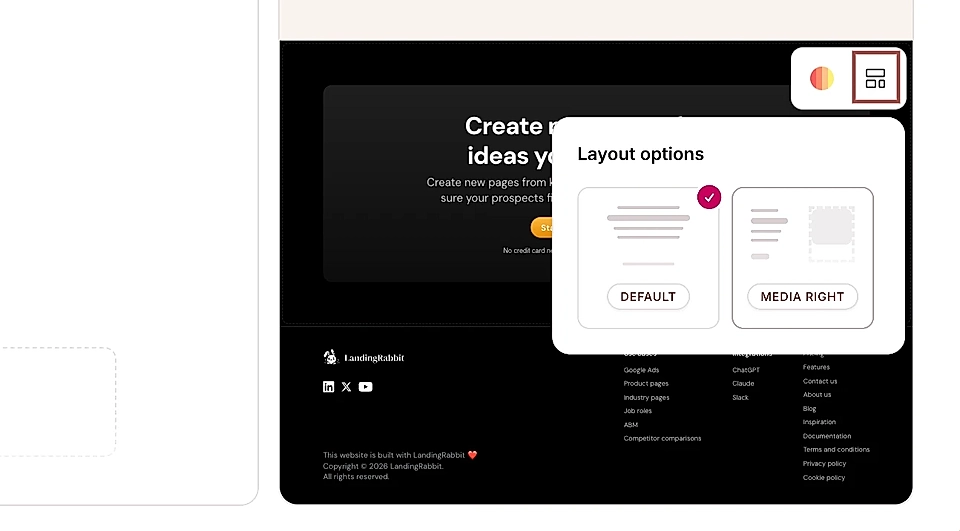
You'll see two layout choices:
Default: Shows content centered in the middle
Media right: Adds media on the right side
The media on the right can be an image, video, or embed code like a form or YouTube video.
Edit CTA styles with AI
Click the Edit Styles icon and you'll find a chat with LandingRabbit.
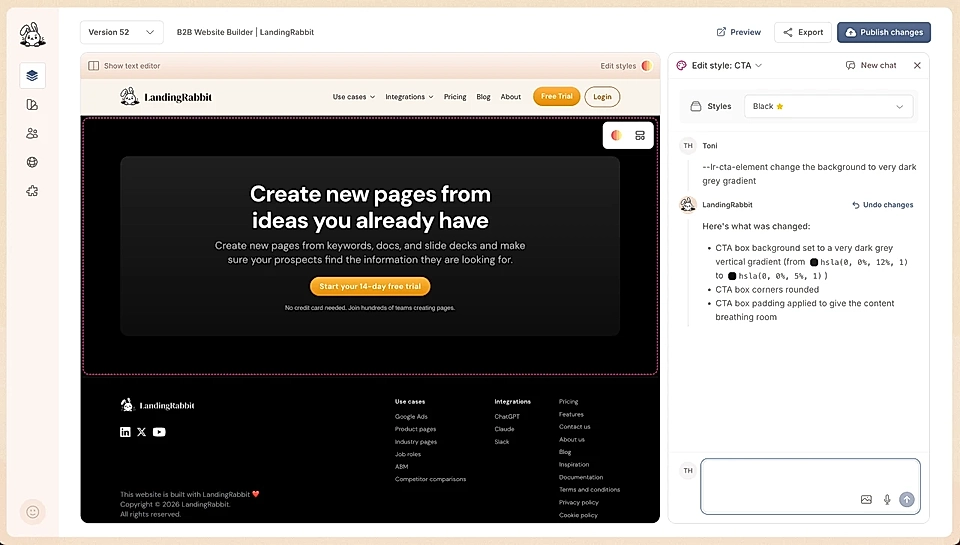
In the chat, you can ask things like:
Change the section background color
Upload a background image
Add a secondary background element and change its color
Change all text colors, sizes, and fonts
Change button styles and sizes, including hover state
Change the maximum width of different elements
Adjust the padding above and below the section
Add and arrange CTA elements
In the text editor, click the 'Add an element' button.
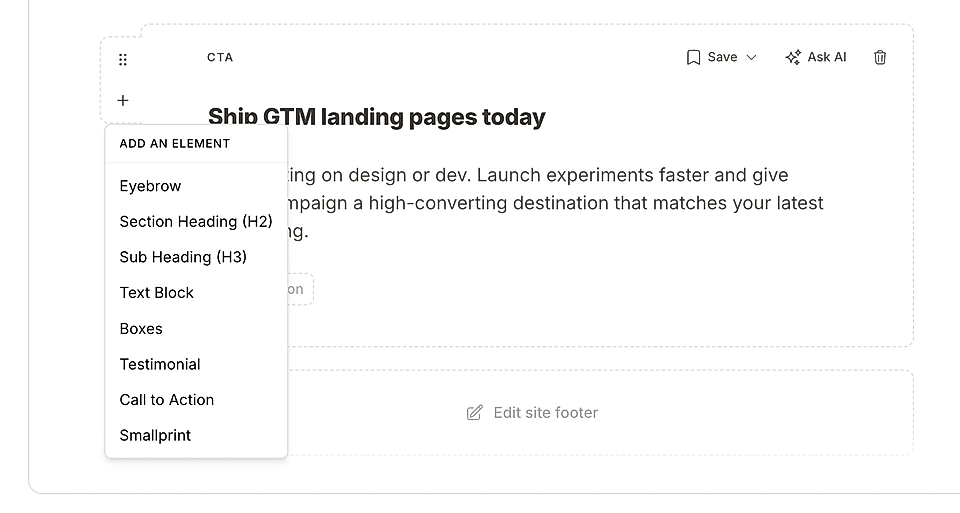
You can add:
Eyebrows
Heading (H2)
Subheading (H3)
Text block
Boxes
Testimonial
Call to actions
Smallprint
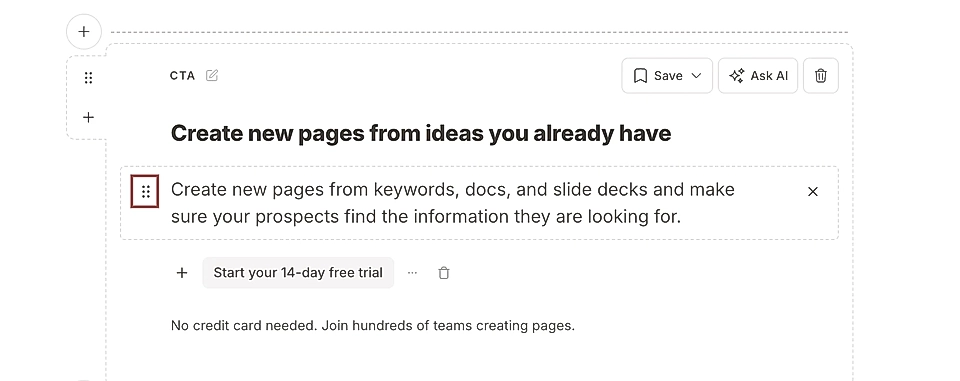
After adding elements, drag and drop to change their order. You can have as many of these elements as you want on one page.
A testimonial from a customer can help convince page visitors to sign up.
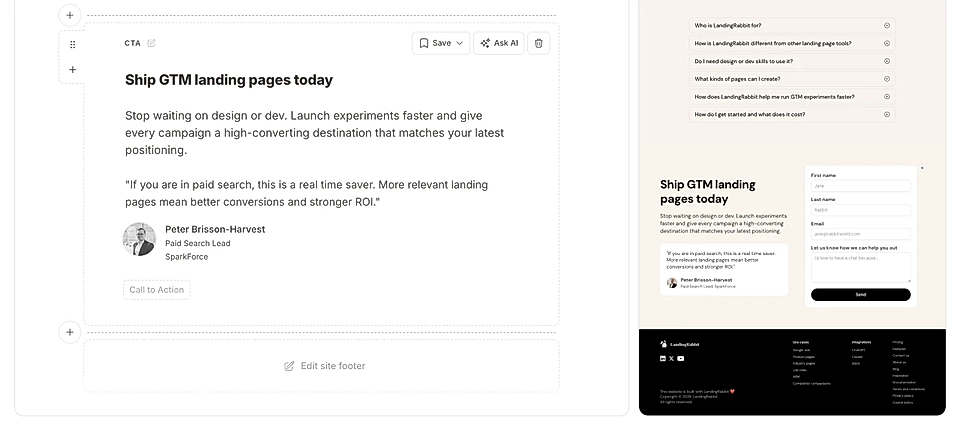
You can use boxes to add key achievements and features.
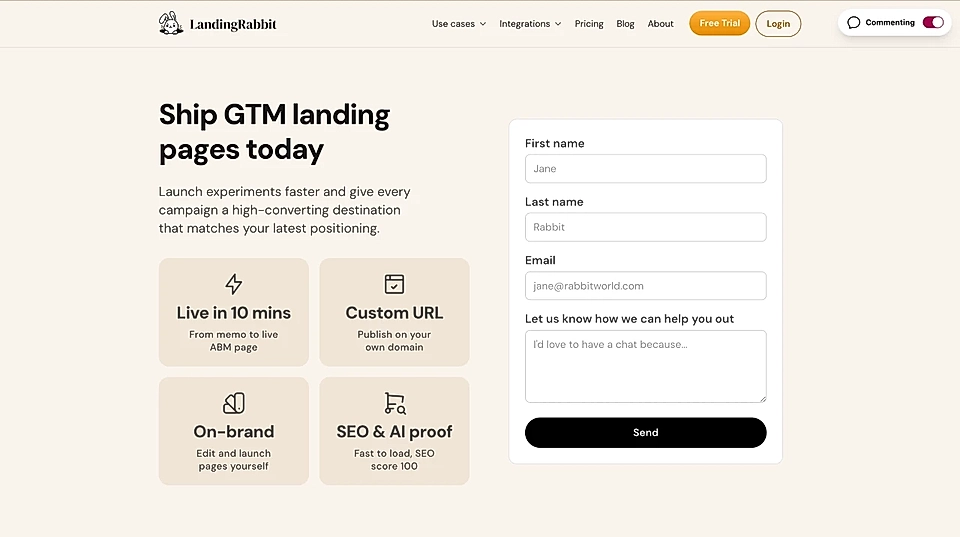
The CTA section is fully customizable. Change the layout, adjust styles with AI, and add as many elements as you need.