Can I add tags to LandingRabbit pages?
Yes, you can.
Tags help you organize your pages and create collections of related content. You can add them while creating a page with a custom section or when you're ready to publish any page.
In LandingRabbit, tags are global. It means that all pages you tag will show under yourdomain.com/tag/tag-name.
Before adding tags, consider using Collections or Categories instead.
Add tags to your article and page
If you have a Custom section on your page, click the plus icon and choose Tags.
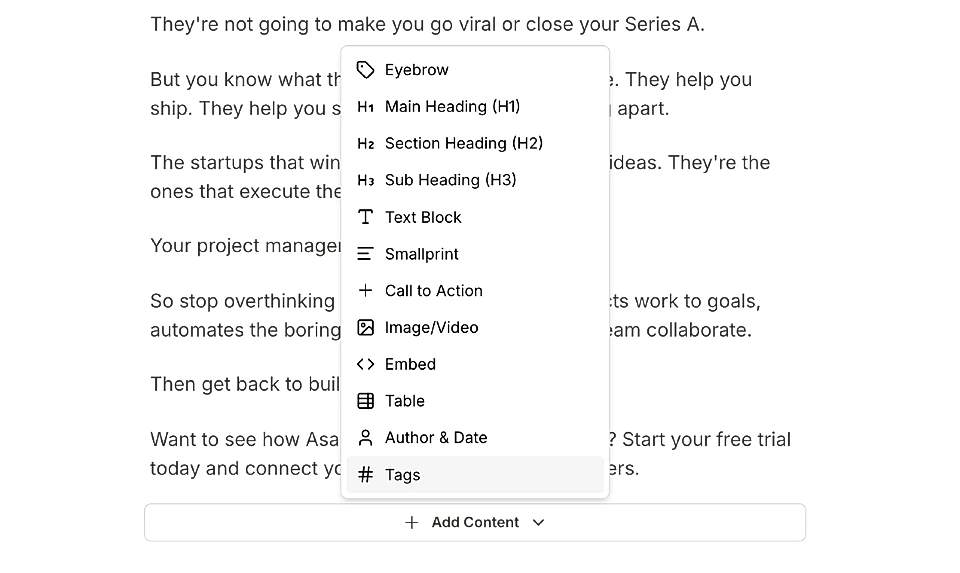
From there, you can:
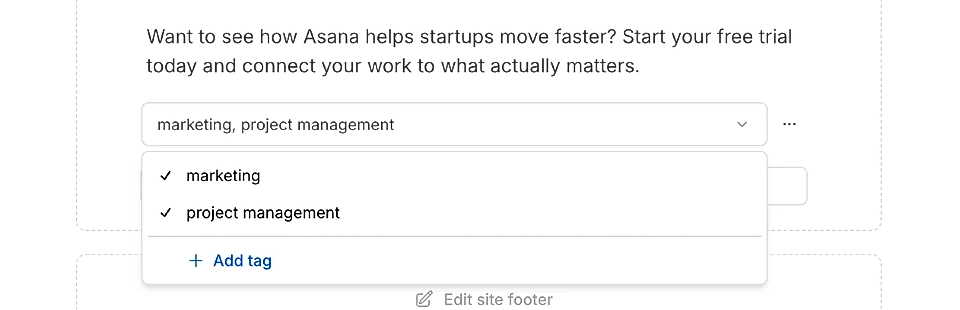
Click to Add tag if you don't have any yet

Choose from existing tags in your workspace using the dropdown
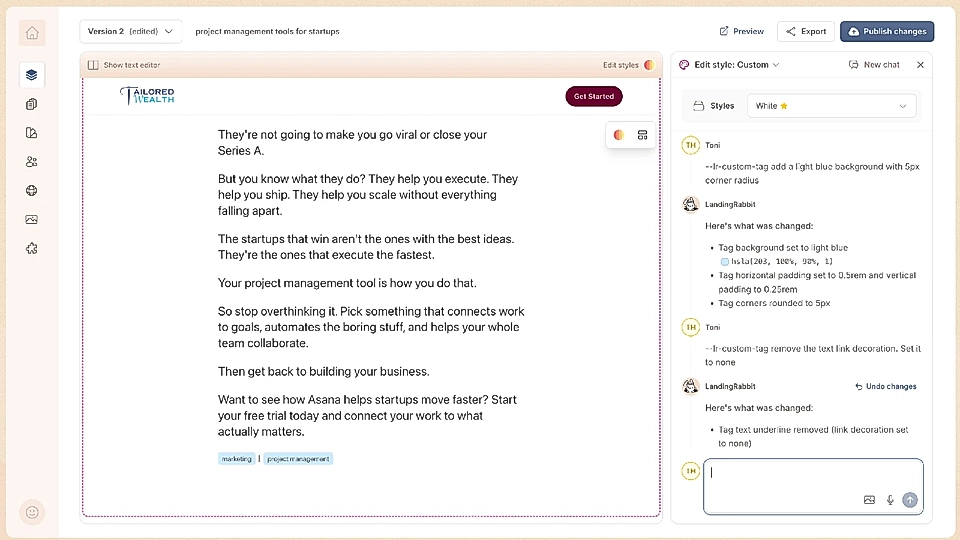
Edit tag styles on page

By default, tags show as links, but you can edit styles by clicking the coloured icon in the page preview. You can, for example, ask to add a background color and make tags look like buttons.
If you click the three dots next to the tags dropdown, you can choose to remove the divider bar between the tags and add a label like Tags: before the list.
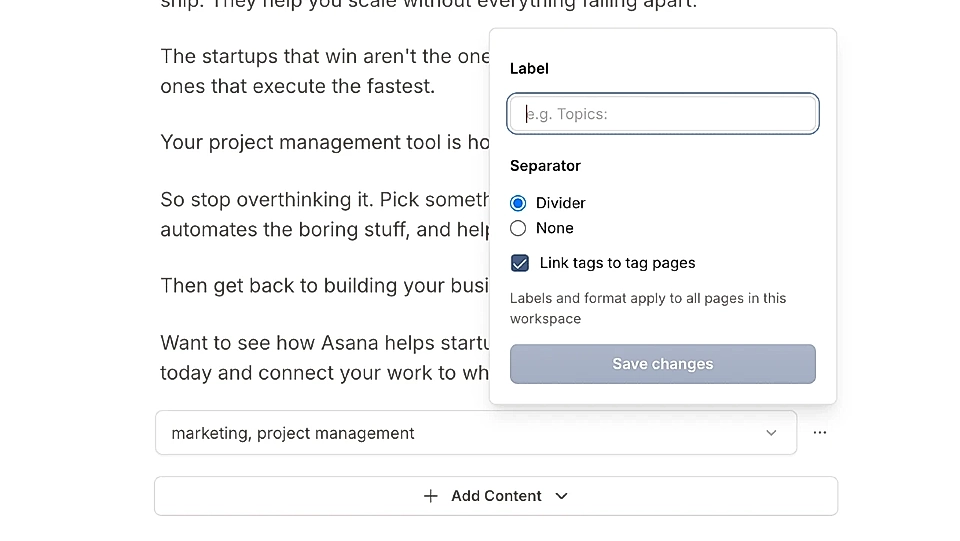
Settings are global for all pages in your workspace, and you only need to edit them once.
Add tags from the publish dialog
Sometimes, you just want to tag pages but not show tags on the page. In that case, you can add them via the page publish dialog.
Click the Publish button on the top right corner.
In the dialog that opens, you'll find a + Add tags link.
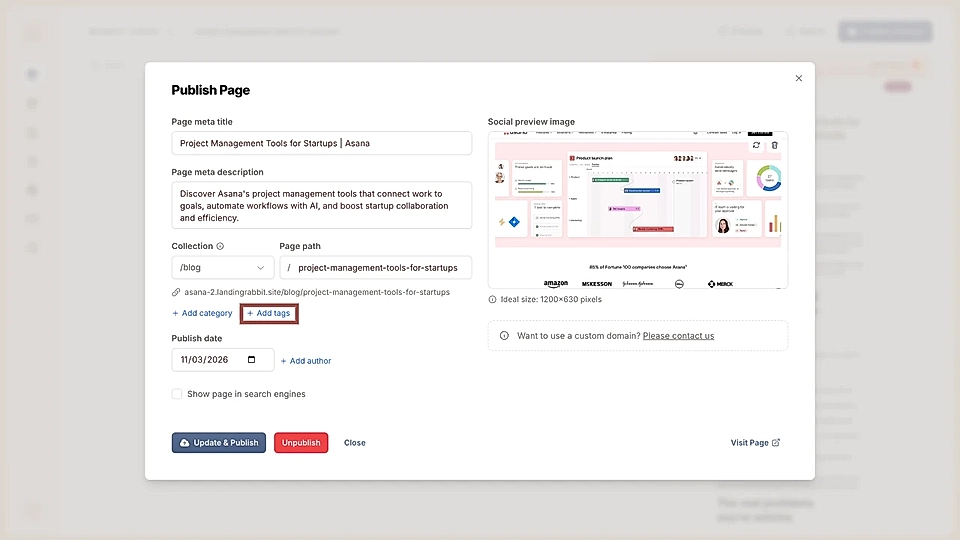
If you already have tags in your workspace, they'll appear in the dropdown. Just select the ones you want to use and add more when needed.
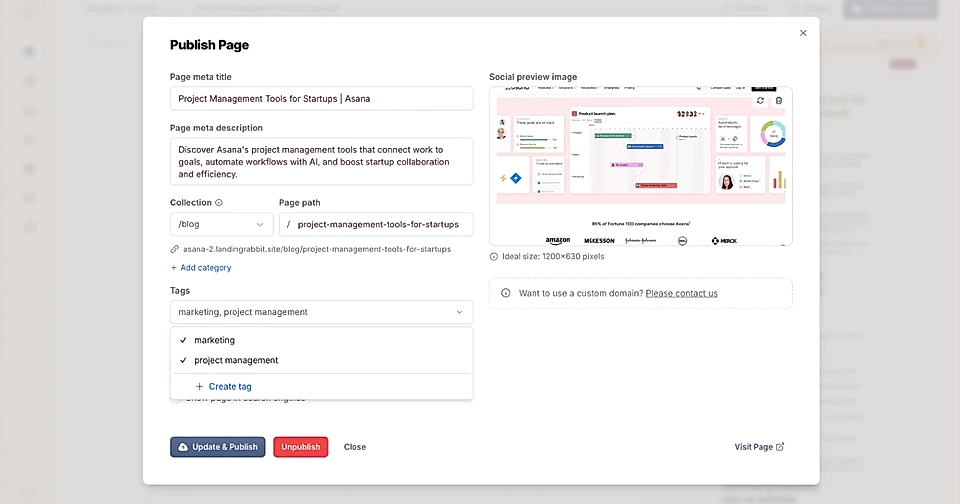
Creating new tags
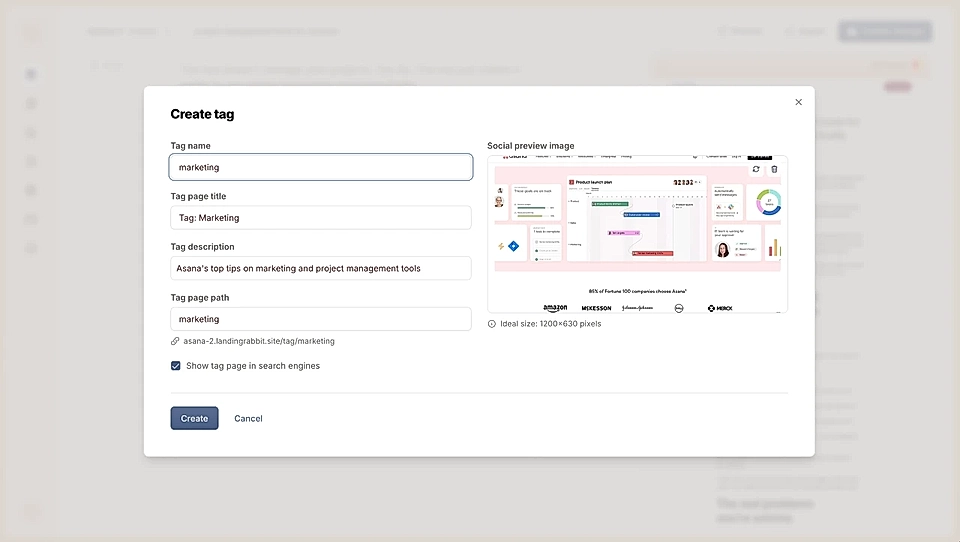
When you create a new tag, you can set:
Tag name: This is what shows on the page
Tag page title: The title that appears on the list view for all posts and pages with this tag
Tag description (for SEO): Helps search engines understand what the tag collection is about
Social media share image: The image that appears when someone shares the tag list page
Tag page URL: every tag gets a list page view under your chosen URL like yourdomain.com/tag/tag-page-path
SEO settings: You can decide if the tag list should be indexed by search engines or not
Manage tags
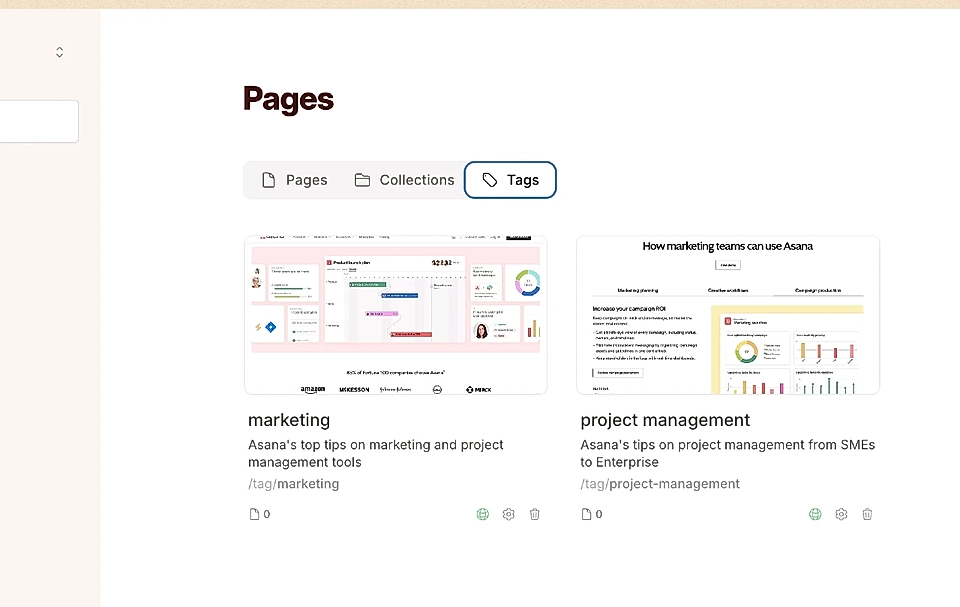
After adding at least one tag to your pages, the Pages view will have a Tags tab where you can manage all tags.