How to build a website for a small business with AI
When I'm discussing websites with small business owners, three hesitations keep coming up:
"I'm not sure about the website design. Do I need a designer?"
"What should my homepage say?"
"What other pages should I have?"
In the past 15 years, the questions have remained the same.
Even if AI is helpful today, I'm not gonna lie and tell you it can make all the decisions for you.
What it can do is help you explore options, and with the right tools, you can go from an idea to a new website in hours.
In this blog post, I will show you how small businesses build websites with AI in four easy steps.
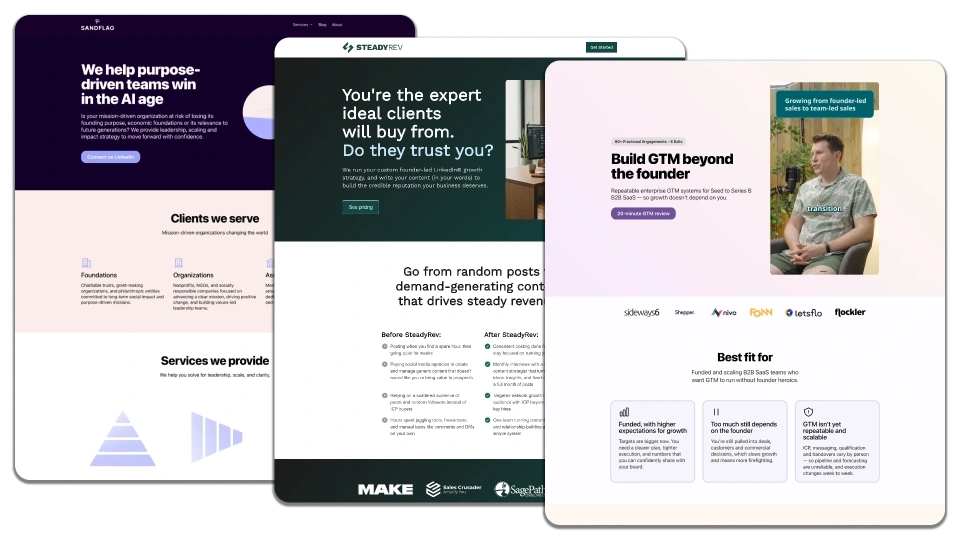
Step 1: Design your website with AI
AI ain't great at designing things without guidance. Then again, you might not be a design expert and knowing how to instruct AI can be a challenge.
That's why we've built a tool that turns your brand colours and fonts into 65 ready-to-use page components - hero, boxes, testimonials, FAQ, CTA – every page component your small business website might need.
You can start with a few colours, upload images and slide decks, or even share a website that you like.
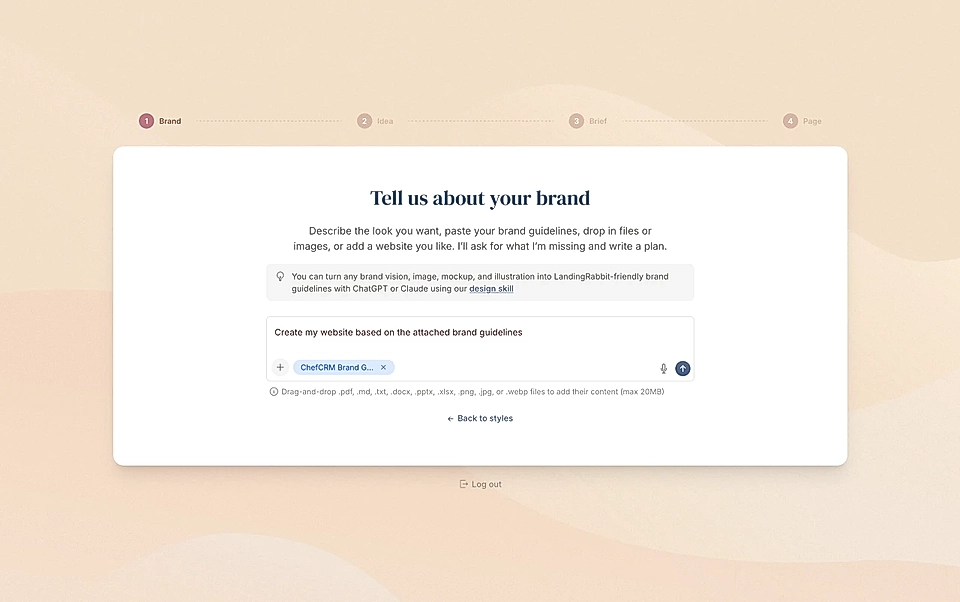
And if you are pretty good at design, you can give very detailed specs, of course.
But even from a simple guideline, LandingRabbit generates a full website design plan.
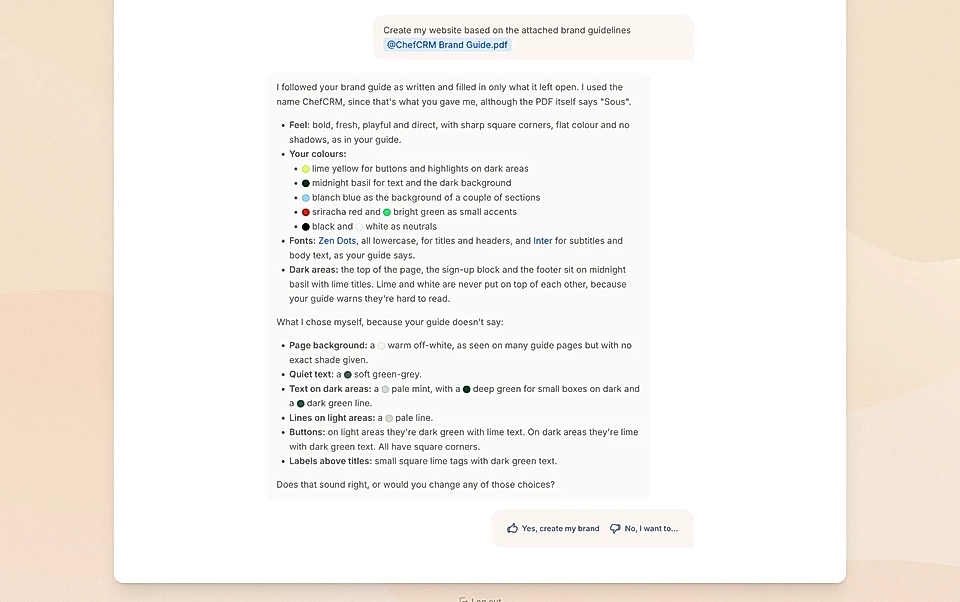
With your colours and fonts, we give AI ready-made and tested components to work on.
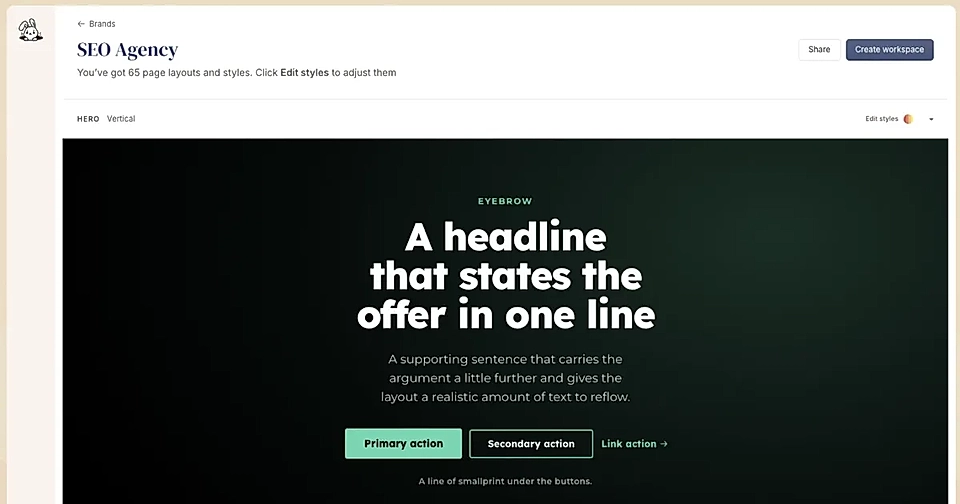
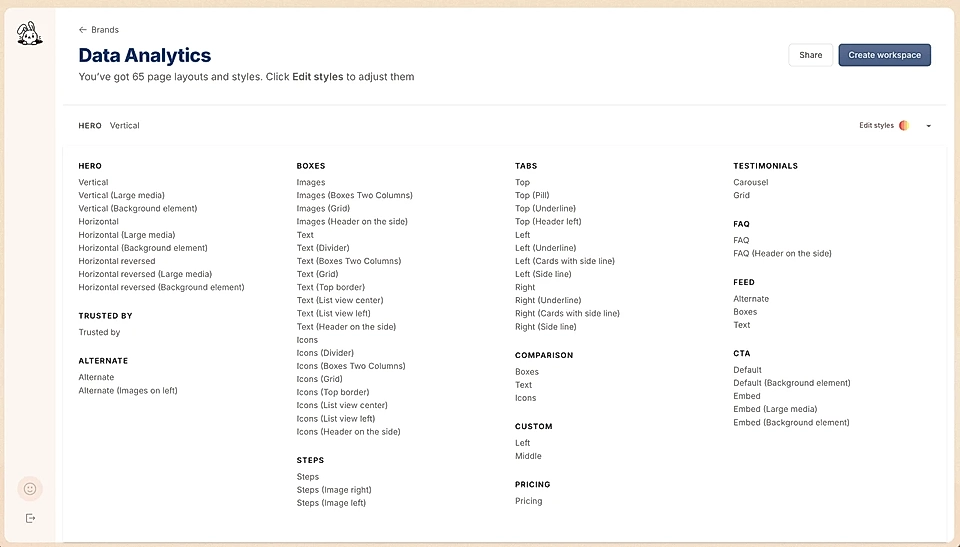
Suddenly, the design task and building a website for your business becomes much more achievable.
Want to get 65 page components in your brand colours? Sign up for our free account today.
Step 2: Ask LandingRabbit to plan the homepage structure and write the page
Next, LandingRabbit helps you write your homepage.
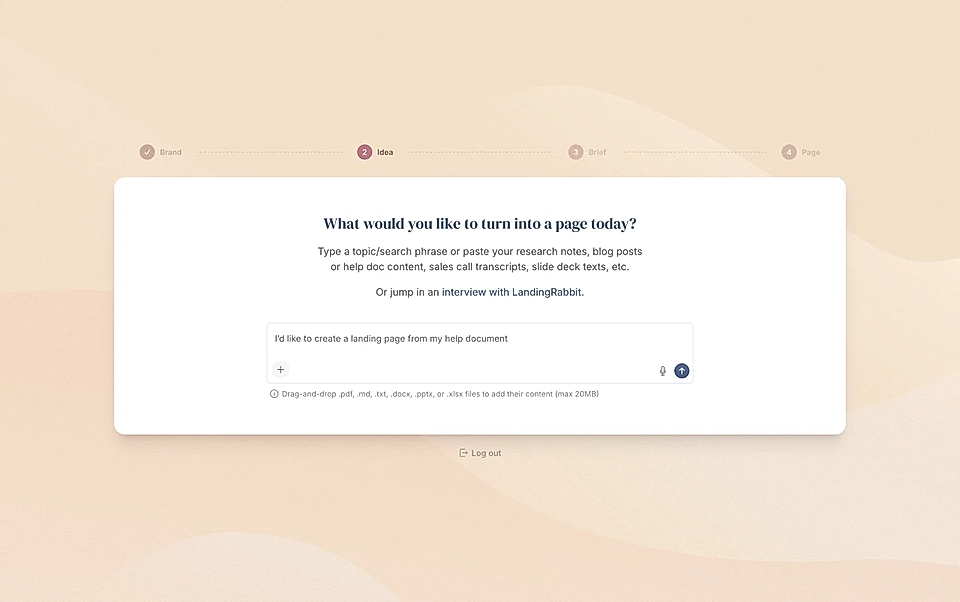
There are three ways to get started:
Ask LandingRabbit to interview you. Just like a website marketing expert, it will ask you tough questions about your business, and it uses your answers when writing the page
Click the record button and talk to LandingRabbit. This allows you to describe your business in free form and without pressure. I like to walk around the office and talk through the page idea and my customers' pain points
Type and upload any materials you already have. For example, slide decks, one-pagers, or blog posts. They are fantastic source materials for LandingRabbit to get to know your business.
Any of the three options work really well.
After you hit submit, LandingRabbit will plan the page for you.
First, it plans the page structure based on what it knows about your business, what your customers are like, and what page structures work the best for similar businesses.
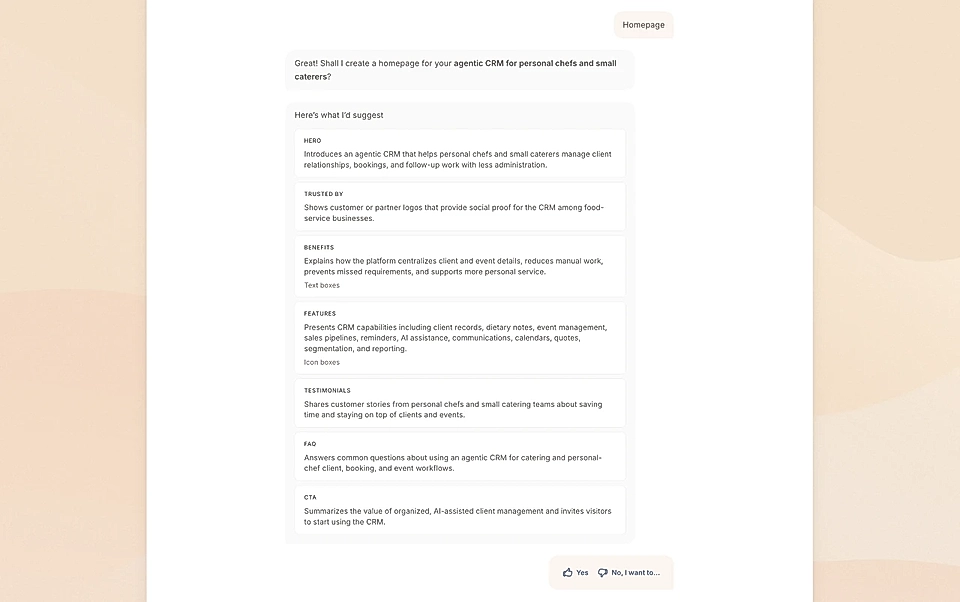
After that, it gives you a full plan about your audience, the problem, services you offer, and the benefits.
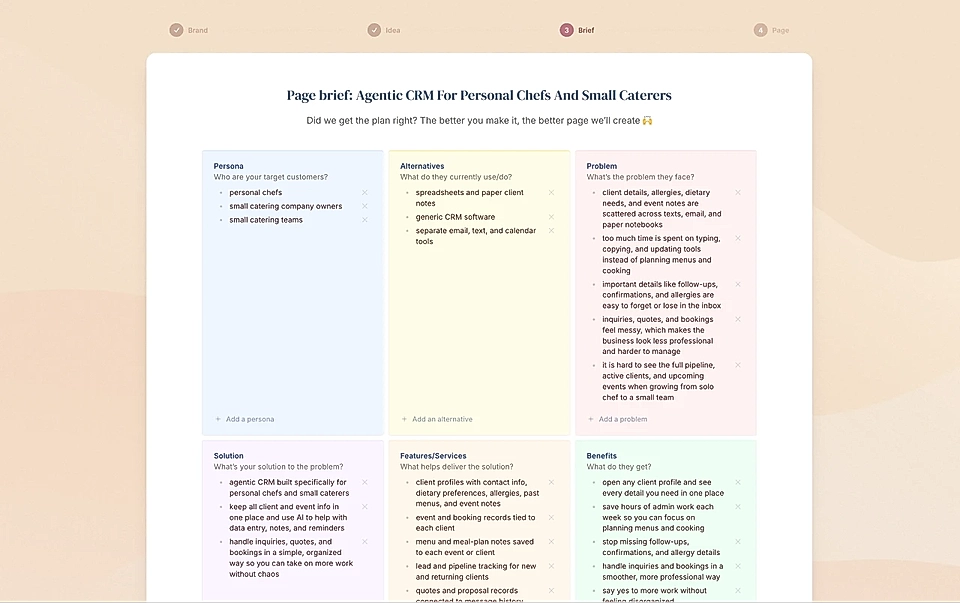
All this before writing a single word. It's no coincidence that LandingRabbit-powered pages beat the average pages.
Step 3: Finish your page in a text editor with help from your AI assistant
After planning, LandingRabbit writes the page for you, and you can edit it in a text editor.
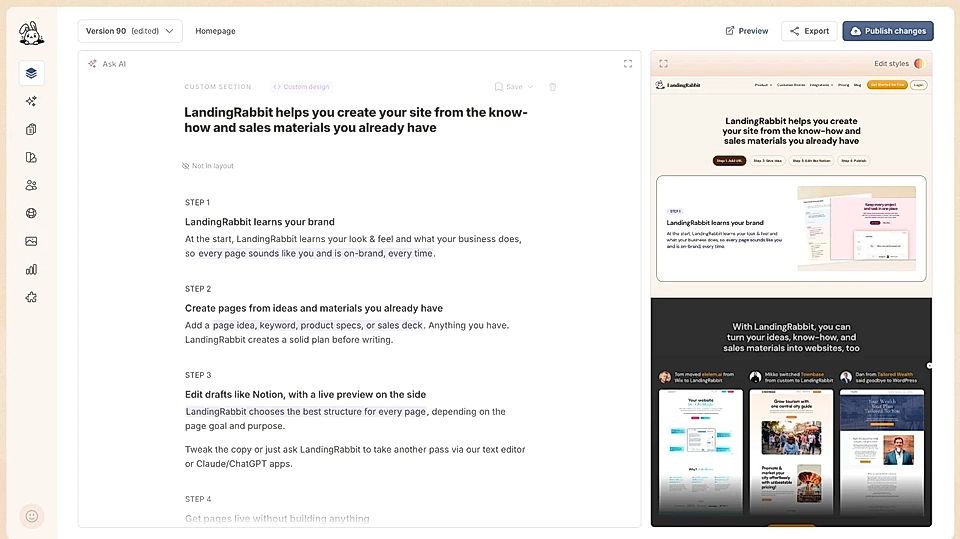
On the left, you can type text and add more sections.
On the right, you can see the page preview in full and make changes to the look & feel.
For both, you can use LandingRabbit's AI assistant to make changes. You can ask for help with content or change colours and styles.
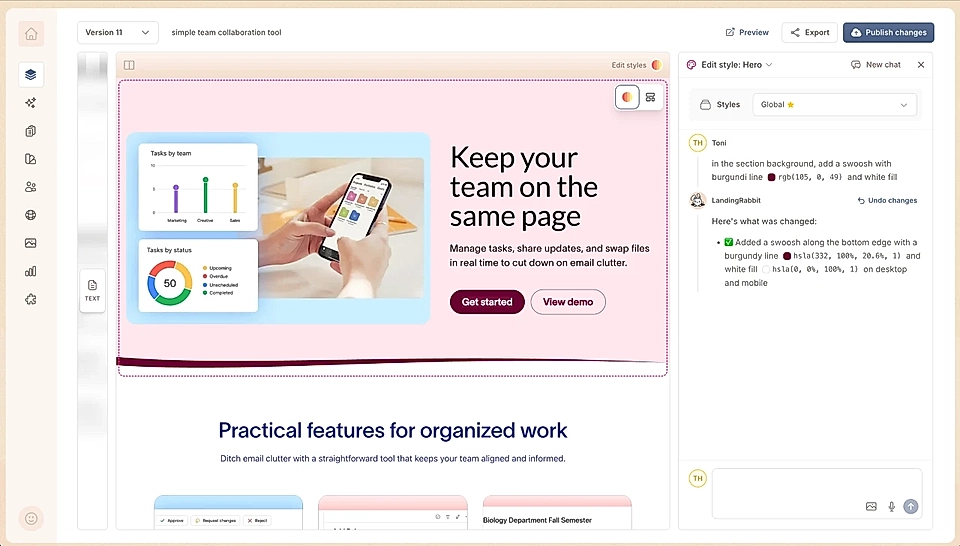
For inspiration, see how you can edit your LandingRabbit website design by talking and asking for things.
Step 4: Go live with your new website
The final step is to go live with your new website and homepage.
Click to Publish your page, and the first version will be hosted on the landingrabbit.site URL. It's there for you to preview the website before it goes live.
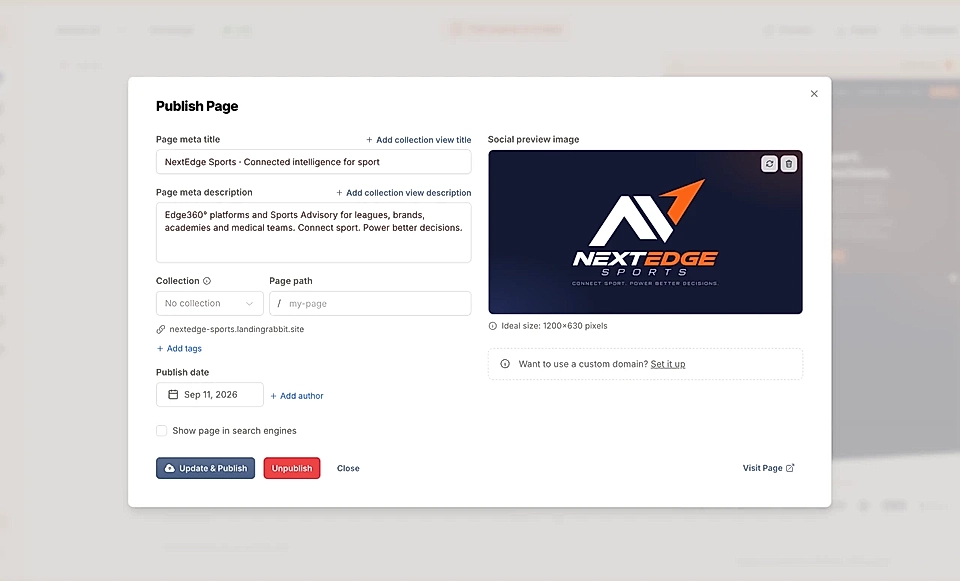
And once you are ready, navigate to the Site settings and connect your domain.
I know that connecting a domain is one of the pain points for everyone. If you need help with that, don't hesitate to send us a message to [email protected]. We'll jump on a call with you to make those edits.
Before you know it, your new website is live.
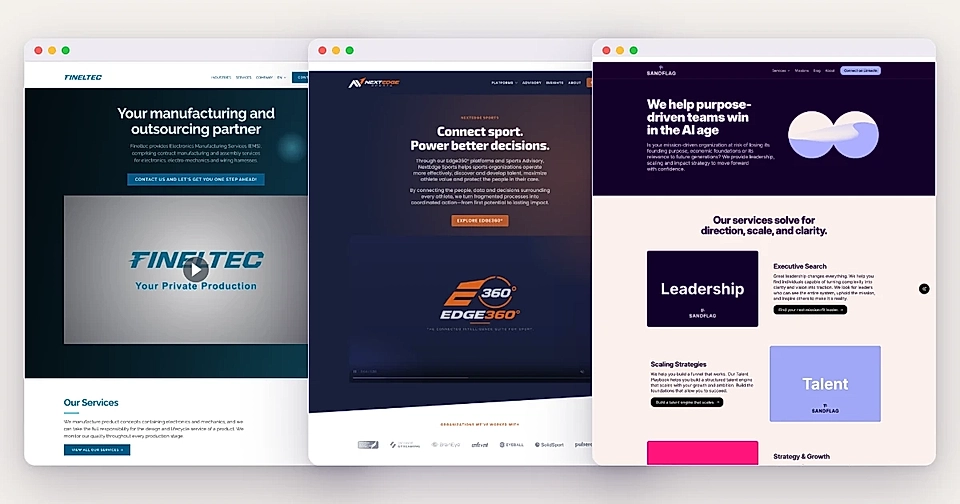
If you already have a website and you'd like to bring some or all of your existing website content to LandingRabbit, using Claude or ChatGPT plugins can be helpful. However, migrating your old content is something we do free of charge. Send us a message via [email protected], and we'll help with the project.
Building a website for a small business used to require help from a designer, developer, and copywriter.
Those skills are still required, but tools like LandingRabbit can help you close the gap quite a bit.
If you are unsure, we provide free 60-minute homepage workshops where we interview you and build the website together.