Can I show the background image through the navigation?
Yes. You can make the navigation see-through, so the background image of the first section shows behind it. The navigation turns solid again when visitors scroll down.
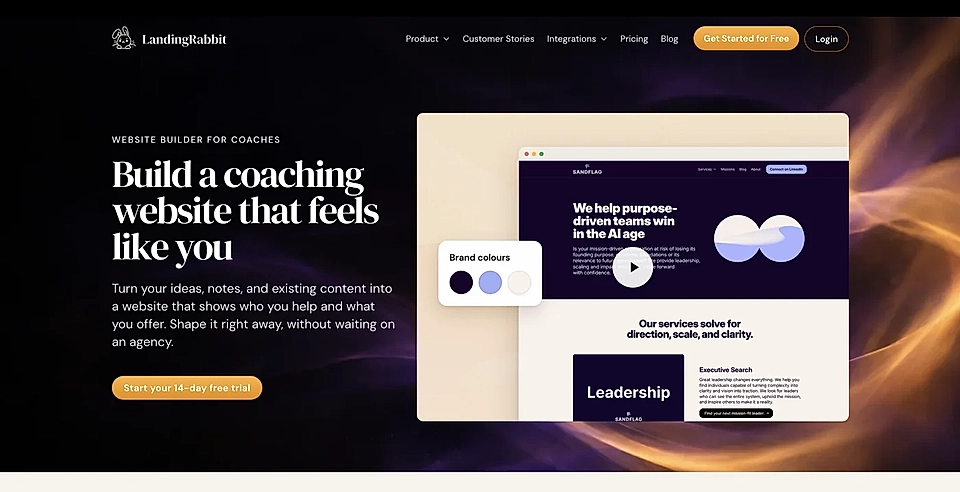
Here's how to set it up, from adding the background image to adjusting the navigation colours and logo so they stay readable.
1. Add a background image to the first section
Hover over the section below the navigation, usually the hero, and click the background icon. Upload an image or pick one from the media library. See how to add a background image or video.
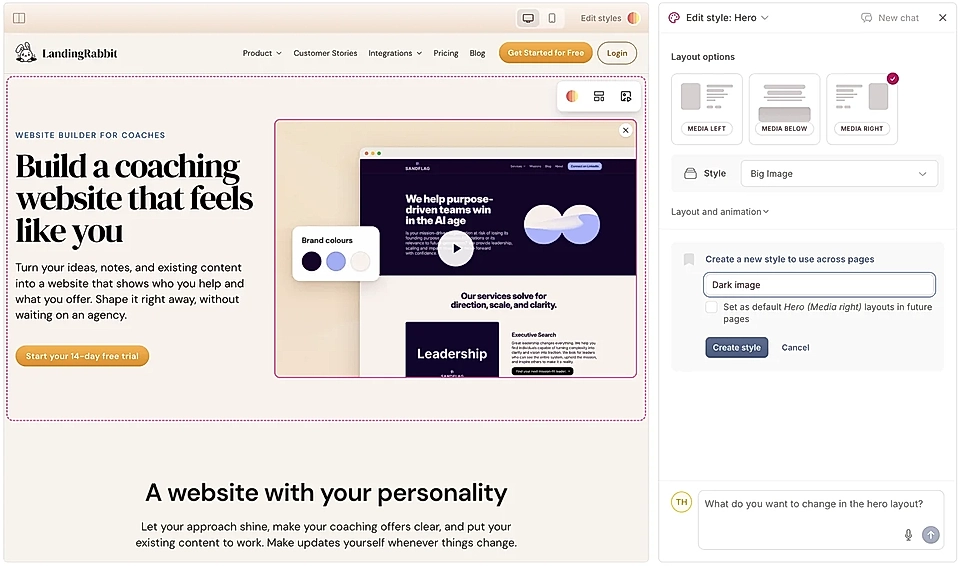
You might only want the background image on one page or a few pages. For example, your articles might sit on a light background, while a landing page uses a dark image. To keep other pages as they are, create a new style for the section first.
Click Edit styles, open the Style dropdown, and click New style. Give it a name, such as "Dark image", and click Create style.
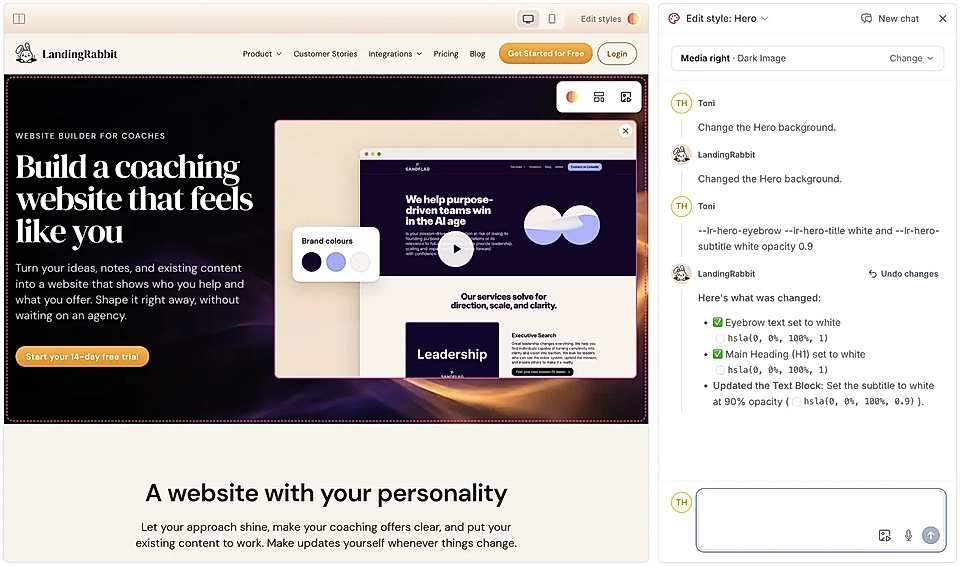
If needed, ask the chat to change the text colours so they stand out against the image. For example, on a dark image:
Make the eyebrow, title, and subtitle white.
2. Create a new style for the navigation
The same goes for the navigation. If you only want it see-through on some pages, give it its own style.
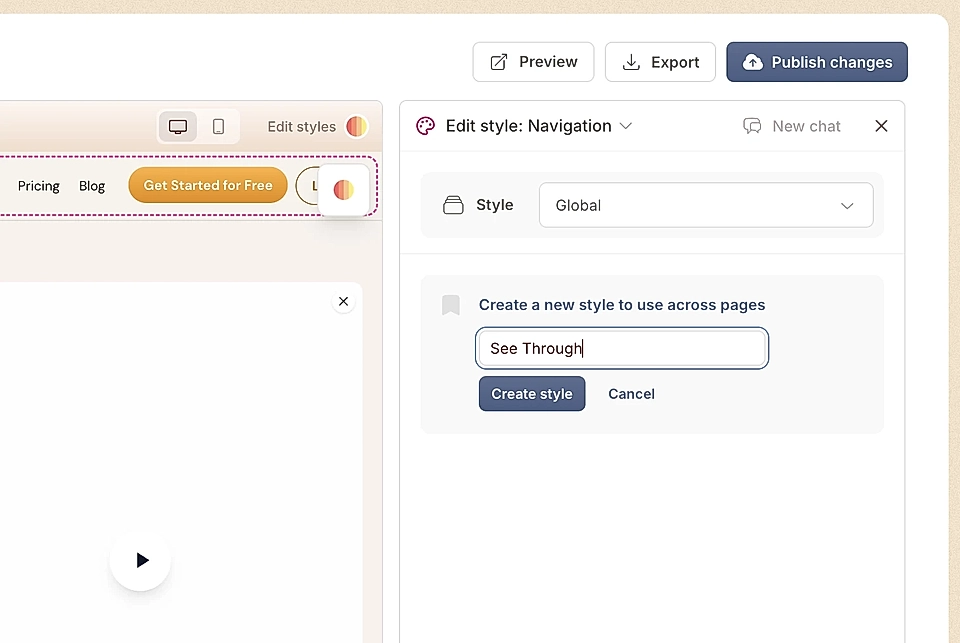
Hover over the navigation, click Edit styles, open the Style dropdown and click New style.
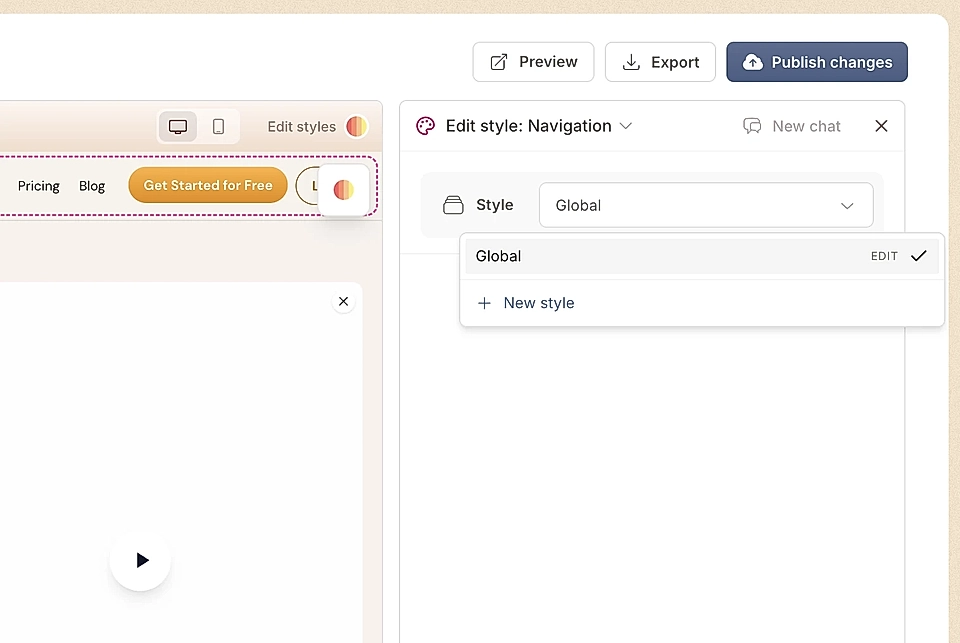
Name it, for example "See Through", and click Create style.
3. Upload an alternate logo (optional)
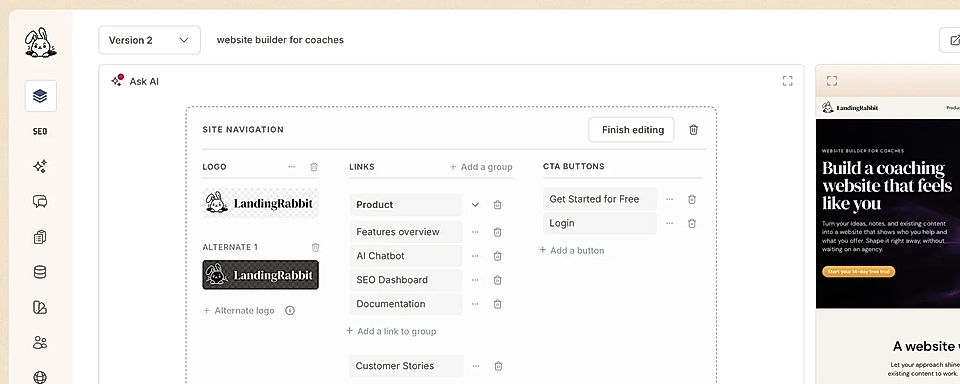
If your logo doesn't stand out against the background image, for example a dark logo on a dark image, add an alternate logo in a contrasting colour. If your logo already works on the image, skip this step.
Open the navigation in the text editor and click Alternate logo under your main logo.
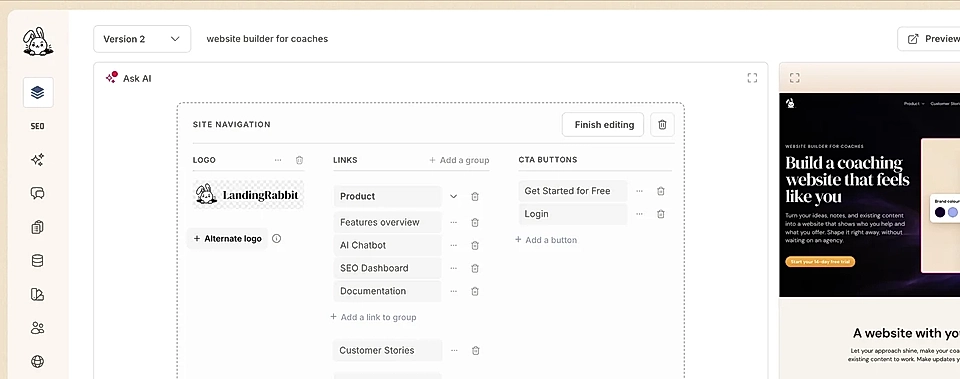
Upload the alternate version of your logo.
4. Ask the chat to make the navigation see-through
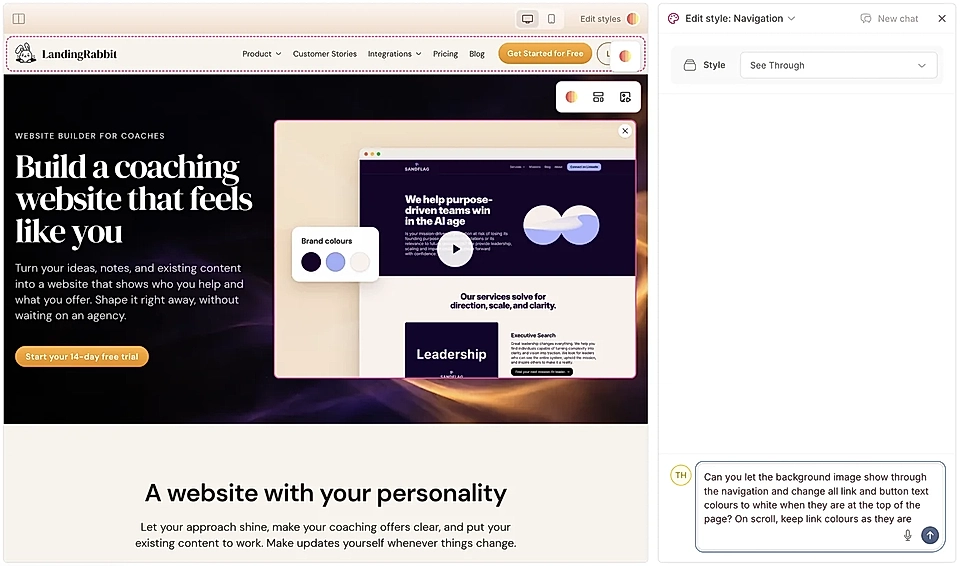
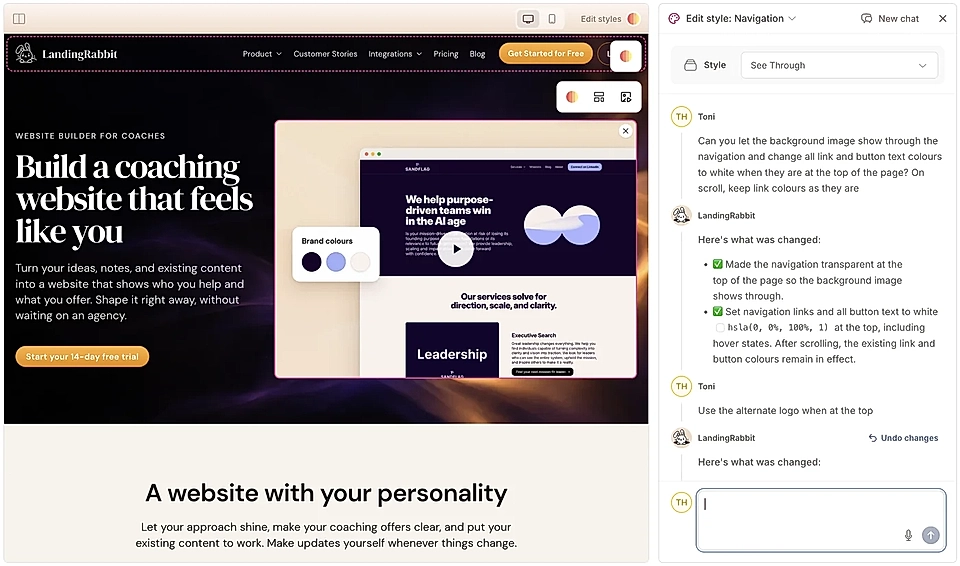
In the Edit styles chat, describe what you want, including link and button colours that are easy to read on your image. For example, on a dark image:
Can you let the background image show through the navigation and change all link and button text colours to white when they are at the top of the page? On scroll, keep link colours as they are.
If you added an alternate logo, ask LandingRabbit to use it:
Use the alternate logo when at the top.
You can also fine-tune:
- How far visitors scroll (in pixels) before the navigation turns solid
- How smooth the change is (transition time in seconds)
- A separate style for mobile, for example a solid navigation on phones
5. See the result
At the top of the page, the background image shows through the navigation, with the link colours you chose and, if you added one, the alternate logo.
When visitors scroll, the navigation turns solid and goes back to its usual colours and logo.