How to install LandingRabbit page format skill in Claude Code
If you use Claude Code, you can install the LandingRabbit page format skill.
This skill helps Claude write landing pages in a format that works with LandingRabbit. You can give Claude an idea or paste your draft, and it will format the content for you.
This guide walks you through the installation process and shows you how to use the Skill.
Install the skill in Claude Code
You can find more details about Skills on our Github page, but below are the main steps.
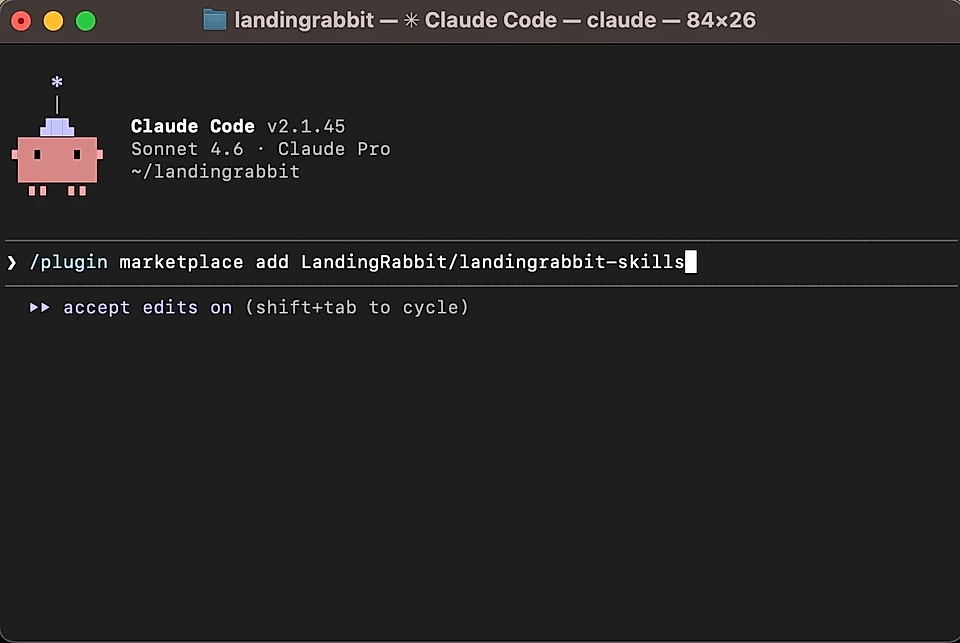
In Claude Code, type /plugin marketplace add LandingRabbit/landingrabbit-skills
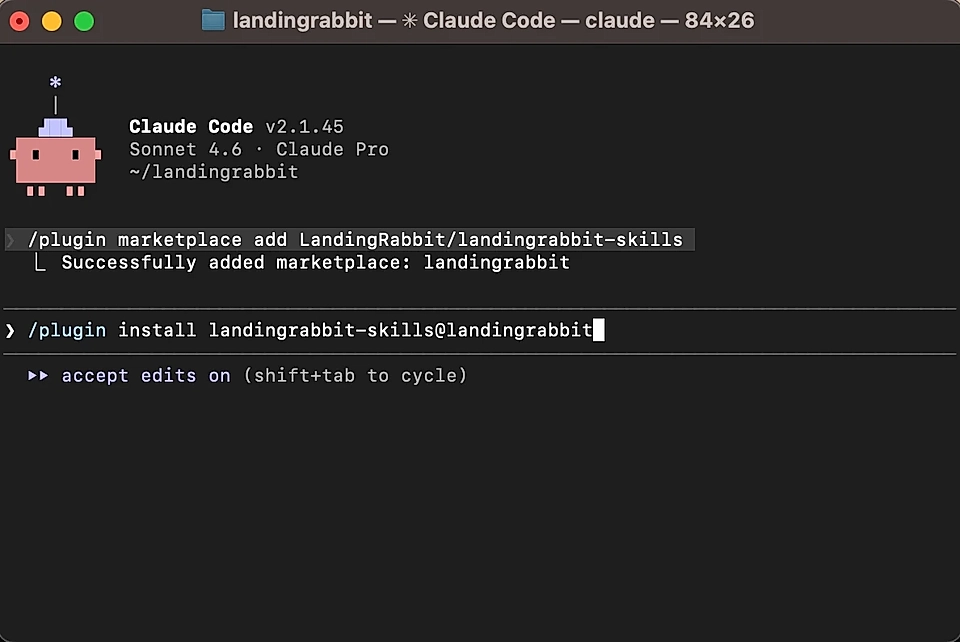
Then, install by typing /plugin install landingrabbit-skills@landingrabbit
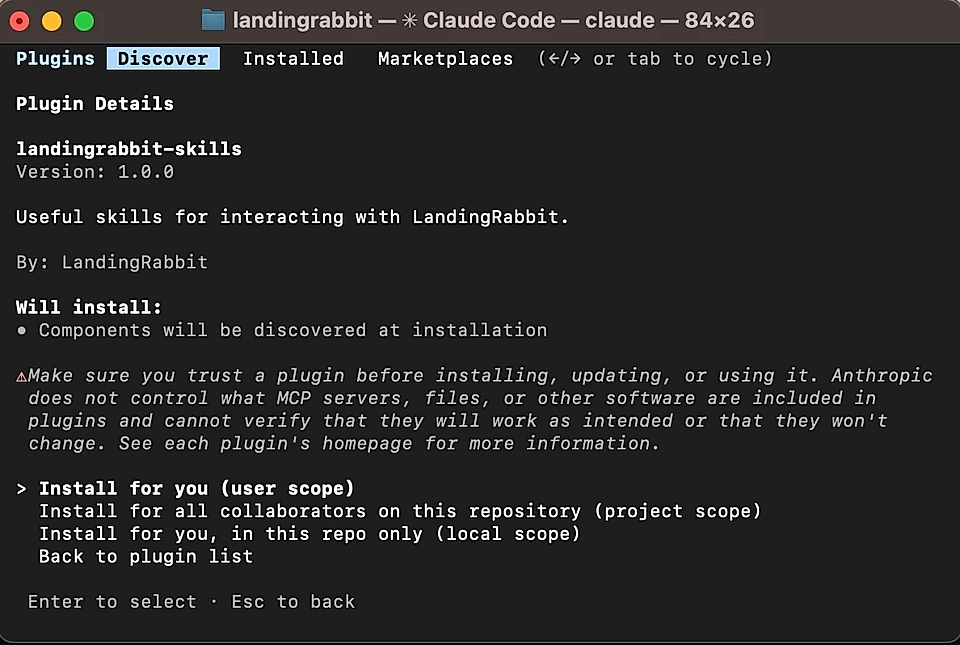
You can install it for yourself or for everyone in the repository.
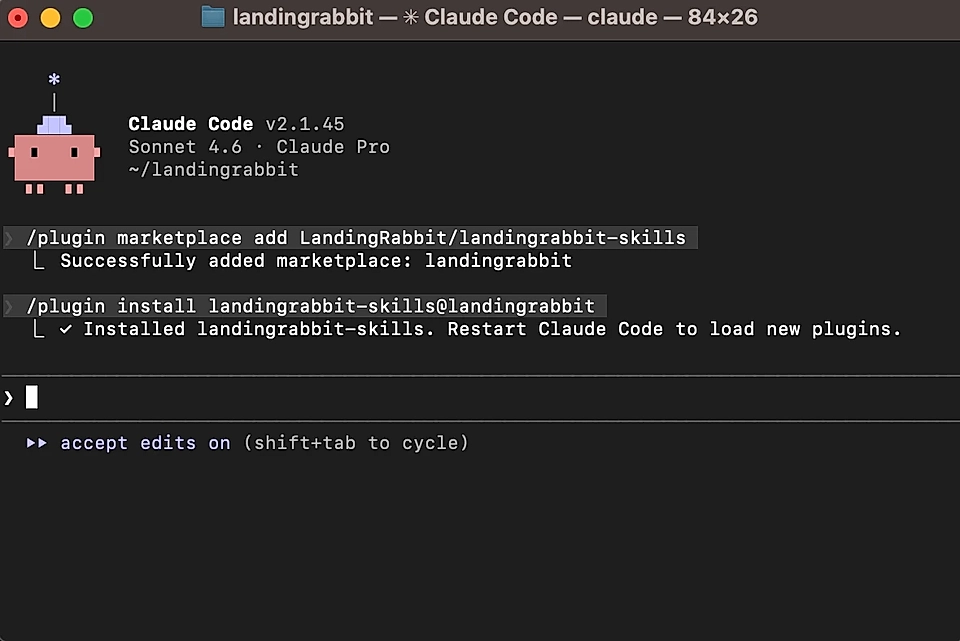
Once installed, restart Claude Code to load the new plugin.
After restarting, you'll find LandingRabbit page format skill in your skills list.
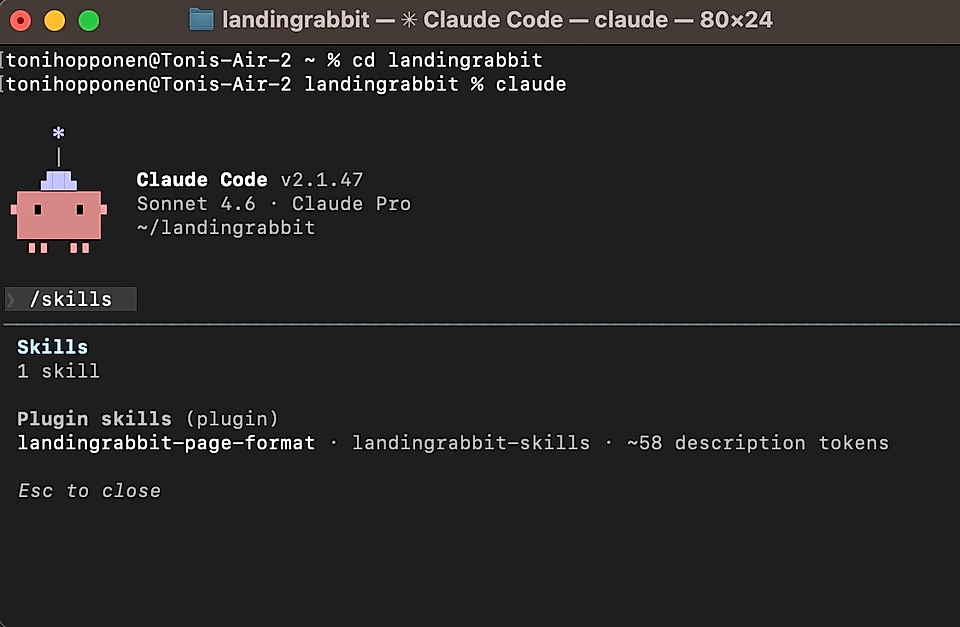
Use the skill to write pages
Tell Claude Code to use the LandingRabbit page format skill.
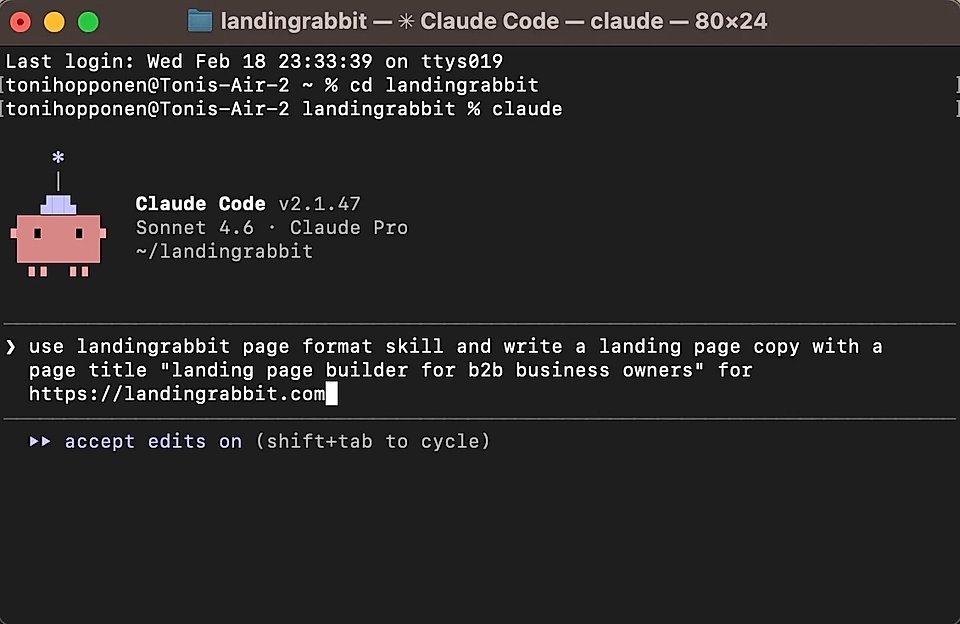
You can either give Claude an idea for a landing page or paste a draft you've already written.
Claude will format it in a LandingRabbit-friendly way.
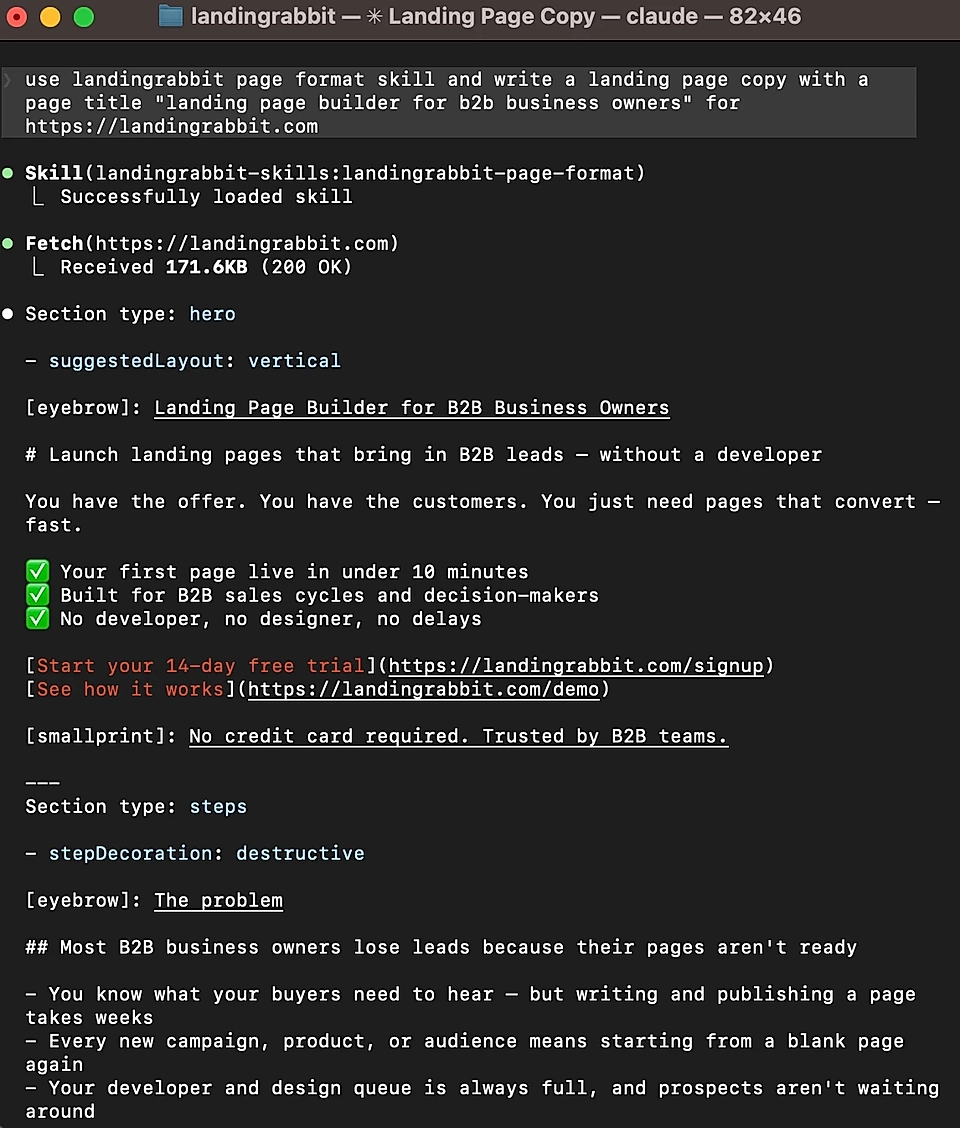
If you're not happy with the structure, ask Claude to make changes. It's flexible and responds to feedback.
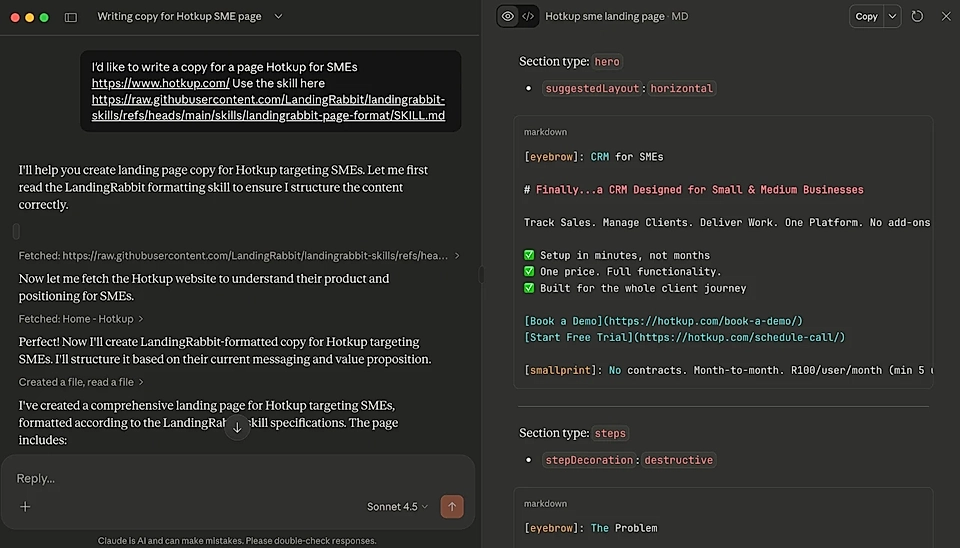
The output is a markdown file with additional details like section type (hero, boxes, etc.) and suggested layout options.
Send the formatted content to LandingRabbit
Once you're happy with the formatted content, you have two options:
- Send the copy using our MCP
- Copy and paste the content into LandingRabbit's chat box
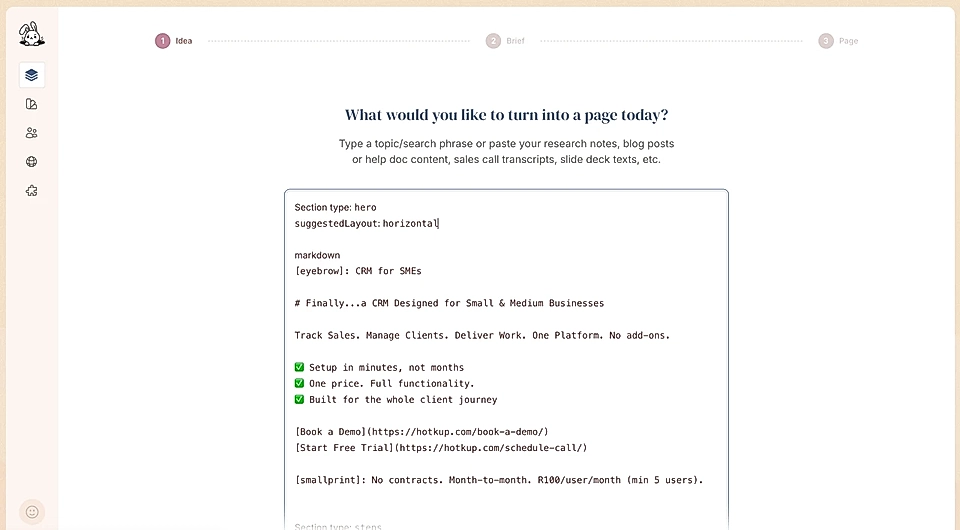
Both methods work. Choose the one that fits your workflow.
You'll get a ready page to edit and publish.

Use the skill in Claude for Desktop and the web version
If you're using Claude for Desktop or the web version, refer to the skill in this GitHub link.
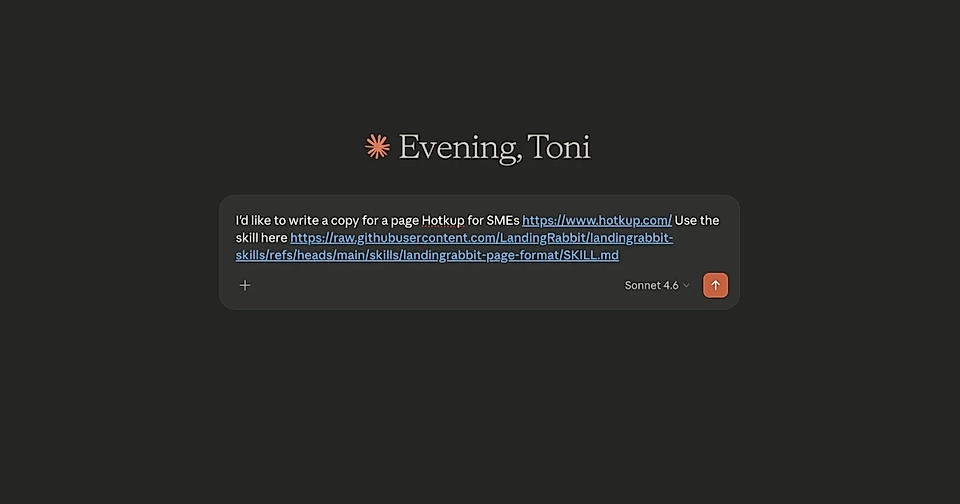
Then ask Claude to do the same thing as described above.
Want to see how LandingRabbit works with your content? Sign up for a 14-day free trial.