How can I create a layout with boxes and icons?
You can add a boxes section with icons to make key features, benefits, or steps stand out.
It's a popular layout on SaaS landing pages, and LandingRabbit makes it quick to set up and customize.
Switch to the Boxes with icons layout
If you don't already have a boxes section on your page, create one by clicking "Add new section"
Click the layout options for your Boxes section.
You'll see different layout styles. Choose the one labeled Icon Boxes.
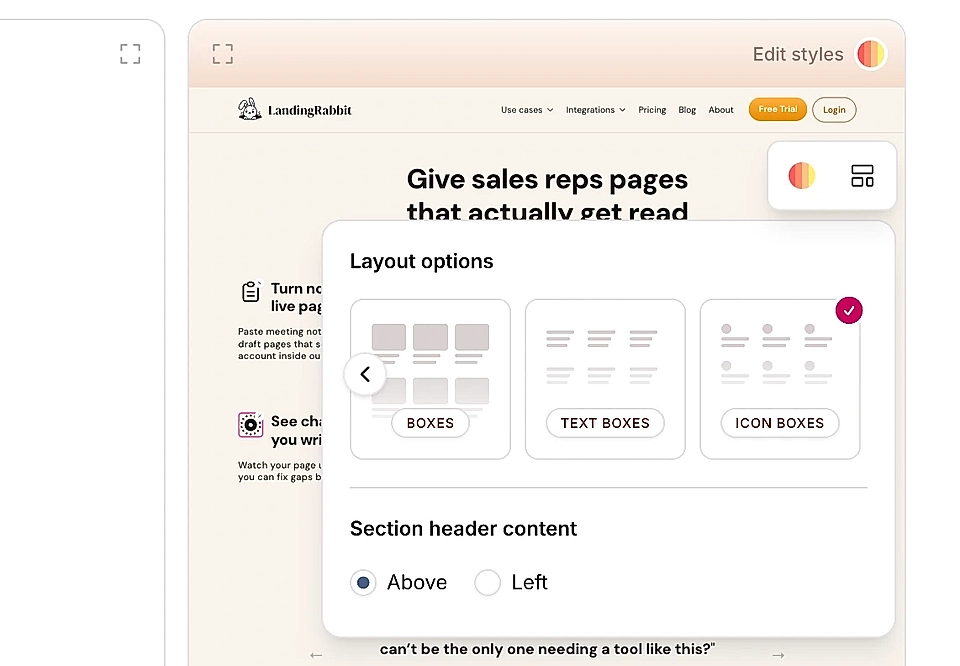
Now each box will have a placeholder for an icon above the title.
Choose your icons
Click any icon placeholder to open the icon library.
You'll see a search bar and a list of over 6,000 icons. Search for what you need, and click to select.
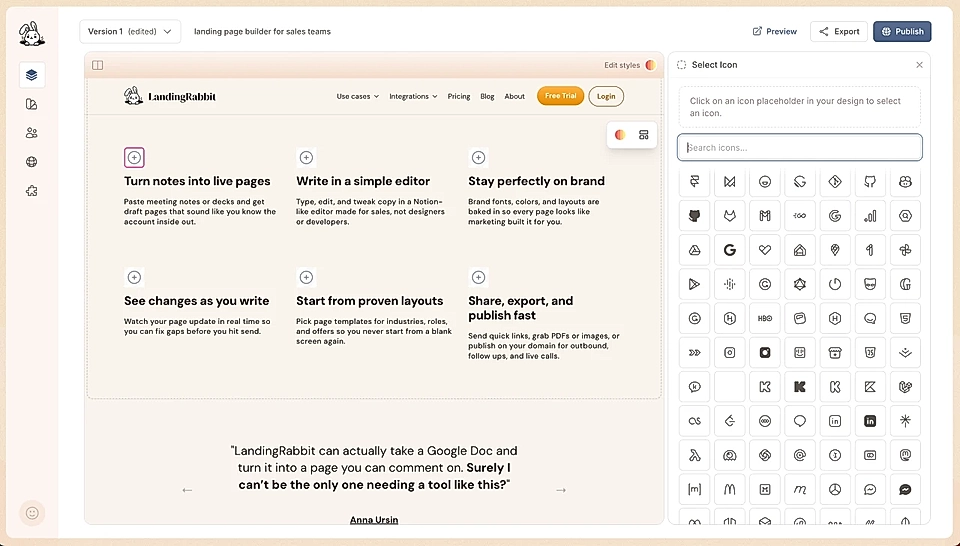
Repeat for each box until your layout is complete.
Customize icon colors and size
Once your icons are in place, you can change how they look.
You can ask LandingRabbit to change the color of all icons at once, or customize individual ones. For example, say 'Change the first icon to orange, the second to blue, and the third to red.'
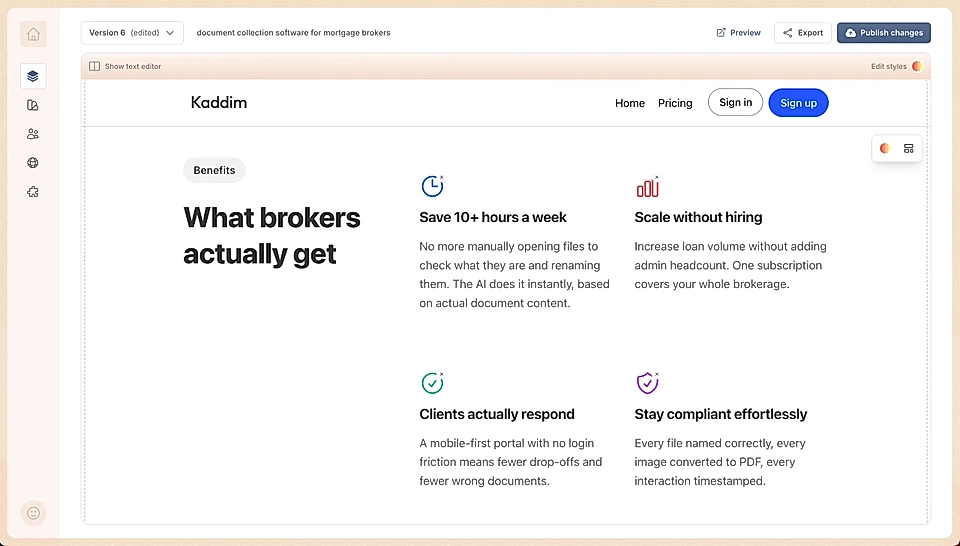
You can also change the size. Just ask to make the icons bigger or smaller.
If you want to move the icons, you can ask to place them to the left of the title instead of above it.
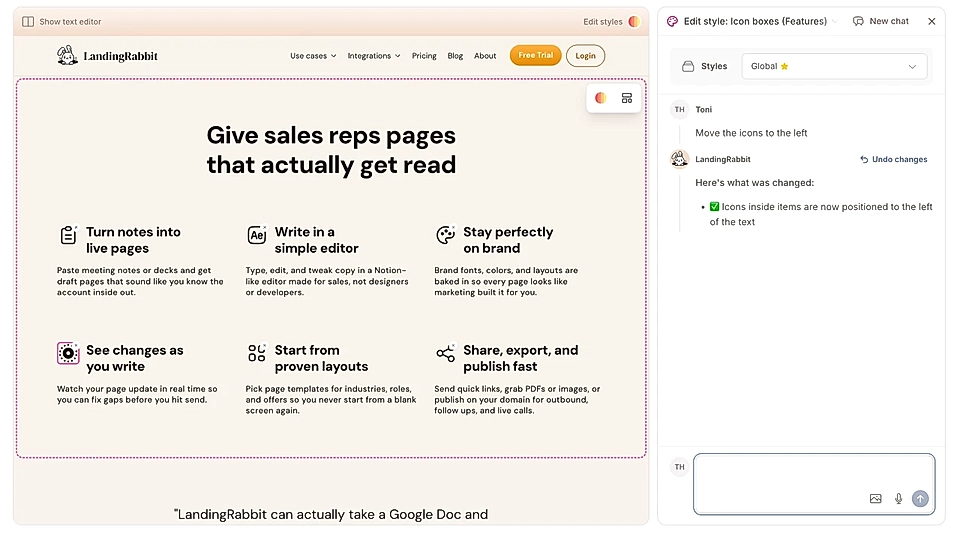
See more information on how to edit the Boxes section look and feel.