How to migrate your website to LandingRabbit in five simple steps
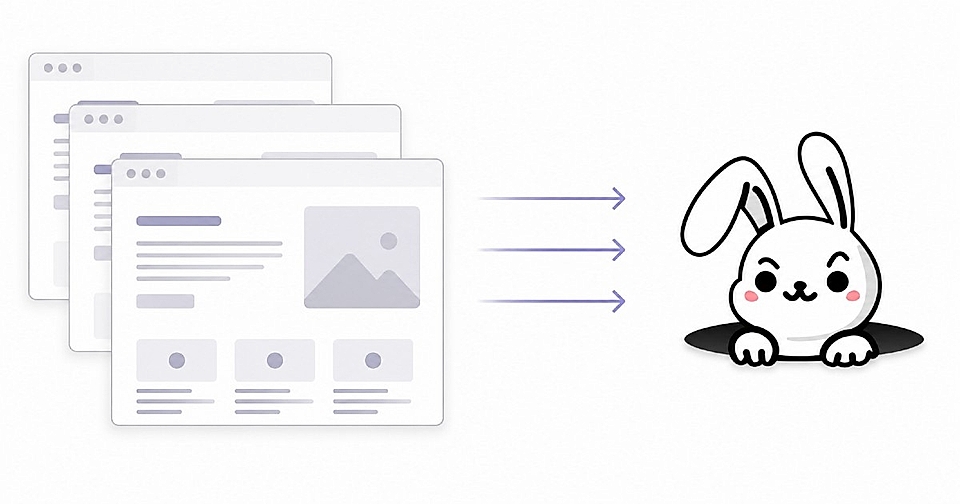
Migrating a website to a new platform used to mean calling in a developer, waiting, and a lot of back and forth to get the page format and structure right. With AI tools in the mix, anyone can do it now.
Whether you have WordPress, Wix, Squarespace, or anything else, you can keep what you already have (and your current URLs).
Here is how to move your existing website content into LandingRabbit in five steps.
Step 1: Use Firecrawl to get your existing content in Markdown format
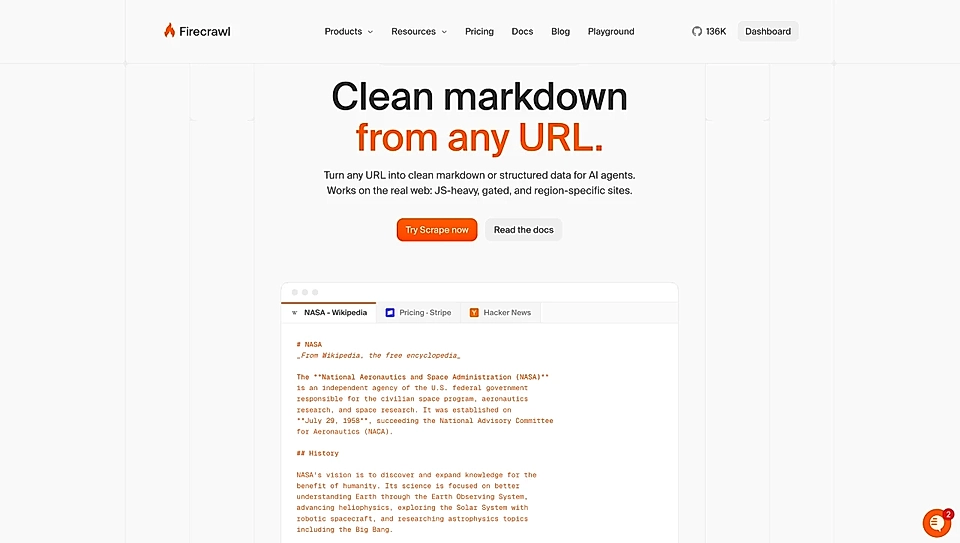
Firecrawl is a tool that turns any website into Markdown. Markdown looks like a regular text file, but it adds a few formatting markers: hashtags for headings, brackets for links, and so on.
With Firecrawl, you can pull in your existing website content and package it as Markdown files ready to bring into LandingRabbit.
The best part: Firecrawl is free to use for up to 1000 pages.
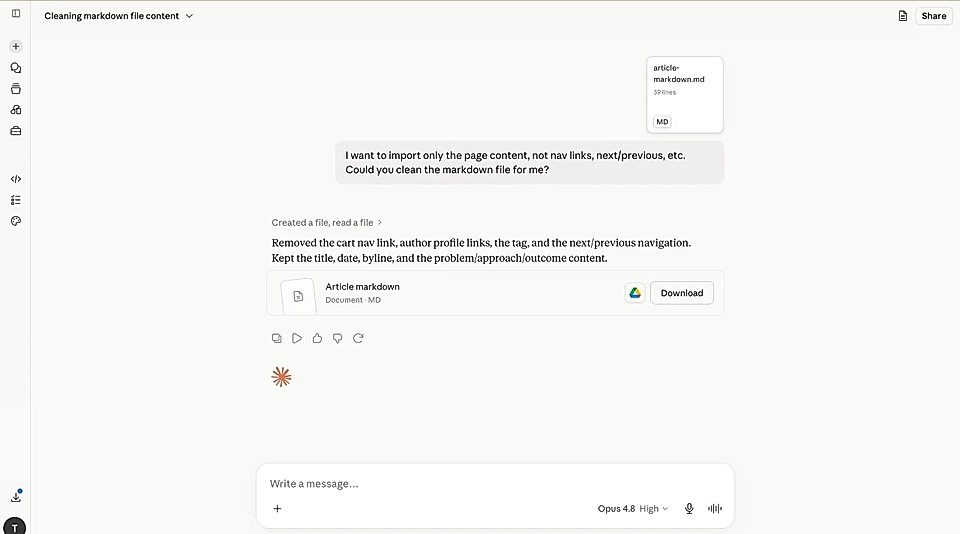
Step 2: Clean up the Markdown files with AI
The Markdown that Firecrawl generates is not always perfect. It may include things like footer, navigation, or next/previous buttons on every page.
Step 3: Use the LandingRabbit Skill to adjust the Markdown structure
Before importing, use the LandingRabbit Skill to make sure the page structure comes through correctly.
For example, if you pulled content from your homepage, the Skill adjusts the Markdown so LandingRabbit knows the page should include, for example, hero, benefits, services, testimonials, CTA sections, and any other parts your current page might have.
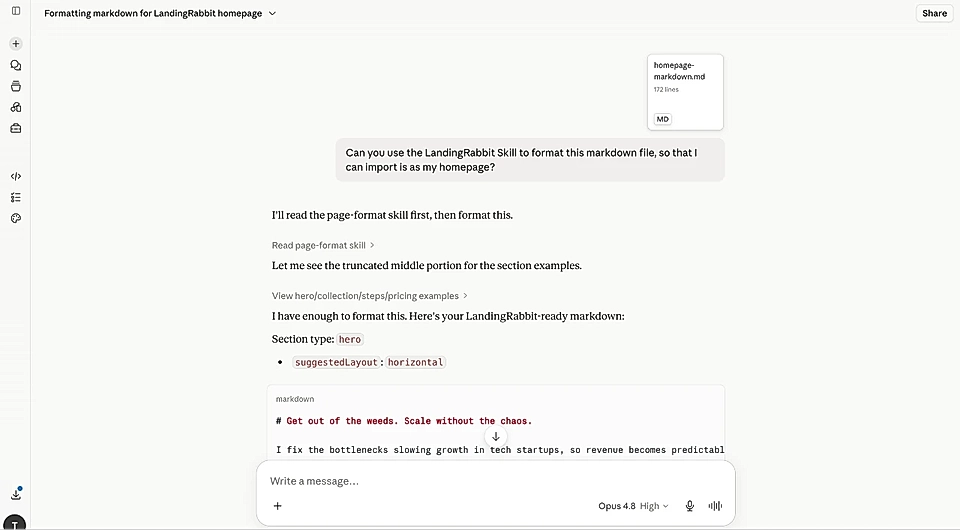
The adjusted Markdown tells LandingRabbit what the content is and how the page should be built, so the imported page matches what you had before.
Step 4: Import your content into LandingRabbit
You have two options here:
Use the Claude or ChatGPT apps to import multiple pages in one go
Go to LandingRabbit, create a new page, and paste your content one page at a time
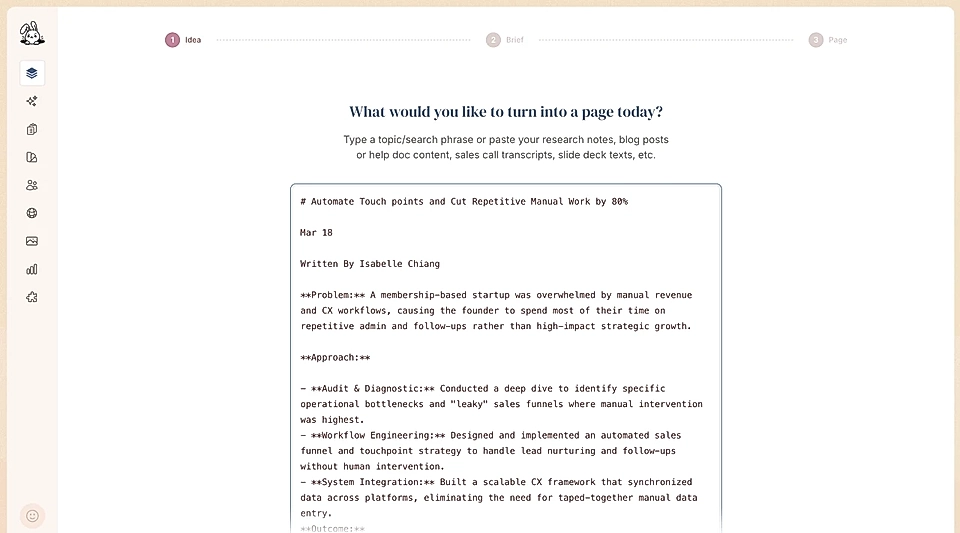
LandingRabbit reads the Markdown and recognises whether you are importing a homepage, a landing page, or a blog post/article, then builds the page accordingly.
Step 5: Review your pages and publish
LandingRabbit gives you a simple text editor where you can make changes before going live. Links, images, and other files are carried over automatically, but it is worth going through each page and noting anything that still needs a small fix.
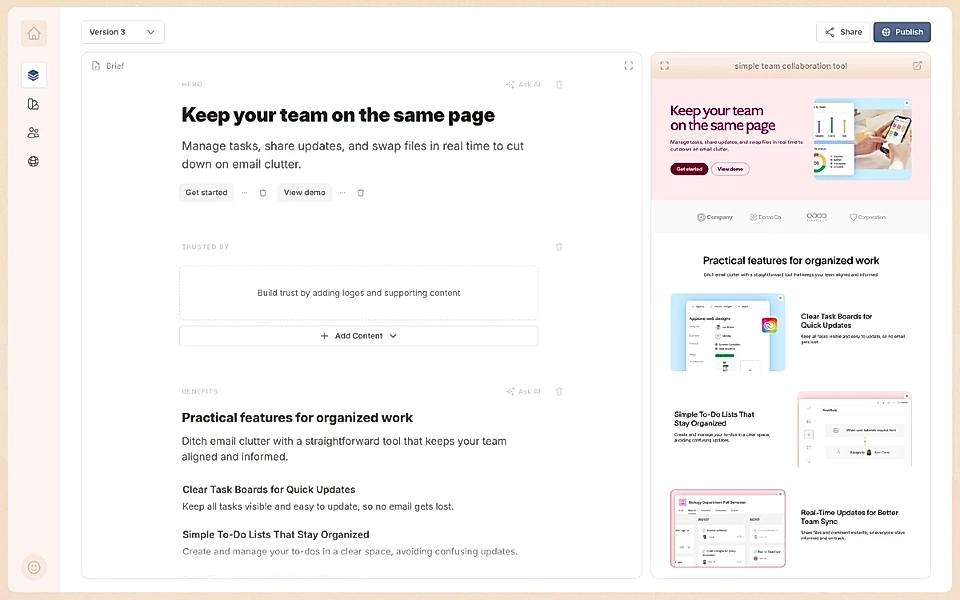
LandingRabbit also generates meta titles and descriptions for each page automatically, so your SEO is taken care of from day one.
Once you are happy with a page, click publish. When all pages are done and you are satisfied with the result, you can point your existing domain to LandingRabbit and the migration is complete.
If any part of this five-step process feels uncertain, do not hesitate to reach out.
We have imported content from all kinds of websites and helped clients get their existing pages into LandingRabbit so they can start creating new content in a much faster way than before.
Contact us and we will help you migrate your website to LandingRabbit.