How to use the LandingRabbit page format skill in Claude
If you use Claude for ideation and writing, you can now turn your Claude conversations into LandingRabbit pages.
We've created a page format skill that helps Claude structure content the way LandingRabbit understands it.
In this help doc, we'll walk you through how to use the LandingRabbit page format skill in Claude Web and Claude Desktop.
What you'll need
Before you start, make sure you have:
A Claude account
A LandingRabbit account
The LandingRabbit page format skill document from our GitHub page
If you use Claude Code, check out our separate guide on how to install the skill there.
Create a page with Claude
Open Claude (Web or Desktop) and start by describing what kind of landing page you want to create.
For example, you might say:
- "I need a landing page for project management software for remote teams"
- "Help me write a comparison page between our product and [competitor]"
- "I want to create an industry-specific page for healthcare companies"
Once Claude understands what you're after, ask it to format the page using the LandingRabbit skill.
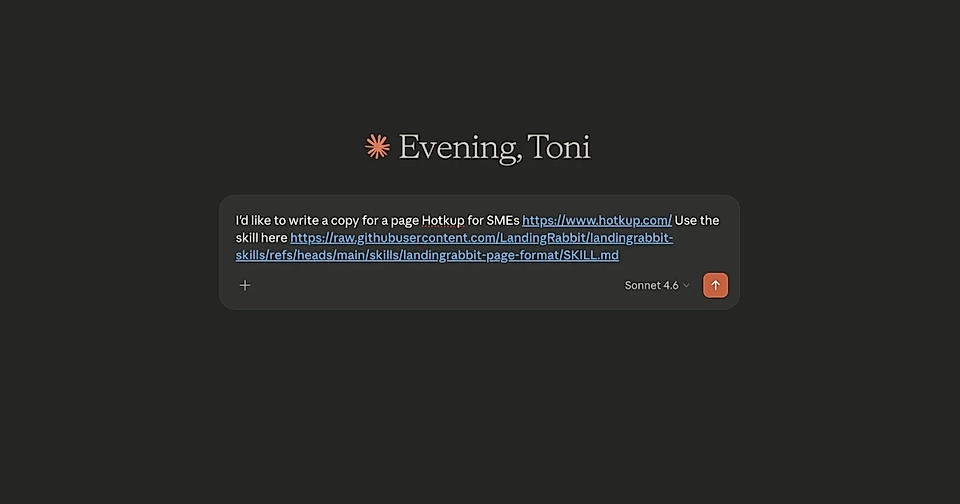
You can say something like: "Format this landing page following the instructions in the skill document at [paste the GitHub URL]."
Claude will then generate the page content and provide markdown with details about each section.
If you like, you can also save the Skill in Claude. Here's how:
Download the Skill markdown file from Github
Click 'Customize' in Claude's sidebar
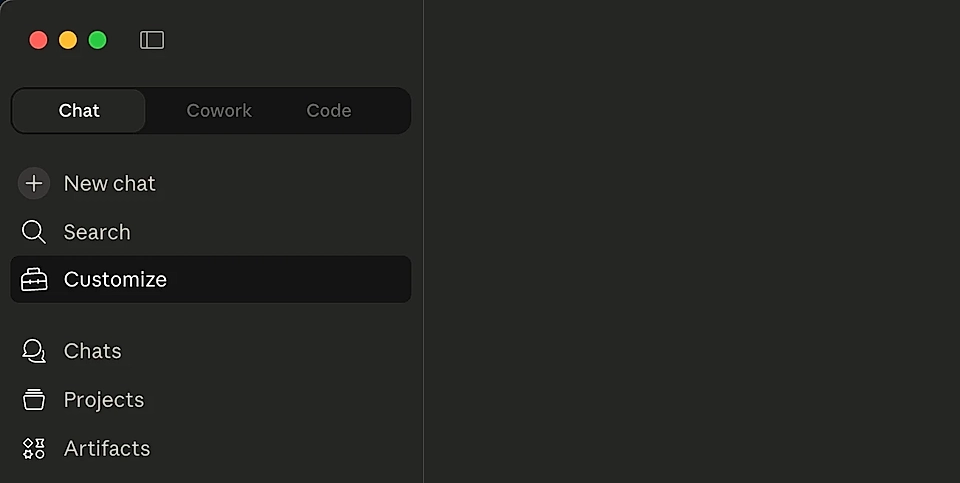
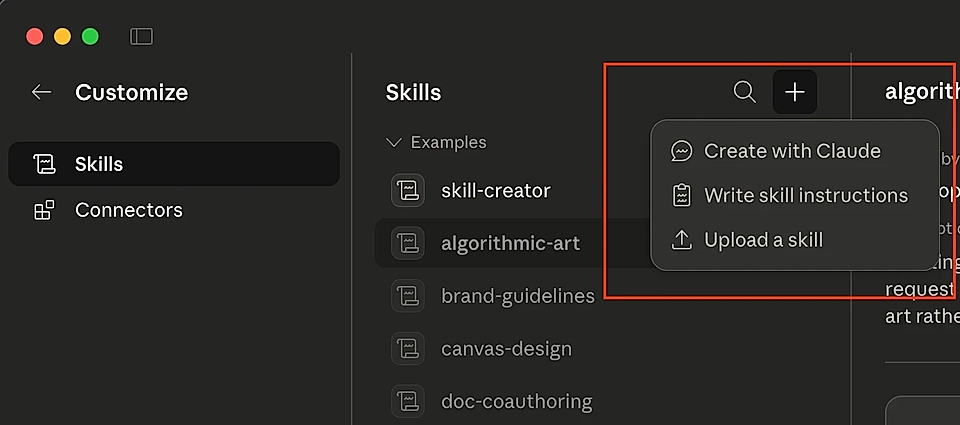
Choose Skills and then upload a Skill
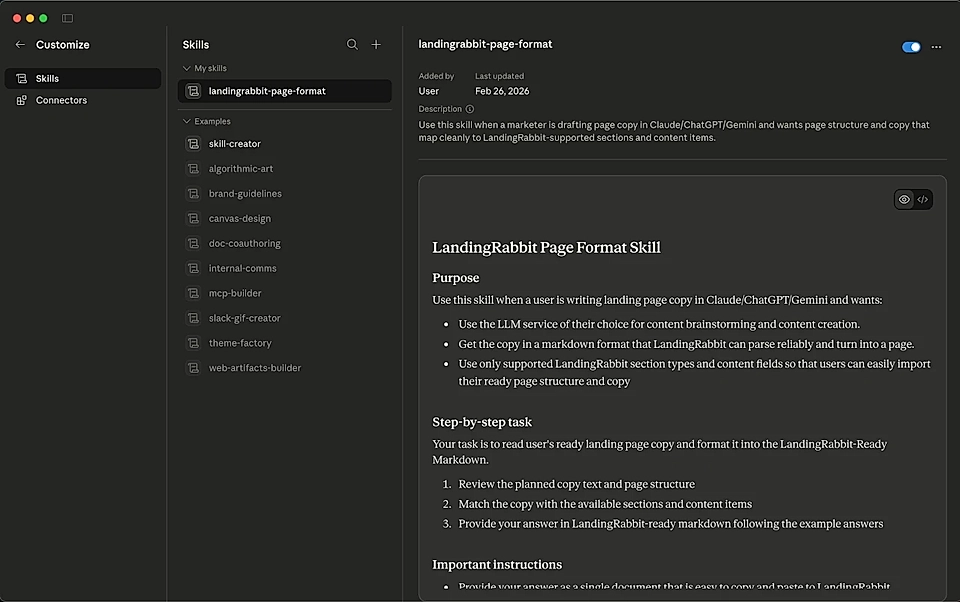
Note that Claude doesn't update the uploaded Skills so it might be better to refer to the current version of the Skill directly.
Review and edit in Claude
Claude gives you a structured page with all the sections.
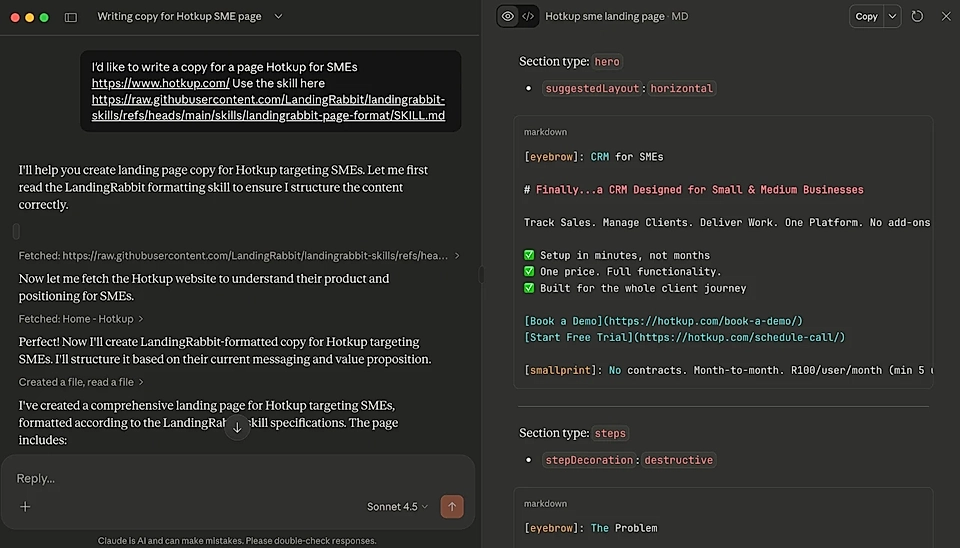
You can ask Claude to make changes:
- "Make the hero section more direct"
- "Add a section about pricing concerns"
- "Rewrite the problem section using more customer language"
Keep refining until you're happy with the content.
Import into LandingRabbit
When you're happy with the page, copy everything from Claude.
In LandingRabbit:
Go to the Pages view
Click to Create a new page
Paste the content from Claude into the new page chat box
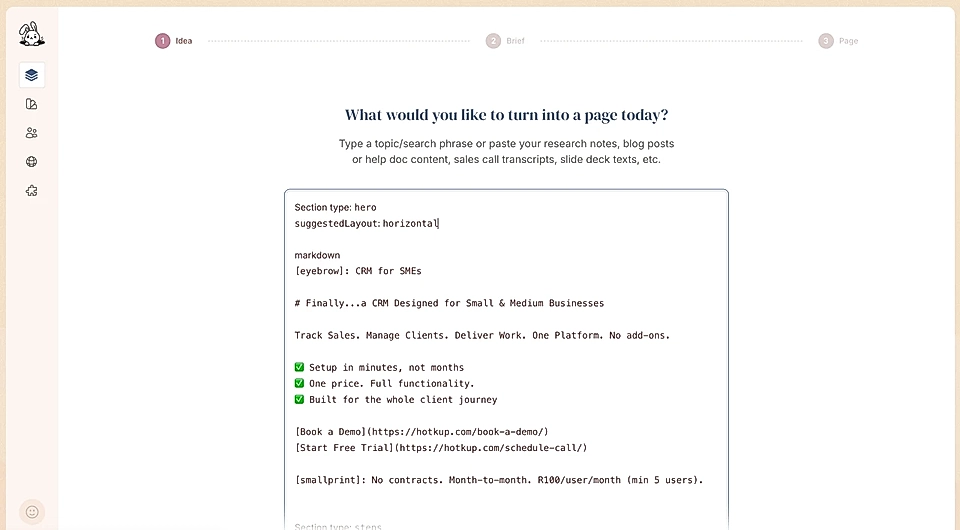
LandingRabbit will read the structured content and create the page for you.
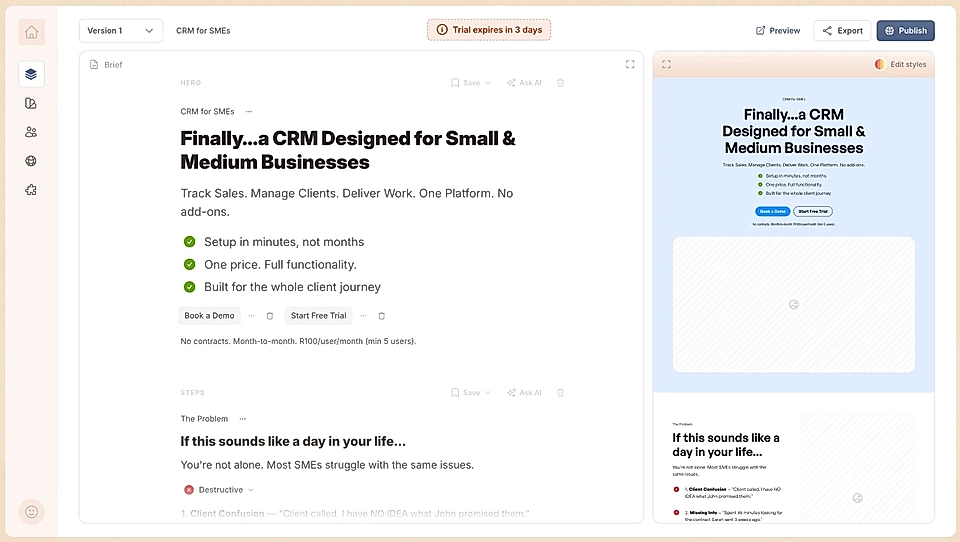
Using the LandingRabbit page format skill in Claude gives you the best of both worlds.
You get Claude's conversational help with content strategy and writing, then bring that into LandingRabbit for design, layout, and publishing.
If you run into any issues with the skill or have questions about how to structure your content in Claude, reach out to [email protected].