Can I set an auto scroll for Trusted By logos?
Yes, you can.
If you don't have a Trusted By section on your page yet, click the plus icon to add a section on the left, then choose Trusted By.
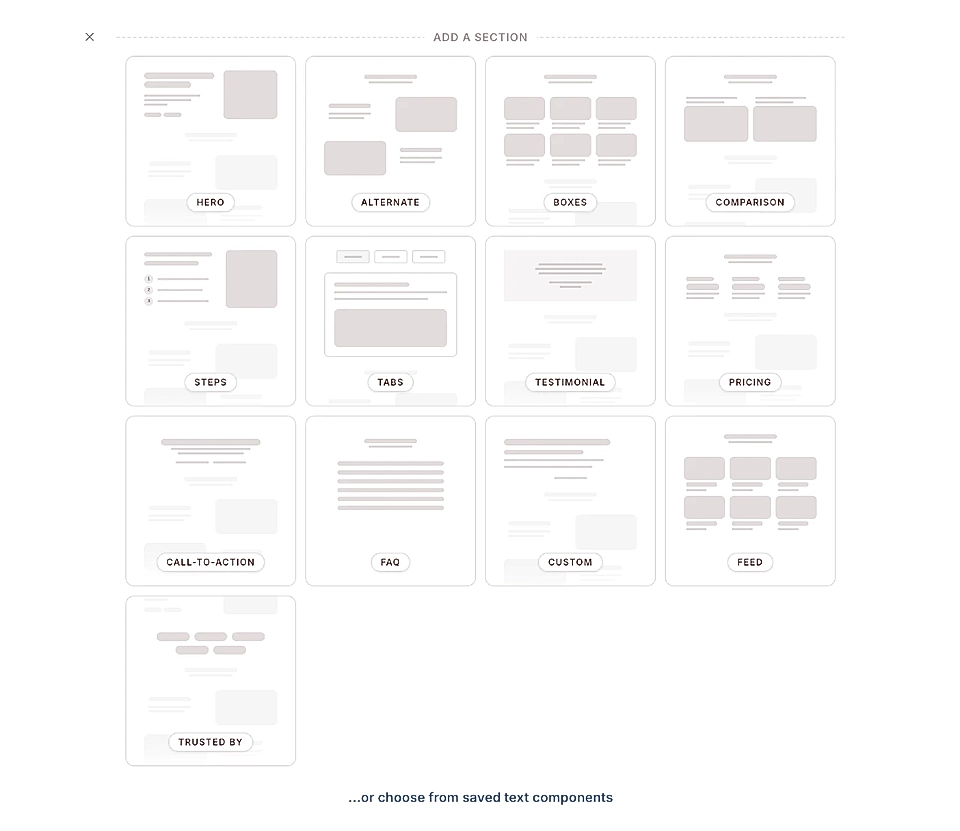
Upload and adjust your logos
Once the section is added, you can upload as many logos as you like.
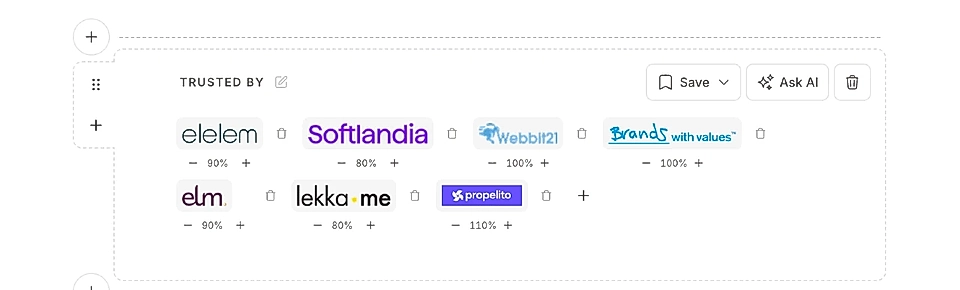
Below each logo, you'll see plus and minus buttons. These let you change the relative size of each logo, which is helpful when your customer and partner logos have different shapes and sizes.
Enable auto scroll for Trusted By section
When your logos are ready, hover over the page preview on the right.
At the top of the Trusted By section, you'll find the layout options icon. Click it to open the settings.
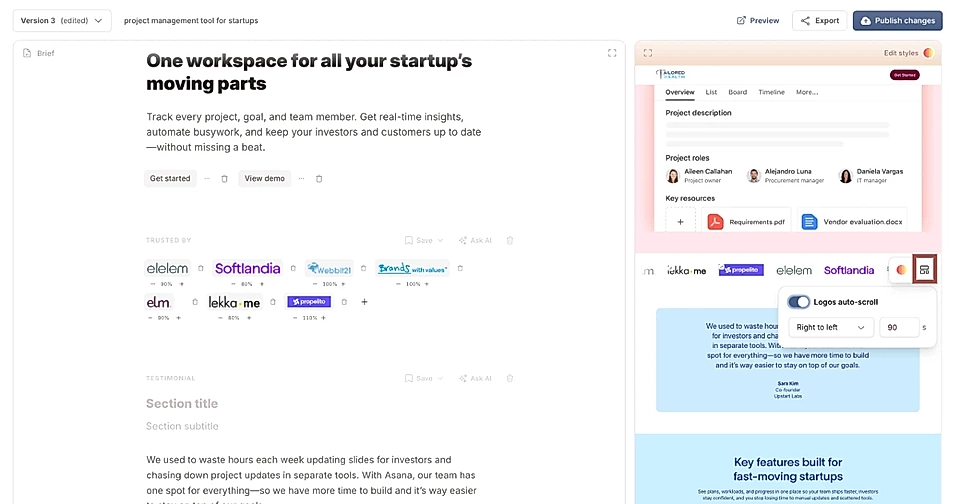
Inside, you'll see the auto scroll option. Enable it, and you can choose:
- Scroll direction: right to left (default) or left to right
- Loop duration: how long it takes for all logos to scroll through once. The default is 90 seconds, but you can set any value you want.
Adjust the section width
To give your auto scroll more space on the page, hover over the page preview again and click the Edit Styles icon.
In the chat, you can ask to change the section width to a specific value, like 1200px.
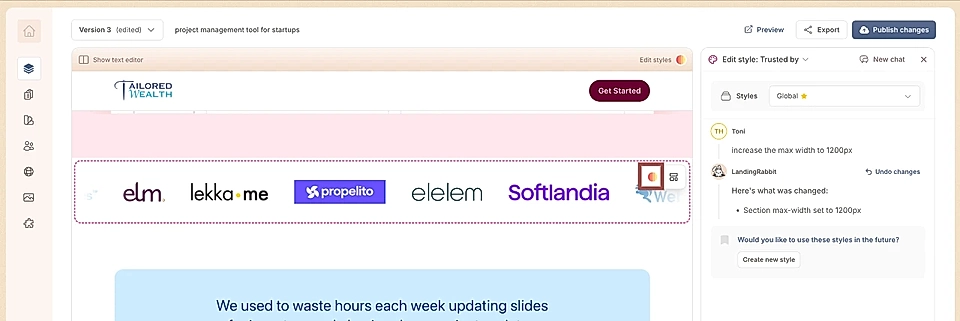
That's it. Your Trusted By section will now scroll automatically with your chosen settings.