Can I add navigation to LandingRabbit pages?
Yes, you can.
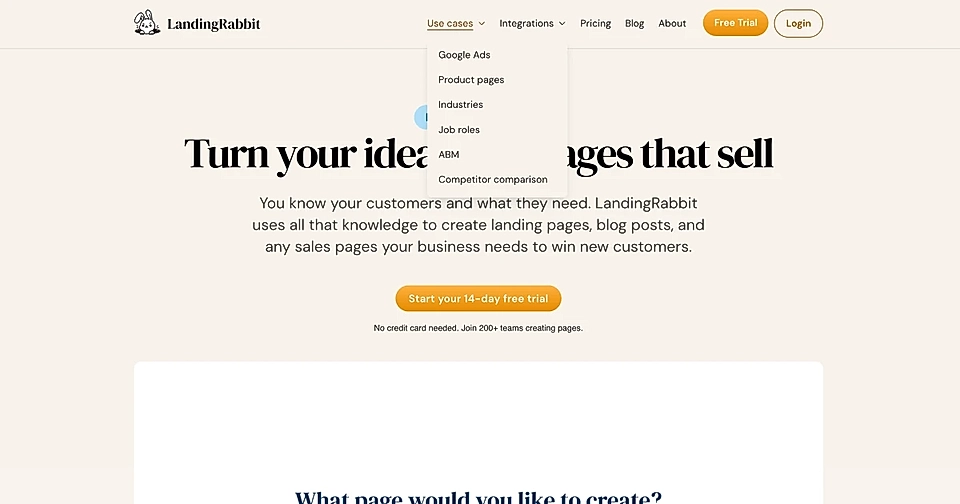
In the page editor at the top, find the Edit site navigation bar.
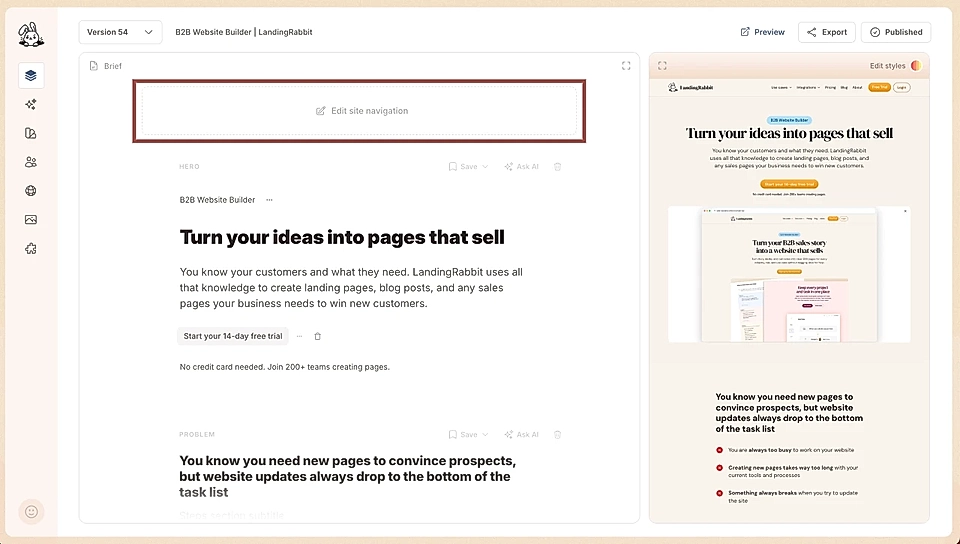
This opens settings where you can add a logo, links, and CTA buttons to your site navigation.
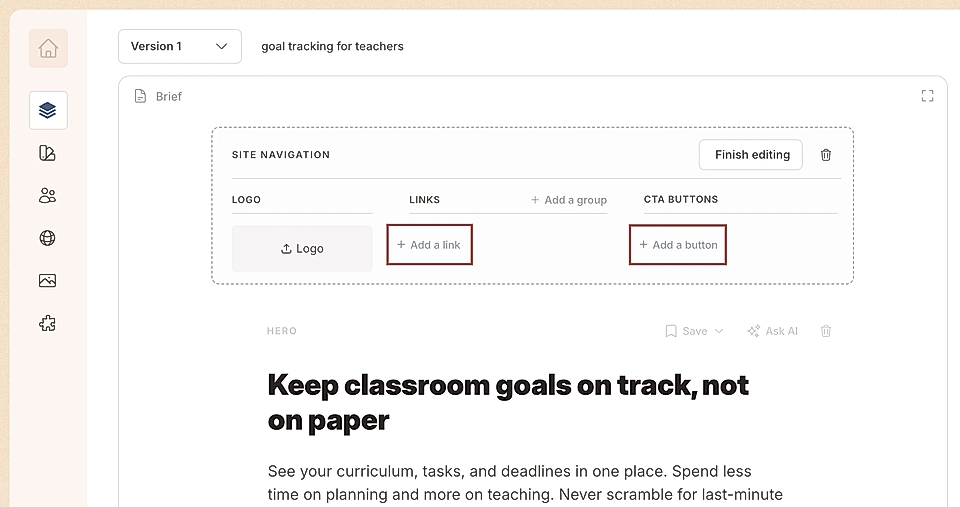
Add and organize navigation links
You can add multiple links and buttons to your navigation. Click + Add a link or + Add a button. Then, type the link/button text you'd like to show in the navigation.
Click the three dots next to each link to open the link editing popover.
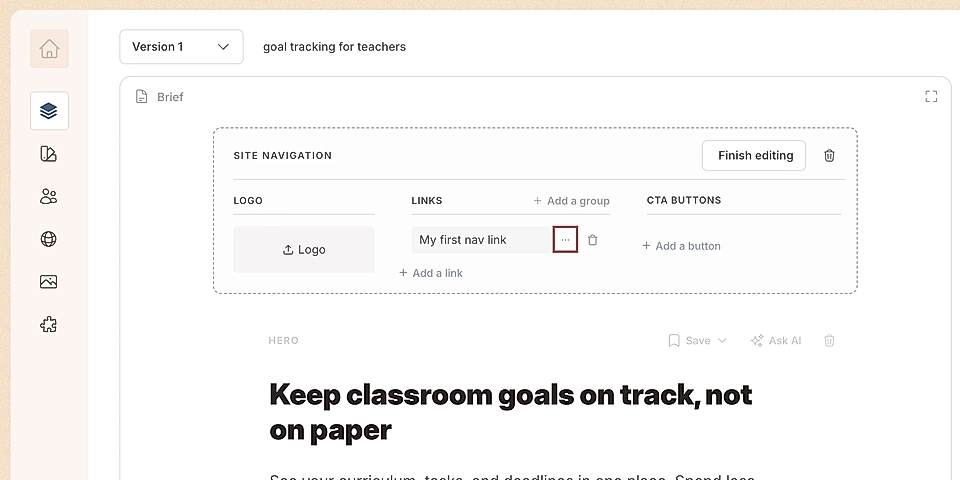
If you want to group links, click + Add a group and add links there. Grouped links will automatically form a drop-down menu in the navigation.
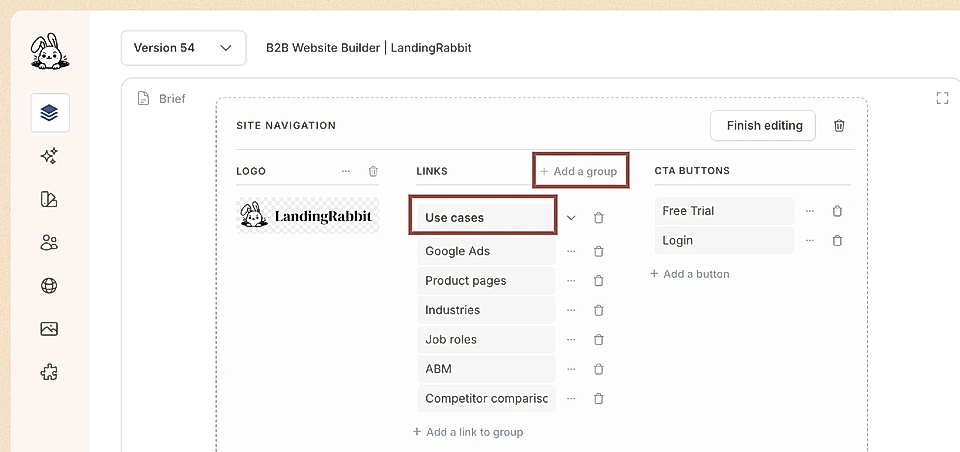
You can drag and drop to change the order of links and buttons.
Buttons can link to a page, open an uploaded file, or trigger an embed code (useful if you want to open a popover, for example).
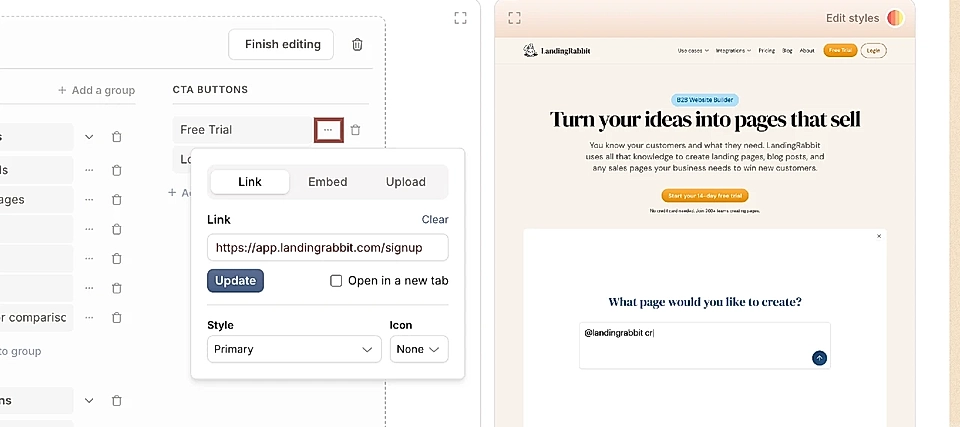
Change navigation styles
Click the Edit styles icon in the page preview to adjust how your navigation looks.
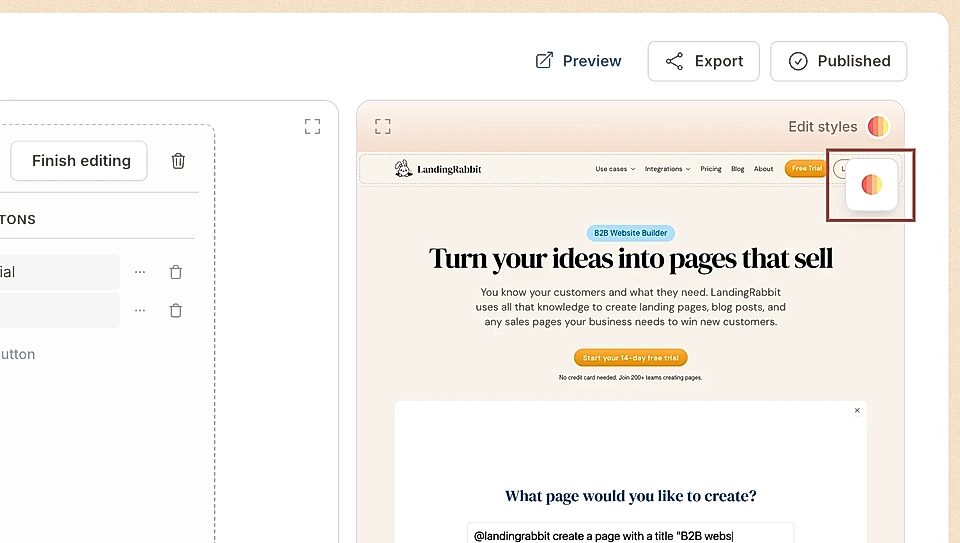
You can change:
Navigation background colour and buttons colours
Font type, colours, and sizes
Position of links and buttons (move them to the middle if you want)
Height of the navigation for desktop and mobile separately
Maximum width of the logo (if your logo appears too small or large)
For mobile, you can control whether the drop-down menu takes the full page width or opens as a small menu on the right.
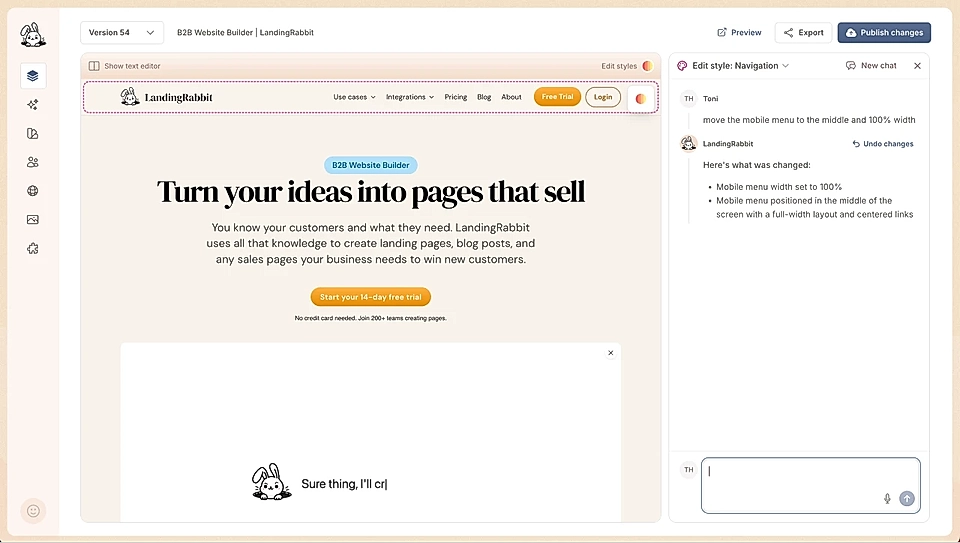
By default, mobile menu links open on the right.

But with the edit styles, you can move them in the middle.

For desktop, you can adjust the maximum width of the menu (useful if you've changed your content max width from the default 984px to something wider)
The best thing about LandingRabbit's navigation editing tool is that you can start small and go very complex. Without coding or prompting a thing.