How to leave comments and notes in LandingRabbit
Instead of gathering feedback on Google Docs, you can share an on-brand page with stakeholders and ask them to leave comments and notes anywhere in the layout.
Leaving feedback on your landing pages is simple and doesn’t require a login.
Here’s how the commenting works in LandingRabbit 👇
Step 1: Share the page
Open the landing page in a new tab or click 'Share' in the page editor.
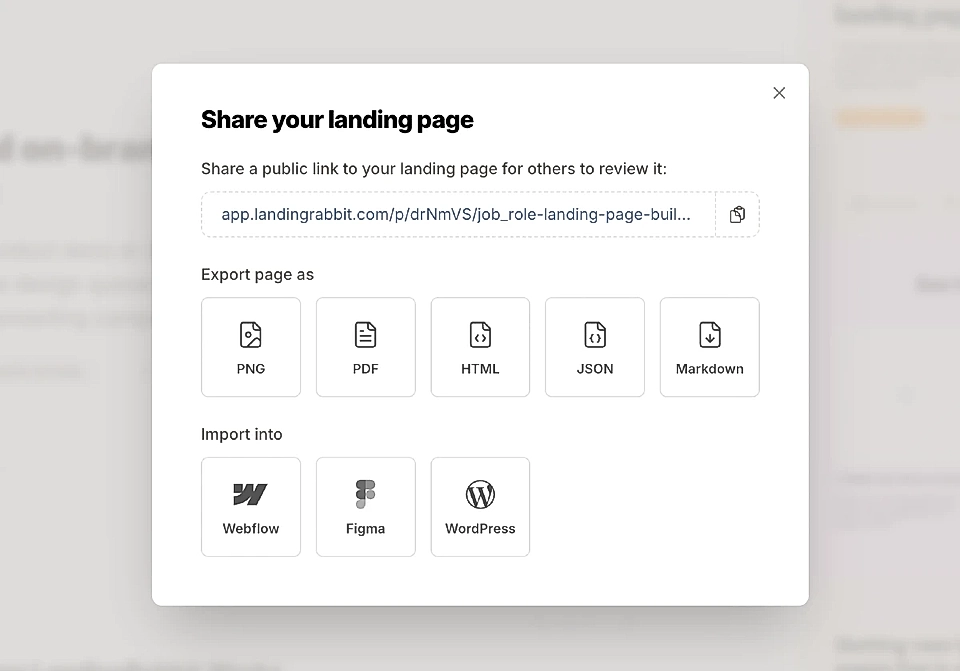
Then, copy and share the URL with your stakeholders.
Anyone with the link can leave comments.
Step 2: Add a comment or note
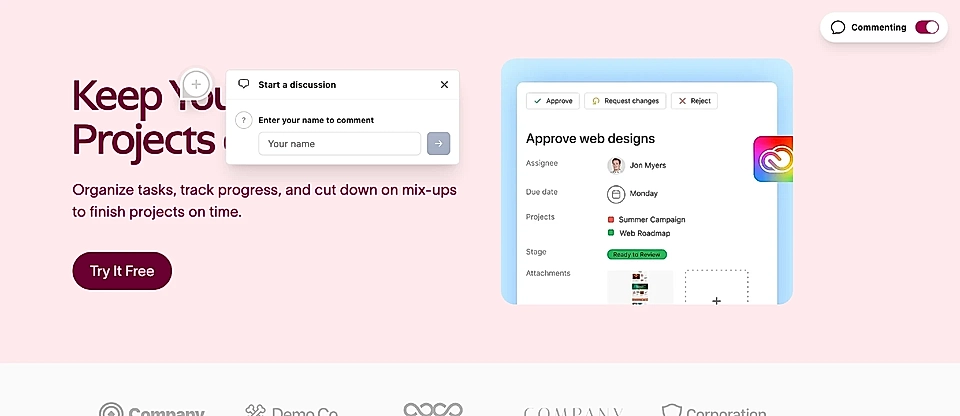
Star by clicking anywhere on the layout (e.g., Hero section or further down the page).
If you are not logged in, type your nickname.
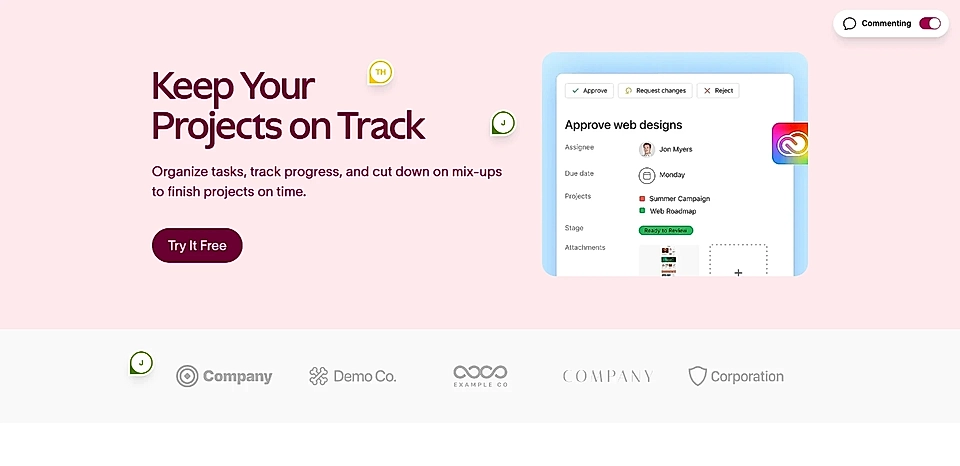
When you and your stakeholders leave comments, bubbles appear in the layout.
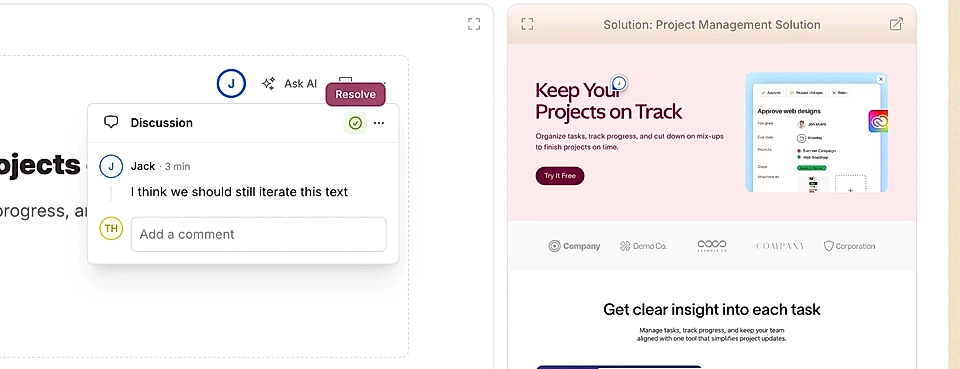
Step 3: Reply to comments and mark them resolved
Click any of the bubbles to open an existing comment and continue the conversation.
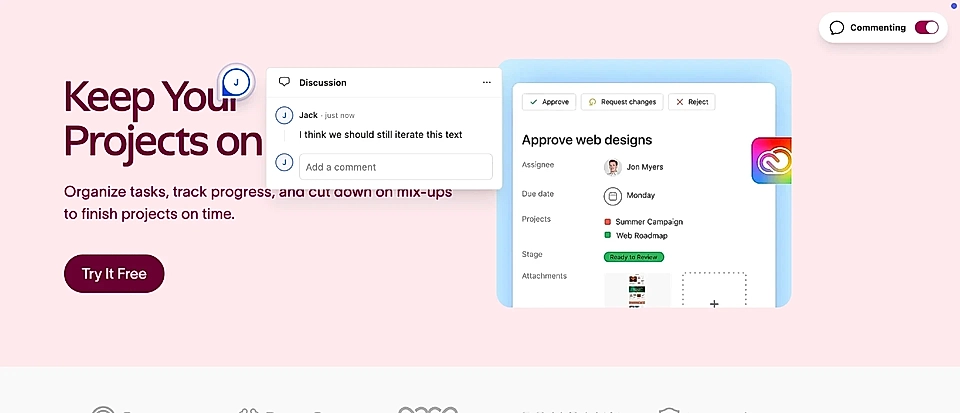
All replies are shown in real time to anyone viewing the page.
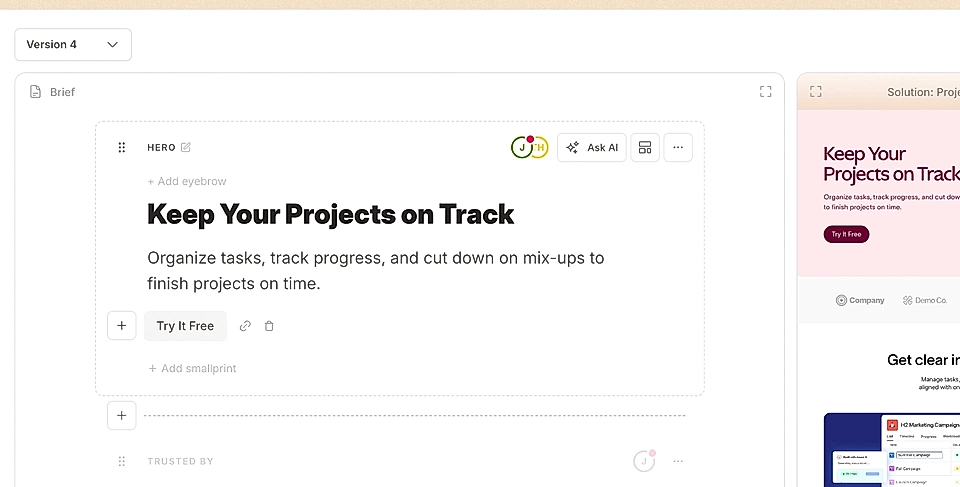
If you are logged in, you can view the comments in the text editor as well.
Mark comments resolved if you want them to disappear from the page.
If you have any questions, feel free to reach out. We're always happy to help!