How to add a curved or angled edge to sections and cards
When you click Edit Styles for any section, you can add a curved or angled edge along the top or bottom of the section, or along the bottom of the cards inside it.
Shapes you can ask for
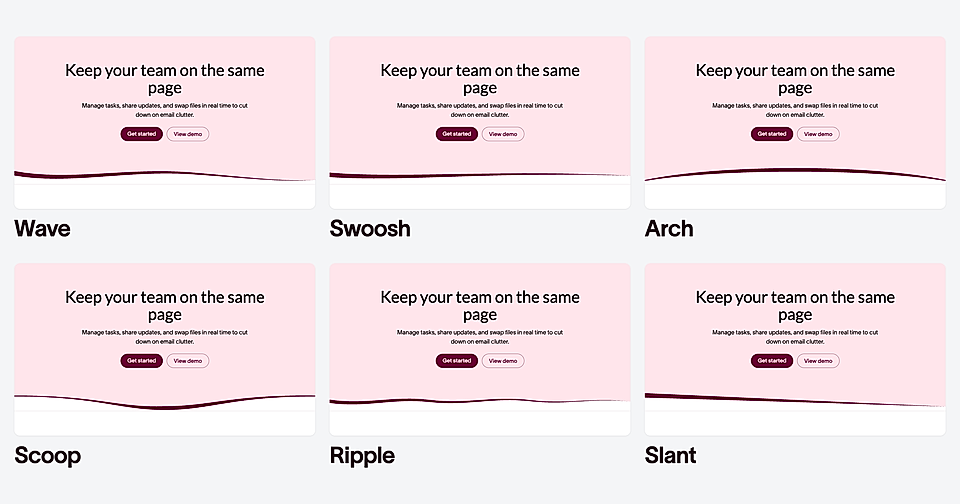
Here are some of the example shapes:
Wave: rolling crests across the edge
Swoosh: one long S-curve across the full width
Arch: a wide dome rising out of the edge
Scoop: a single soft dip in the middle
Ripple: quick, even ripples across the edge
Slant: a straight diagonal cut
These are a starting point rather than a fixed list. You can also describe a shape in your own words. For example, a zigzag, a row of scallops, a chevron, a torn paper edge, and AI will draw it.
What you can adjust

Once you open the Edit Styles chat for a section, you can ask AI to add a shape and control:
Position: along the top or the bottom edge
Depth: from a subtle lip to a deep sweep
Direction: mirrored, so the shape rises the other way
Colour: one colour, or two, where the second becomes a thin band following the curve
Amount of the band colour: more or less of it
To take it off again, ask AI to remove the shape.
Where it can be useful
A few examples of how you might use this:
- A wave at the bottom of the hero, in the colour of the section below, so the two blend into each other
- A slanted edge between two coloured sections to break up a page of straight lines
- A small scoop along the bottom of feature or pricing cards, in a brand accent colour
- An arch at the top of a call-to-action section to draw the eye toward it