Ask AI chat widget answers questions and books meetings
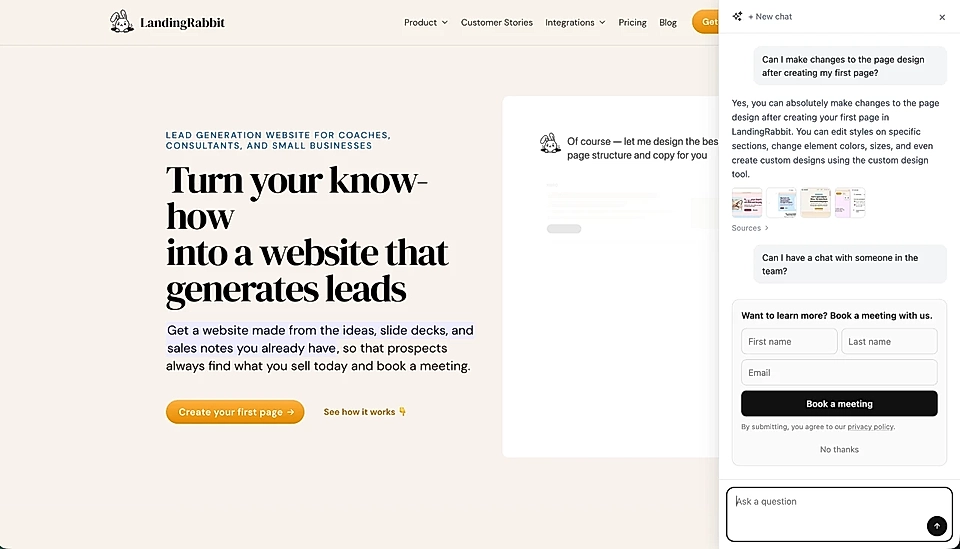
The Ask AI chat widget lets your website visitors ask questions and get instant answers, based on your website content and materials.
It doesn't use the internet or guess. If the answer isn't on your site or uploaded materials, it won't make one up.
How to set up the Ask AI chat widget
In the app, click the Ask AI icon in the left panel. From there, you can turn the widget on.
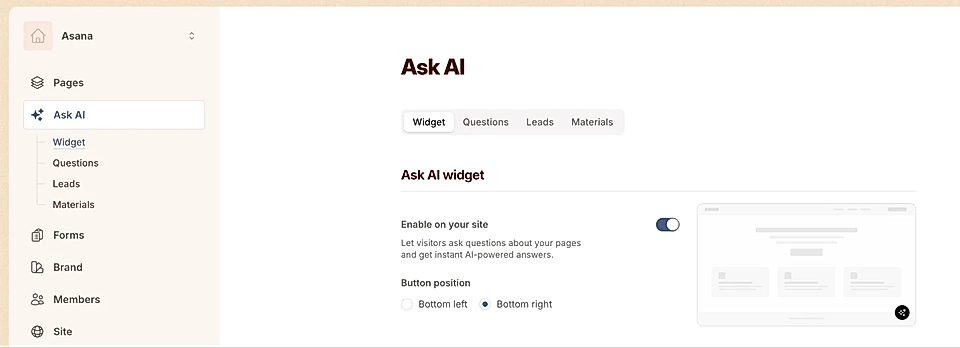
Once it's on, you can:
Choose whether the widget appears in the bottom right or left corner of your site
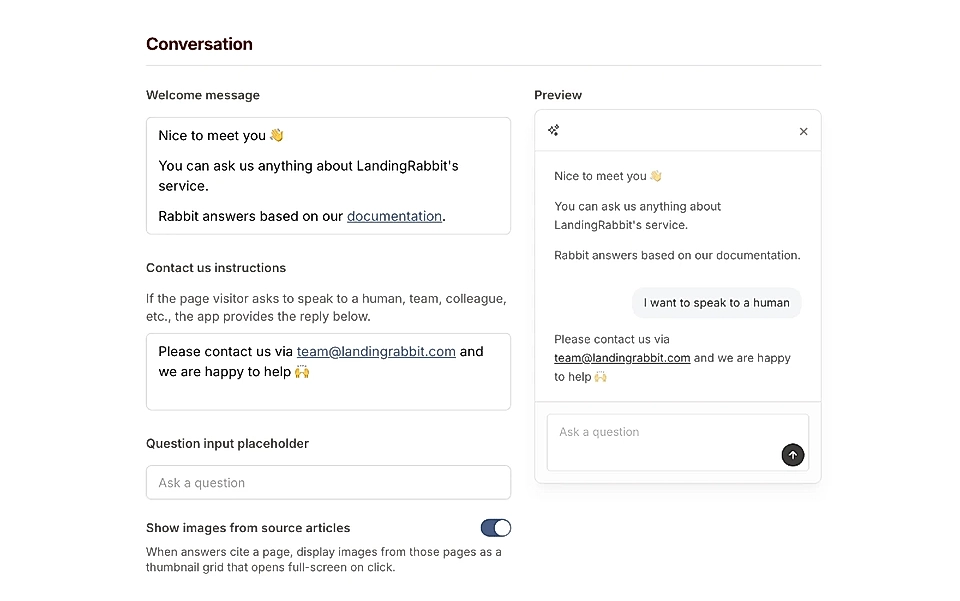
Add a short intro text that shows inside the widget
Write instructions for what the widget should say when a visitor asks to speak to your team
Decide if answers should show images from your pages
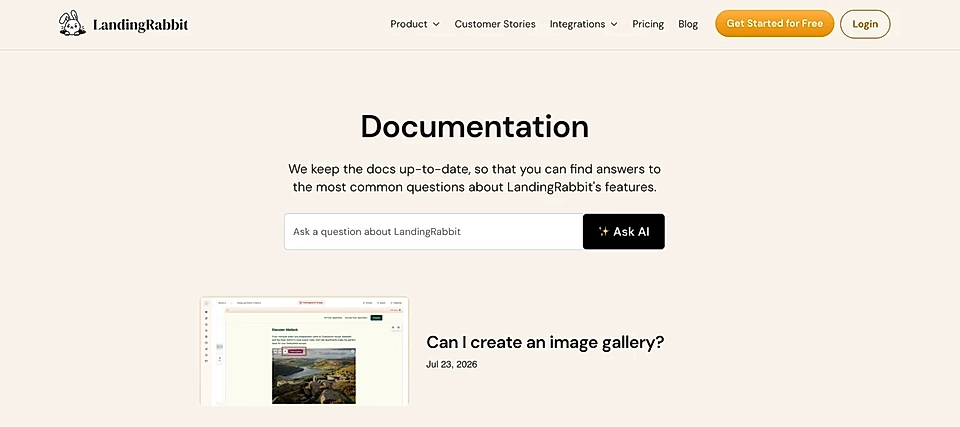
On any page, you can also replace a CTA button with the Ask AI search field. When a visitor types their message and clicks to submit, the widget opens.
This way, the Ask AI becomes like an advanced search bar for your site.
Capture leads
If you want to collect leads through the widget, turn on the lead capturing toggle.
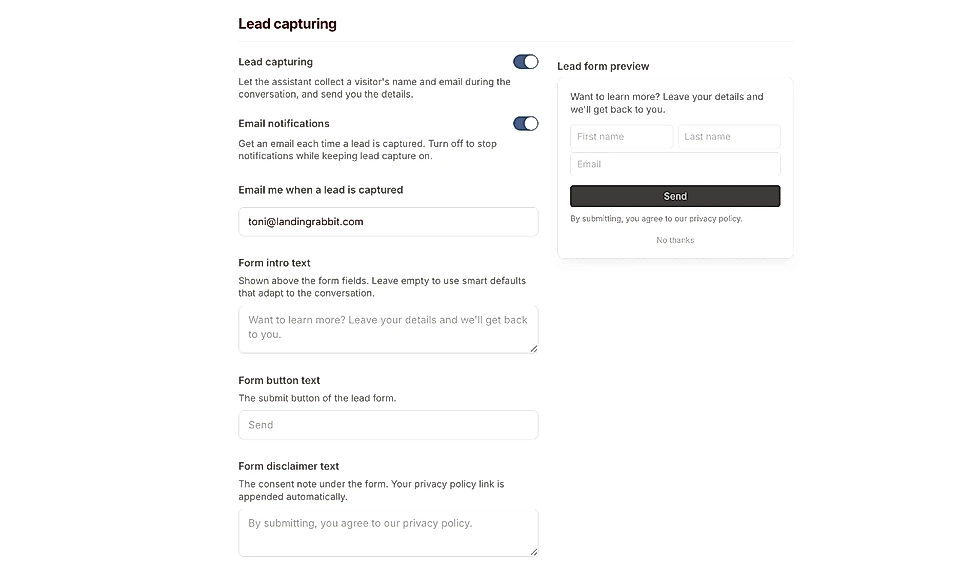
The lead capture form only appears when a visitor shows interest in your product or asks to speak to your team. It only shows once based on signals and when requested, so it won't interrupt every conversation.
By default, the form collects first name, last name, and email.
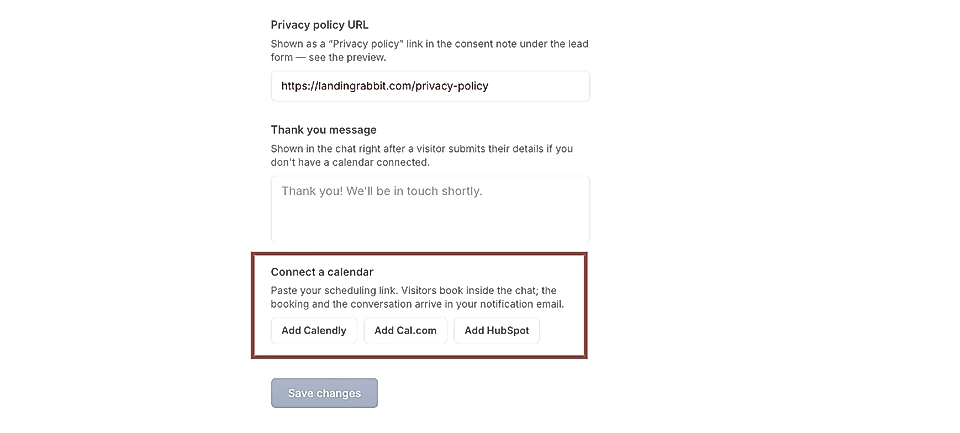
You can also connect the form to Calendly, Cal, or HubSpot. When a visitor fills in their details and clicks to book a meeting, a calendar popup opens so they can pick a time.
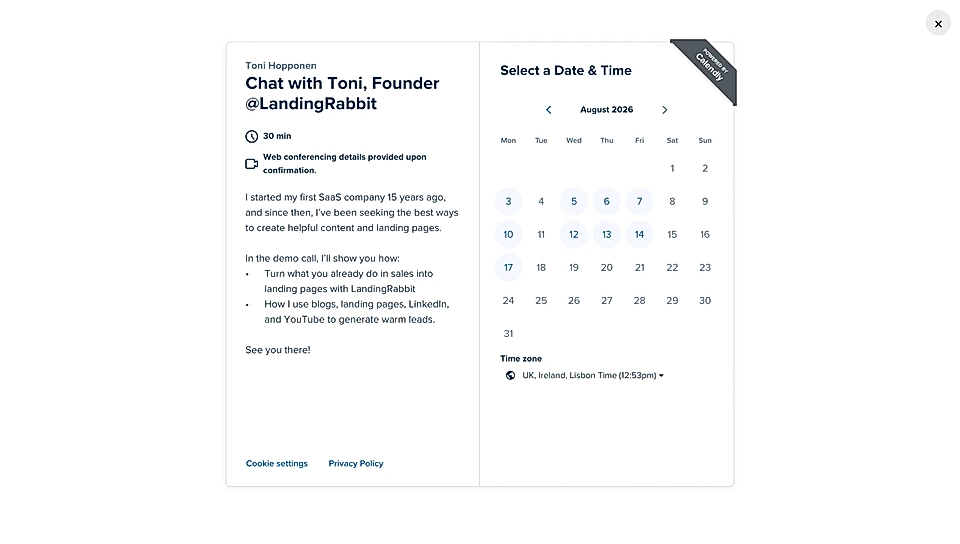
Email notifications when a lead books a meeting
Once a booking is made, you'll receive an email with the booking details and the questions they asked.
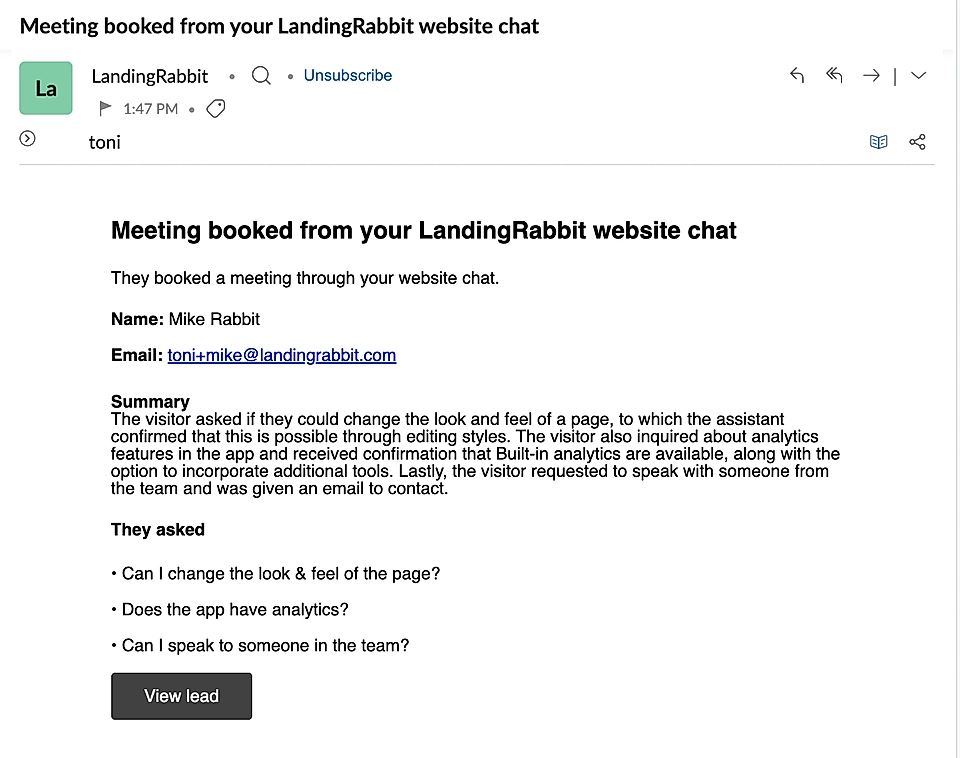
You can decide the email notification address via the Ask AI settings.
Export chat widget leads
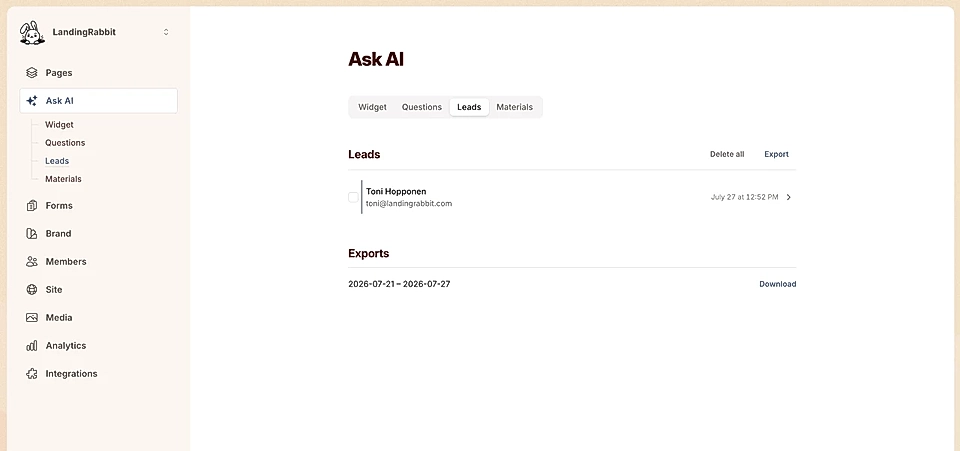
On the Leads tab, you can export all leads and the questions they asked. Those insights can be very valuable when analysing what people asked before booking a meeting.
Review the questions asked in the chat
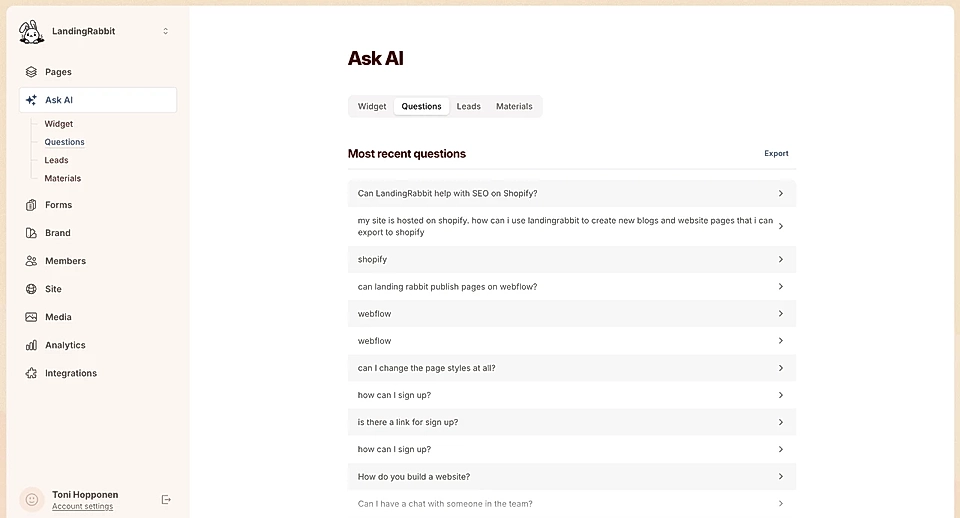
On the Questions tab, you can find all questions and their answers. You can also export them and use their insights elsewhere.
Add extra materials for Ask AI to use when answering questions
Sometimes you've got information about your competitors or small details that don't have a place on the site yet. Or you might be building a new website and your content is still thin.
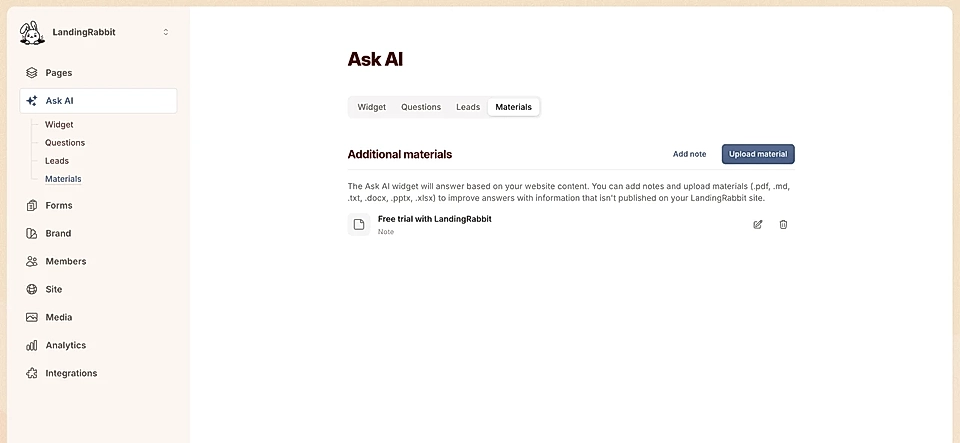
On the Materials tab, you can upload pdfs and other documents or type notes for Ask AI to use when answering questions.