How to Add LandingRabbit to Google Antigravity
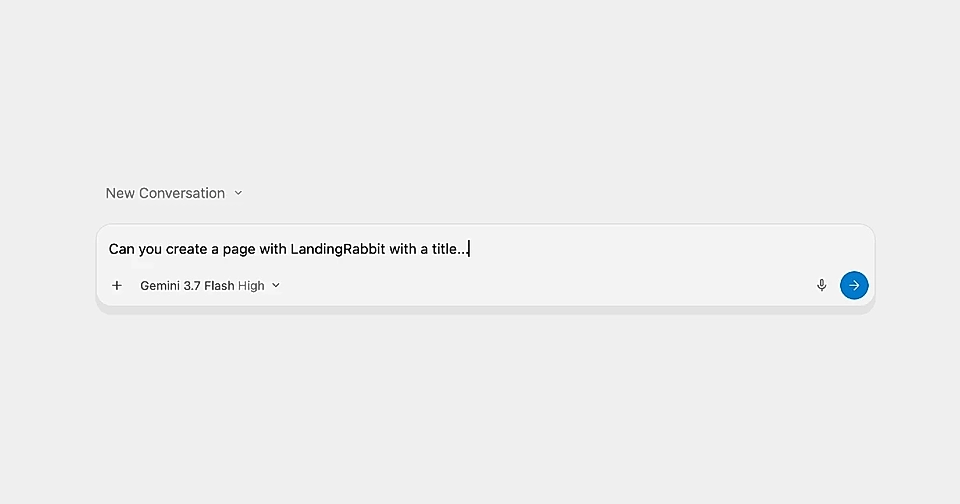
Follow these five steps to connect LandingRabbit to Google's Antigravity app for desktop. After connecting, you can manage your LandingRabbit website via Antigravity.
1. Open the Antigravity app
Download and launch Antigravity on your computer and open a chat session with the assistant.
2. Ask Antigravity to create a file in your settings
If you don't have any custom MCPs installed yet, the easiest way is to ask Antigravity directly in the chat:
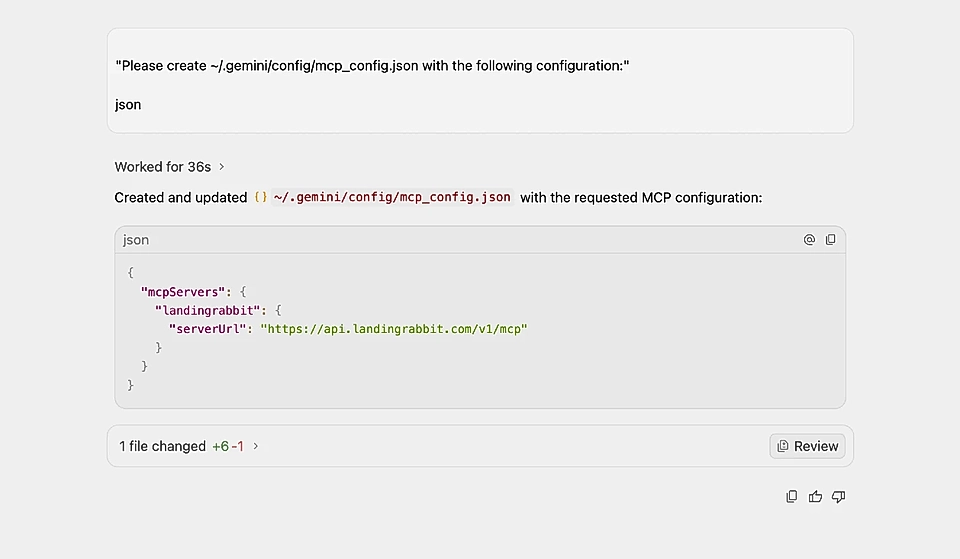
Please create ~/.gemini/config/mcp_config.json with the following configuration:
{
  "mcpServers": {
    "landingrabbit": {
      "serverUrl": "https://api.landingrabbit.com/v1/mcp"
    }
  }
}
Antigravity will automatically create the required directory and save the file.
3. Restart Antigravity
This is an important step.
Close and reopen Antigravity, so LandingRabbit is loaded.
4. Connect your LandingRabbit workspace with Antigravity
Before you can make changes to your LandingRabbit website, you'll need to connect your workspace with Antigravity.
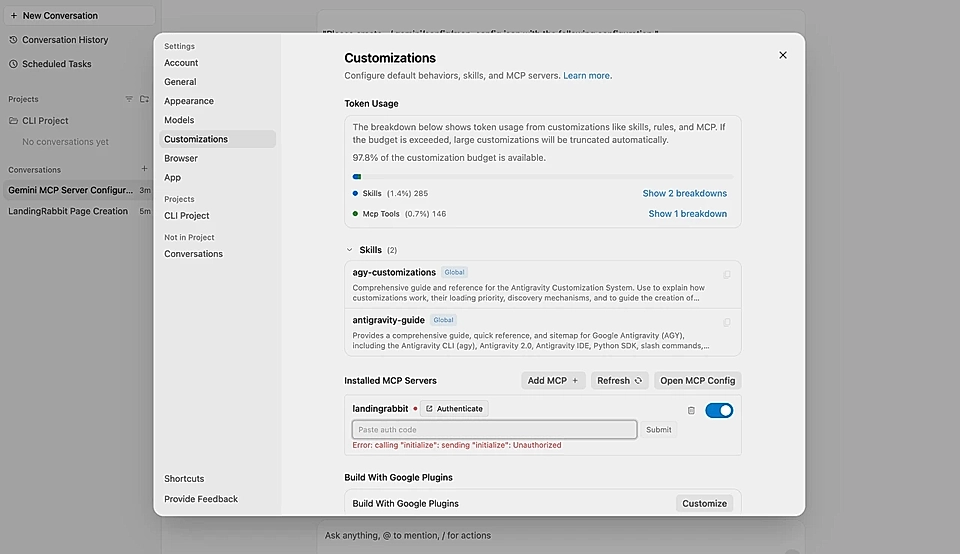
In the left sidebar, go to Settings and choose Customizations tab.
Locate landingrabbit in the Installed MCP servers list.Click Authenticate.
A connect popup window will open. Log in and choose your workspace.
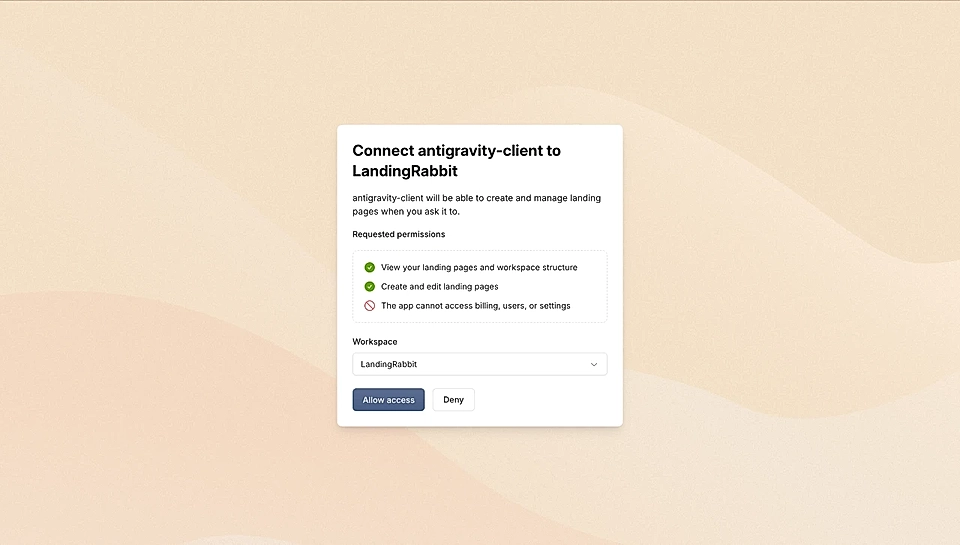
Copy the secret provided by Antigravity
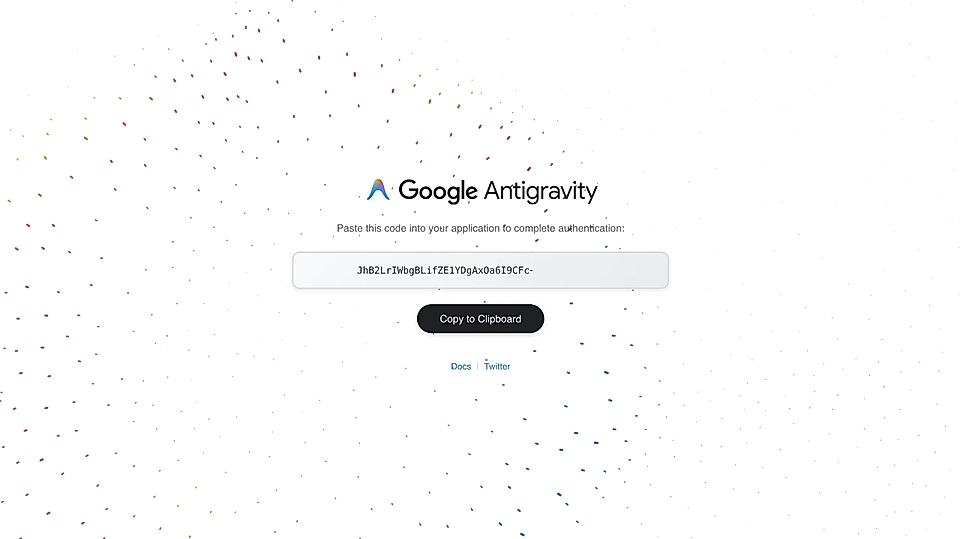
Paste it into the field in Settings to link your LandingRabbit account.
5. You are ready to manage your website via Antigravity
In the chat, simply ask:
"Create a landing page with LandingRabbit. Title of the page is ..."
Antigravity will automatically call the LandingRabbit tools to plan, generate, and edit your page. You'll get the page preview and editing links in return.
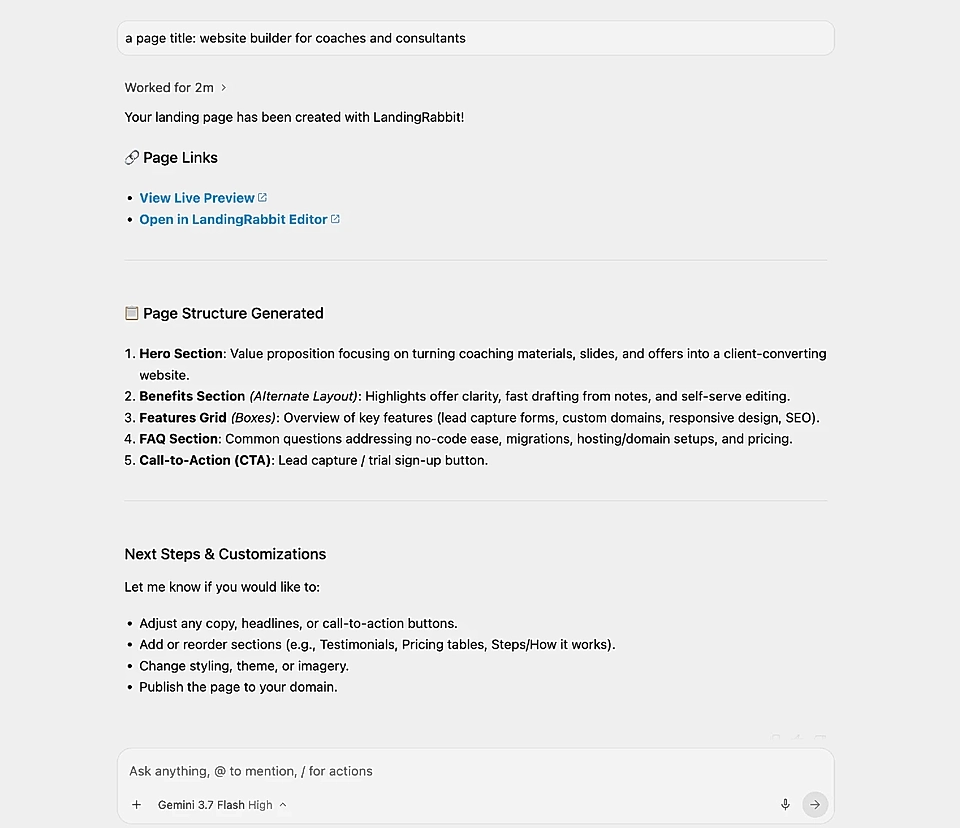
Other tasks you can do with LandingRabbit in Antigravity
In addition to creating new pages, you can change any text, edit styles, move section order, publish pages, and more. Pretty much anything you could do inside the app.
Here's the current tool list:
Create new pages
Edit page content
Edit page styles and templates
Edit page images
Create and edit fully custom design components
Update page metadata
Replace links at bulk
Publish or unpublish pages
List workspace pages
Export pages as CSV
Manage tags
Manage categories
Migrate blog content
Send meeting transcripts