Can I add forms to LandingRabbit pages?
Yes, you can.
You can add a form from HubSpot, Typeform, or similar services. Or you can use LandingRabbit's form builder to create a form for your lead magnet or contact page.
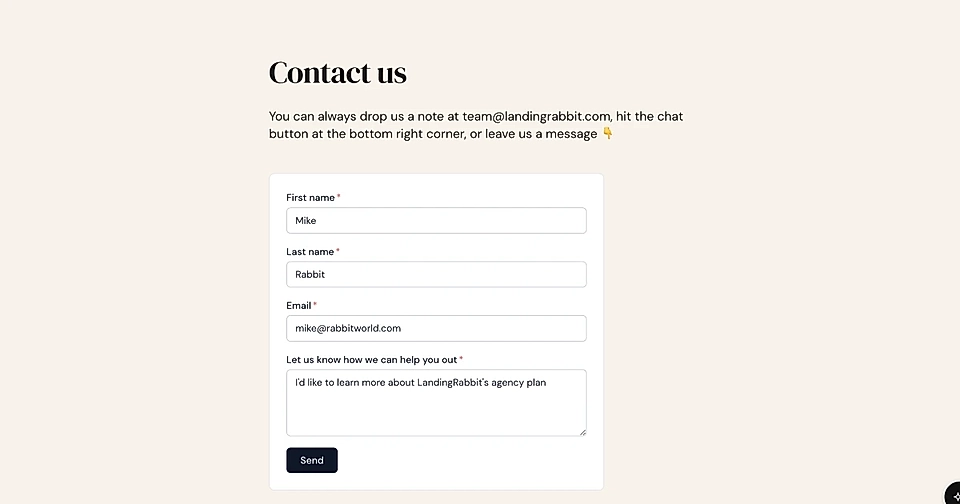
How to create forms in LandingRabbit
On the left, click the Forms icon, then click Create form.
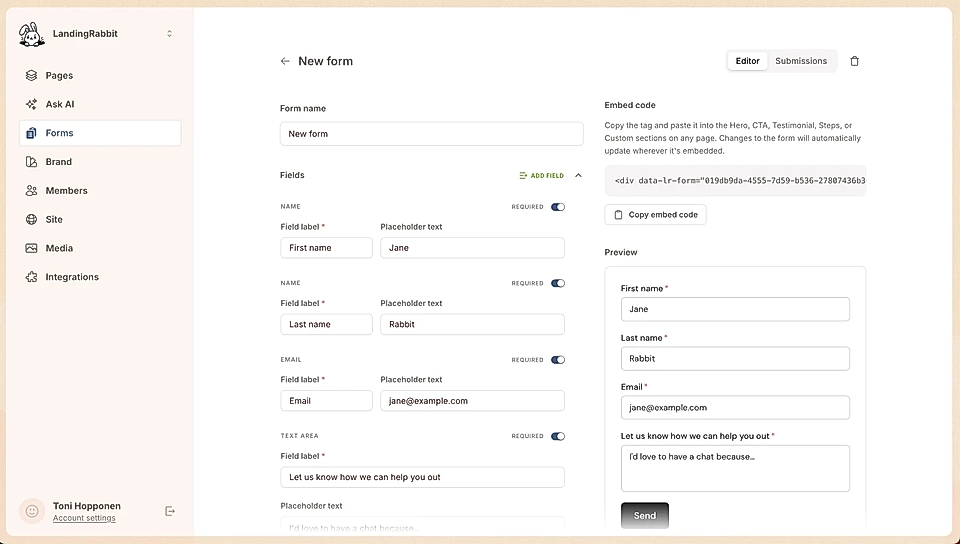
Give your form a name, then add fields like:
First name
Last name
Email
Phone
URL
Text area
Dropdrown to choose from options
Upload button for pdf files
Consent checkbox for agreeing to terms or similar consent
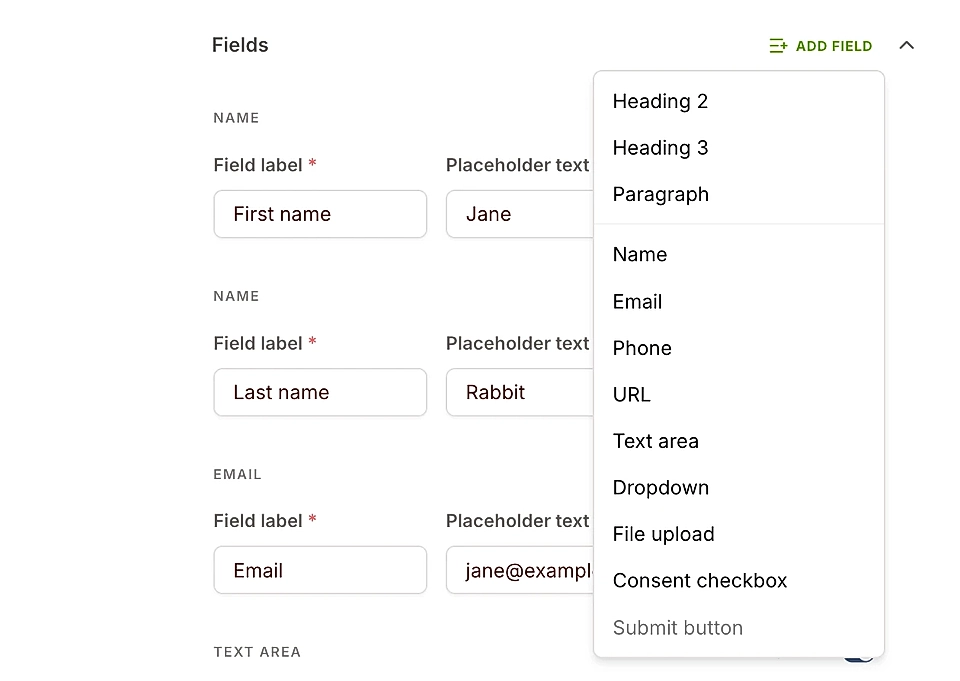
You can also add Heading 2, Heading 3 and paragraps if you need to add a bit of context at the start or somewhere in the middle.
When you scroll down in the editor, you can find Styles. There you can change the fonts, background colors, and any colors of the form.
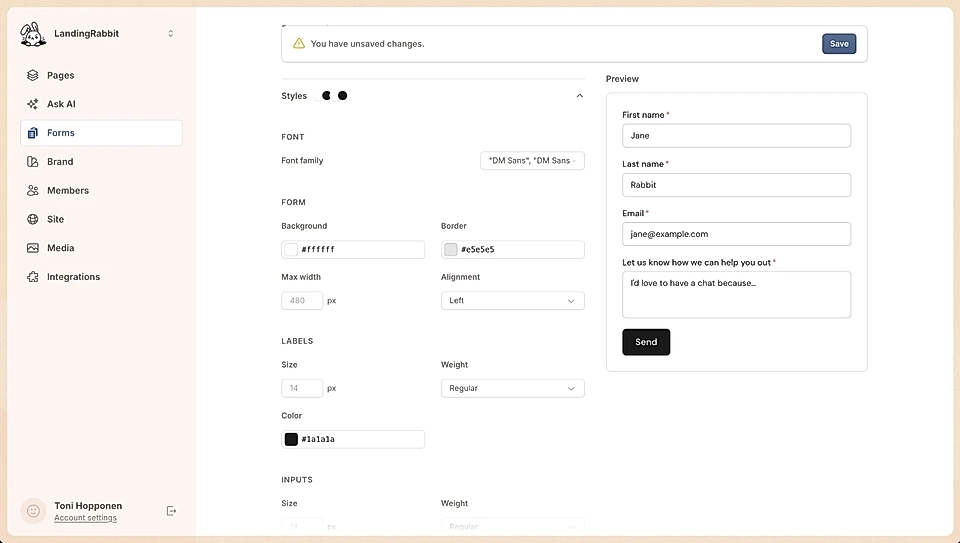
You can see a preview of the form on the right-hand side as you make changes.
What happens after a user submits the form
After a user clicks Send, you can:
- Show them a message
- Redirect them to a URL, like another page on your website
- Redirect them to a file, like the lead magnet or white paper you're sharing
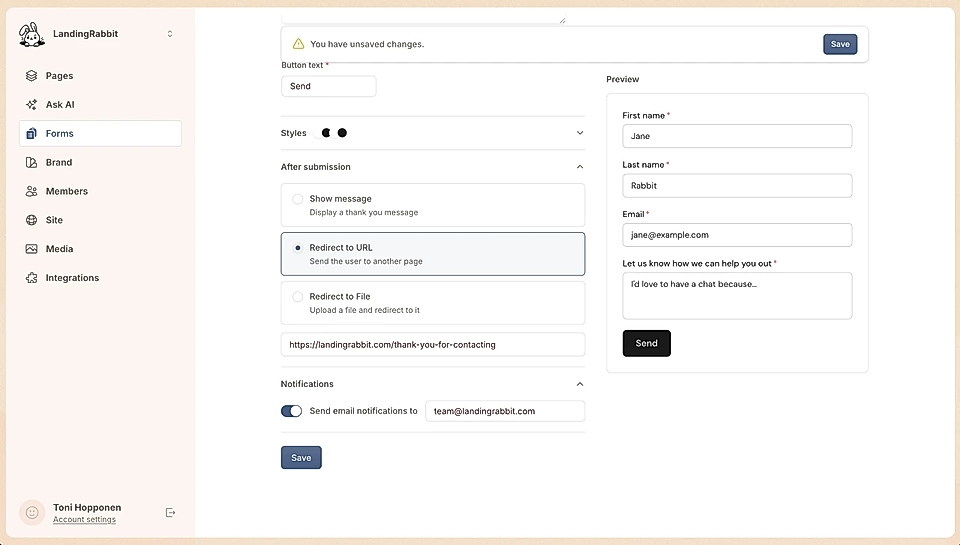
You can also decide if you receive an email notification when new submissions come in, and what email address receives those.
Add the form to your page
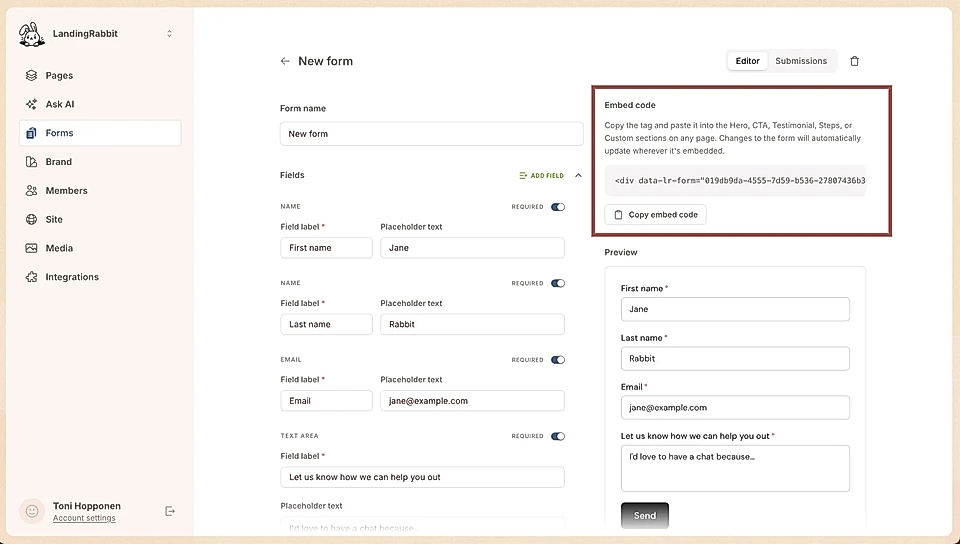
Copy the embed code of the form and add it to your page.
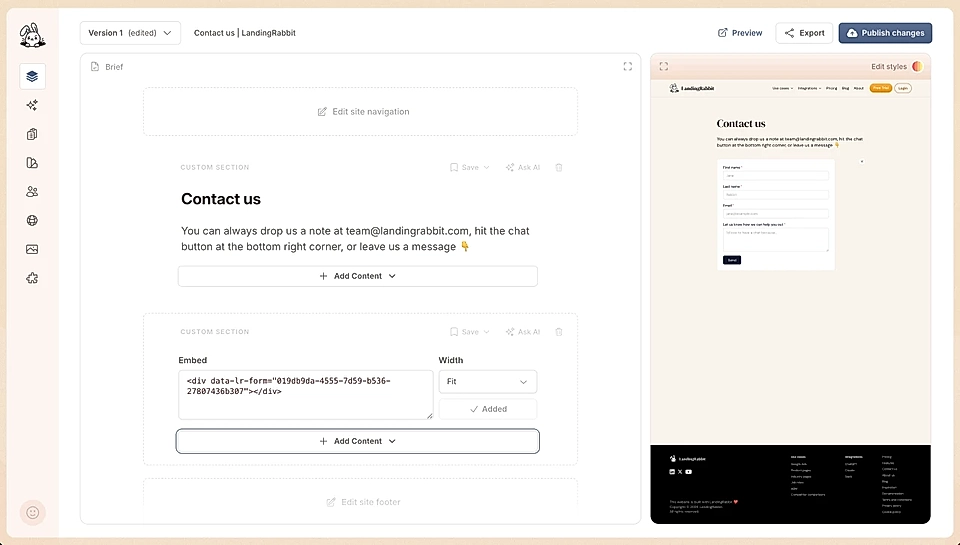
You can add it in a hero section or CTA section, replacing the image placeholder, or you can create a custom section and add it anywhere on the page.
View and manage submissions
Once you receive a submission through the form, you can find them on the Forms tab.

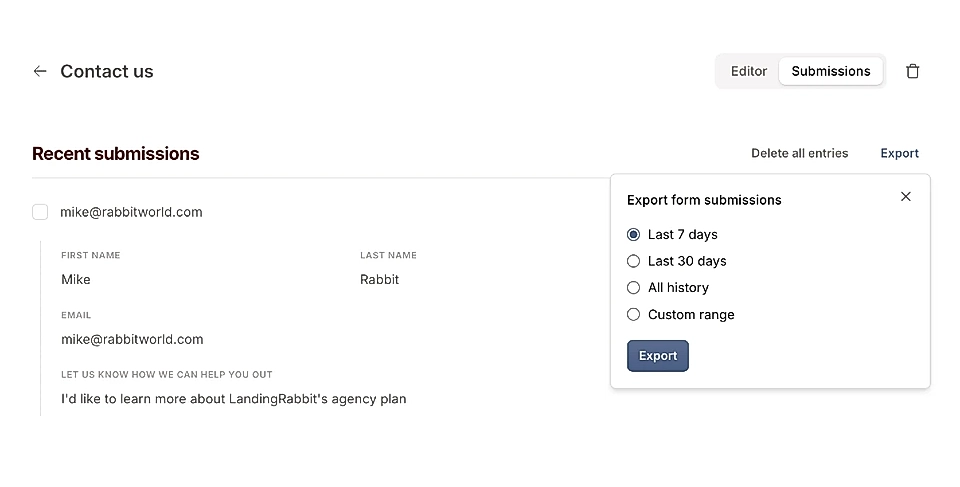
Click the submissions icon and there you can find all the submissions. Click them to see more details about each submission.
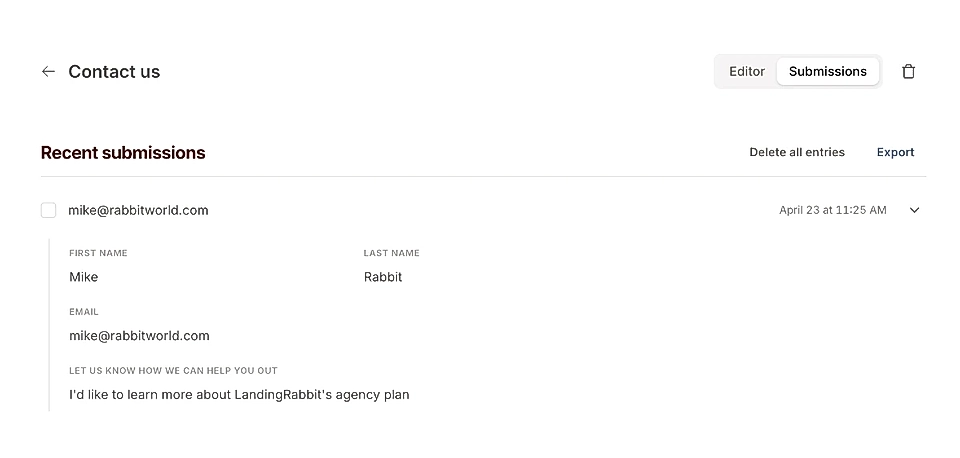
You can delete all entries if needed. You can also export all entries, either the recent ones or all the entries you've received.
Block and reject email addresses and domains
Click Block emails on the Forms tab to manage workspace-wide spam and reject settings.
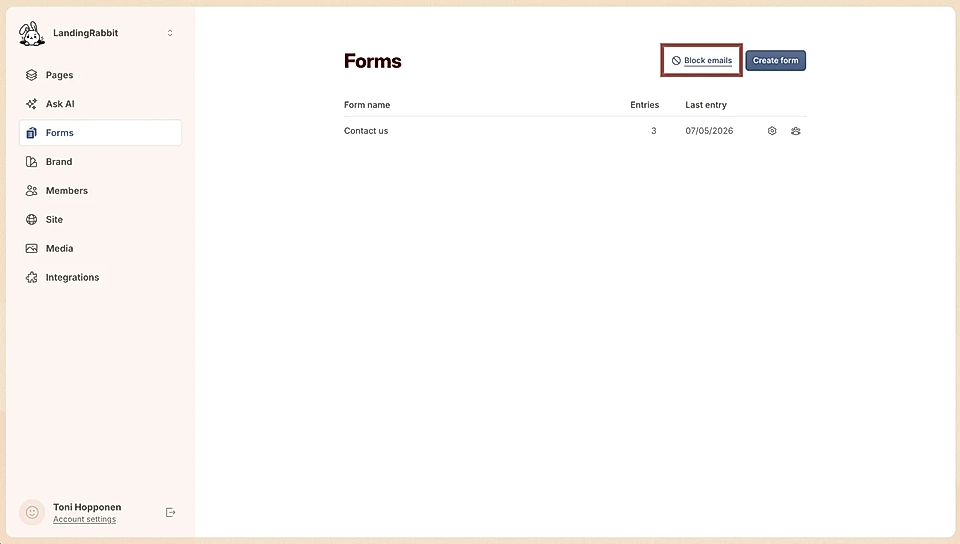
You can silently block individual emails or full domains so the form entry appears successful but the submission is never stored, and submitters don't see an error message.
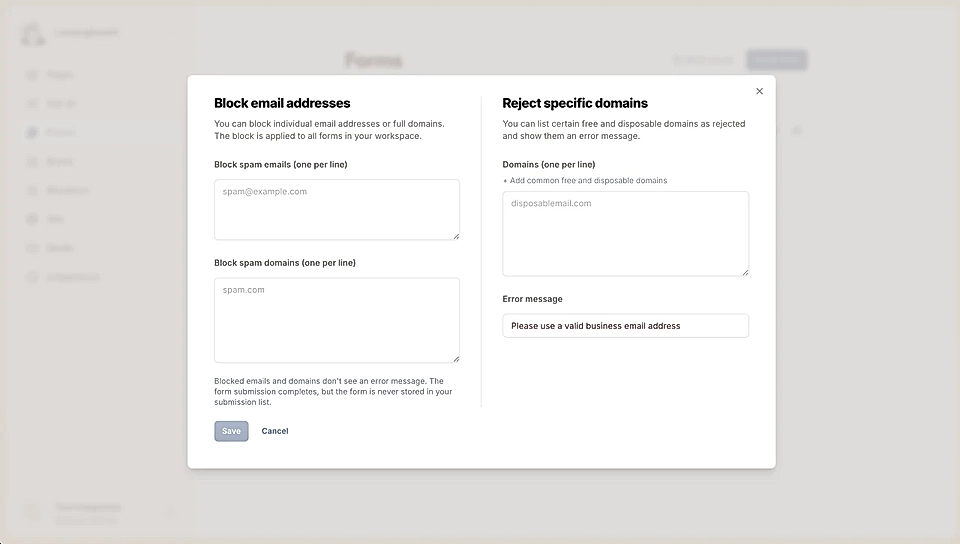
You can also reject specific domains with a custom error message (default: Please use a valid business email address) and one-click add common free and disposable domains.
By default, form submissions are silently discarded when the email's domain has no MX record, so fake domains never reaches the submission list.
Find out where your form is embedded
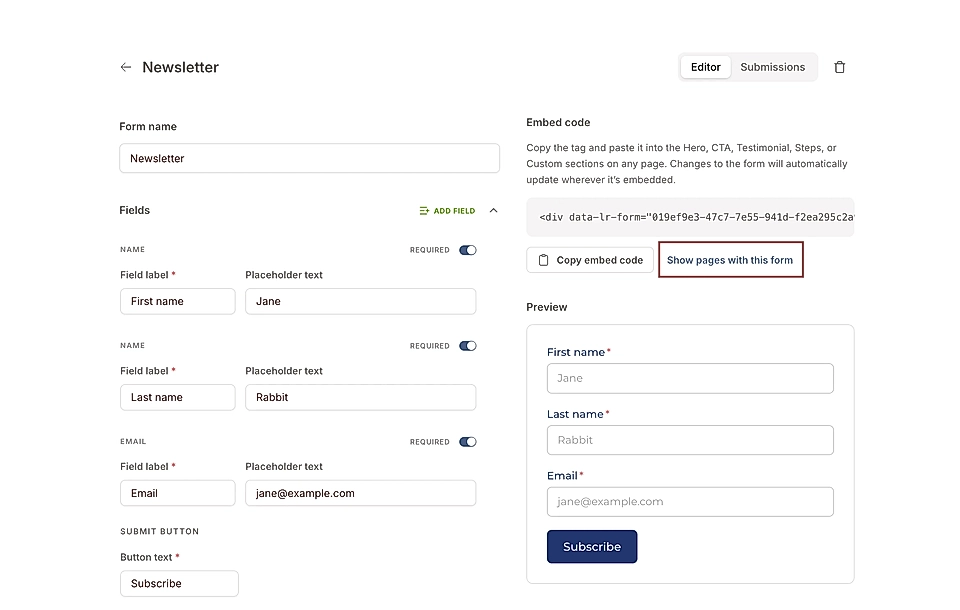
Sometimes you might add the same form to multiple pages and lose track of which pages drive leads. Open the Forms editor to find out where the form is embedded.